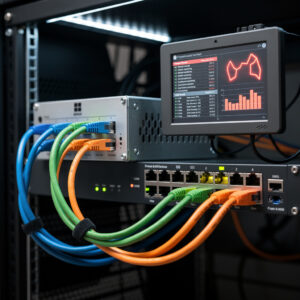
Transforming Your Router into a Security Fortress
A default router installation provides basic protection, but real security requires deliberate hardening. Your router sits at the critical junction between trusted internal networks and the untrusted internet. Properly configured, it becomes a formidable barrier against intrusion attempts, malware, and surveillance. This guide transforms your DIY router from a simple traffic director into a comprehensive security platform.
Security is not a single action but a layered approach. Each layer provides protection, and multiple layers ensure that if one fails, others remain. We will implement firewall rules that explicitly define allowed traffic, segment your network to contain breaches, deploy intrusion detection to identify attacks, and add DNS filtering to block malicious domains before connections even occur.
Understanding Modern Network Threats
The Attack Surface of a Connected Home
Modern homes present attractive targets for attackers:
- IoT Devices: Smart bulbs, cameras, and thermostats often run outdated software with known vulnerabilities
- Always-On Connections: Your network is constantly visible to automated scanning tools
- Valuable Data: Financial information, personal documents, and credentials traverse your network
- Computing Resources: Attackers compromise devices to form botnets for DDoS attacks or cryptocurrency mining
- Jump Points: Home networks can provide access to corporate VPNs for remote workers
Automated attacks probe millions of IP addresses continuously. Honeypot research run by NCC Group with Which? and the Global Cyber Alliance logged over a thousand unique scans or hacking attempts in the first week alone against a simulated smart home, rising into the thousands per week as the exercise continued — an unprotected internet-facing device gets found fast.
Common Attack Vectors
Understanding how attackers operate informs defensive measures:
Port Scanning and Service Enumeration: Attackers scan for open ports and identify running services. Each open port represents a potential entry point. Default installations often leave unnecessary services exposed.
Credential Attacks: Brute force and dictionary attacks attempt to guess passwords for exposed services like SSH, admin interfaces, or VPNs. Weak or default passwords fall quickly to automated tools.
Exploit Deployment: When attackers identify vulnerable software versions, they deploy exploits designed for those specific vulnerabilities. Unpatched systems are sitting ducks.
Phishing and Malware: Users inadvertently download malware that attempts network propagation. Internal protections prevent lateral movement if devices become compromised.
Man-in-the-Middle Attacks: Attackers position themselves between you and your destination, intercepting or modifying traffic. Proper encryption and certificate validation prevent these attacks.
Firewall Rule Architecture
Default Deny Philosophy
Enterprise security follows a “default deny” posture: explicitly allow necessary traffic, deny everything else. Most consumer routers use permissive defaults, allowing all outbound traffic and only blocking unsolicited inbound connections.
A hardened router implements granular rules:
- Explicitly permit only required outbound protocols
- Segment internal networks with inter-zone rules
- Log denied attempts for analysis
- Apply different rules to different device categories
Creating Explicit Outbound Rules
Replace “allow all outbound” with specific permitted traffic:
Essential Protocols:
- HTTPS (TCP 443): Modern web traffic
- HTTP (TCP 80): Legacy web (consider blocking, forcing HTTPS)
- DNS (UDP 53 and TCP 53): Domain resolution
- NTP (UDP 123): Time synchronization
Common Legitimate Traffic:
- SMTP (TCP 587): Email submission
- IMAPS (TCP 993): Secure email retrieval
- SSH (TCP 22): Remote server administration
- VPN Protocols: WireGuard (UDP 51820), OpenVPN (UDP/TCP 1194)
Implementation:
- Create rules allowing specific protocols
- Place these rules at the top of the firewall list
- Add final rule explicitly denying all other outbound traffic
- Monitor logs for blocked legitimate traffic
- Add additional rules as needed based on actual usage
This approach immediately reveals what devices are attempting. Unexpected protocols indicate potential malware or unauthorized software.
Inbound Protection Rules
Inbound traffic should be extremely restricted:
Explicit Permits Only:
- Established and related connections (return traffic for outbound requests)
- Specific port forwards for intentional services (game servers, web servers)
- VPN server ports for remote access
Blocking Malicious Patterns:
- Block known malicious IP ranges (via threat intelligence feeds)
- Rate limit connection attempts to prevent brute force
- Reject rather than drop certain probes (sends message that port is closed)
Most DIY router OS platforms provide “block” (silent drop) and “reject” (active refusal) options. Use block for stealth, reject for ports you want attackers to know are closed.
Network Segmentation with VLANs
Why Segment Your Network?
Network segmentation contains security breaches. If your smart thermostat gets compromised, segmentation prevents it from accessing your laptop with banking credentials. Different device categories warrant different trust levels:
Trusted Devices:
- Personal computers with updated OS and antivirus
- Mobile devices you control
- Work devices with corporate security policies
IoT and Untrusted Devices:
- Smart home devices (bulbs, plugs, thermostats)
- Security cameras and doorbells
- Media streaming devices
- Guest devices
Servers and Infrastructure:
- NAS storage
- Home automation controllers
- Surveillance recording systems
VLAN Architecture
Virtual LANs (VLANs) create logically separate networks on the same physical infrastructure. Each VLAN has its own IP subnet, DHCP scope, and firewall rules.
Typical Home VLAN Setup:
VLAN 10: Trusted LAN
- Subnet: 192.168.10.0/24
- Devices: Personal computers, phones, work devices
- Access: Full internet, access to other VLANs as needed
VLAN 20: IoT Network
- Subnet: 192.168.20.0/24
- Devices: Smart home devices, cameras, streaming devices
- Access: Internet only, no access to other VLANs
- Exceptions: Allow specific devices to reach surveillance storage
VLAN 30: Guest Network
- Subnet: 192.168.30.0/24
- Devices: Visitor phones and laptops
- Access: Internet only, isolated from all internal resources
VLAN 40: Management
- Subnet: 192.168.40.0/24
- Devices: Router admin access, switch management
- Access: Restricted administrative access only
Implementing VLANs
VLANs require managed switches that support 802.1Q tagging. Configuration involves:
- Router Configuration:
- Create VLAN interfaces on the router
- Assign IP addresses to each VLAN gateway
- Configure DHCP scopes for each VLAN
- Create firewall rules defining inter-VLAN traffic
- Switch Configuration:
- Define VLANs on the switch
- Configure trunk ports (carrying all VLANs to router)
- Set access ports (assigning specific VLANs to physical ports)
- Access Point Configuration:
- Create multiple SSIDs (WiFi networks)
- Assign each SSID to a VLAN
- Devices connecting to each SSID automatically join that VLAN
Properly configured, devices on the IoT VLAN cannot initiate connections to your trusted computers even if compromised. The firewall explicitly blocks such traffic.
Intrusion Detection and Prevention
Understanding IDS/IPS
Intrusion Detection Systems (IDS) monitor network traffic for suspicious patterns and alert when detected. Intrusion Prevention Systems (IPS) go further, actively blocking malicious traffic.
These systems use signatures—patterns of bytes and behaviors known to indicate attacks. When traffic matches a signature, the system takes action based on configuration:
- Alert Mode (IDS): Log the detection, notify administrator
- Drop Mode (IPS): Block the traffic, prevent the attack
Suricata and Snort
The dominant open-source IDS/IPS engines are Suricata and Snort. Both use rule sets defining attack signatures:
Emerging Threats Rules:
The Emerging Threats Open (ET Open) rule set is freely available and regularly updated. It includes signatures for:
- Malware command and control traffic
- Exploit attempts against known vulnerabilities
- Botnet communications
- Policy violations (torrents, suspicious protocols)
Snort Community Rules:
Cisco Talos provides free Snort rules with registration. These rules are highly maintained but require account creation.
Implementation Strategy
Deploy IDS/IPS carefully to avoid overwhelming the system:
- Start with IDS: Enable detection without blocking to understand your network’s threat exposure
- Review alerts: Analyze what triggers alerts. Many may be false positives requiring rule tuning
- Selective IPS: Enable blocking only for high-confidence rules (malware C2, clear attacks)
- Performance monitoring: IDS/IPS consumes significant CPU. Monitor system load
- Regular updates: Rule sets must update daily to catch new threats
IDS/IPS generates substantial logs. Configure log rotation and consider remote syslog to prevent disk fill.
DNS Security and Filtering
DNS as a Security Layer
DNS filtering blocks malicious domains before any connection occurs. When a device requests the IP address for a known malware domain, the DNS server returns a block page or non-routable address instead of the actual malicious IP.
Advantages of DNS filtering:
- Blocks malware downloads before they start
- Prevents command and control communications
- Stops phishing sites from loading
- Blocks ad and tracking domains
- Works for all devices on the network without individual configuration
Implementation Options
Several approaches provide DNS filtering:
Pi-hole/AdGuard Home:
These dedicated DNS servers run on your network, blocking ads and malware domains. They provide:
- Extensive block lists
- Per-client statistics
- Whitelist management
- Dashboard showing blocked queries
Router-Based Filtering:
Many router OS platforms include DNS filtering:
- pfBlockerNG for pfSense
- Unbound with block lists for OPNsense
- AdGuard Home package for OpenWrt
External Filtered DNS:
Services like Quad9 (9.9.9.9) or CleanBrowsing provide filtered DNS without local infrastructure. Simple to configure but less customizable than local solutions.
DNS-over-HTTPS (DoH) and DNS-over-TLS (DoT)
Traditional DNS sends queries in plain text, visible to ISPs and network observers. Encrypted DNS protects privacy and prevents DNS hijacking:
DNS-over-TLS (DoT):
- Uses TLS encryption on port 853
- Supported by pfSense, OPNsense, and OpenWrt
- Providers: Cloudflare, Quad9, Google
DNS-over-HTTPS (DoH):
- Encapsulates DNS in HTTPS traffic (port 443)
- Hides DNS queries among normal web traffic
- Supported by modern browsers and some routers
Configure your router to use encrypted DNS for all queries, then serve standard DNS to internal devices. This centralizes privacy protection without configuring each device individually.
VPN Security Considerations
VPN Server Hardening
If you run a VPN server for remote access, harden it appropriately:
WireGuard Best Practices:
- Use strong, unique private keys for each peer
- Limit peer IP ranges (do not give full network access)
- Implement firewall rules restricting VPN peer access
- Enable persistent keepalive for mobile peers
- Regular key rotation (annual or after any potential compromise)
OpenVPN Security:
- Use modern TLS versions (1.2 or 1.3 minimum)
- Strong cipher suites (AES-256-GCM, CHACHA20-POLY1305)
- Certificate-based authentication, not passwords
- Perfect forward secrecy (PFS) enabled
- TLS-auth or TLS-crypt for additional hardening
Comprehensive VPN setup ensures secure remote access without creating new vulnerabilities.
Split-Tunneling Risks
Split-tunnel VPNs send only specific traffic through the tunnel while other traffic uses regular internet. This improves performance but requires careful security consideration:
- Ensure only intended traffic bypasses VPN
- Monitor for DNS leaks (queries escaping VPN tunnel)
- Implement firewall rules restricting local network access for VPN peers
- Document what split-tunnel allows and why
Advanced Hardening Measures
GeoIP Blocking
Block traffic to and from countries where you have no legitimate connections:
- Download GeoIP databases (MaxMind’s free GeoLite2 tier or alternatives)
- Create alias groups for geographic regions
- Block inbound traffic from high-risk countries
- Optionally block outbound to same countries
- Whitelist specific allowed international services
This reduces attack surface significantly. Most home users have no legitimate need for traffic from certain high-risk regions.
Rate Limiting and Anti-Brute Force
Protect exposed services from automated attacks:
- Limit SSH attempts (5 per minute, block for 15 minutes after failure)
- Rate limit VPN connection attempts
- Restrict admin interface access to LAN only (or specific IPs)
- Implement fail2ban or equivalent for dynamic blocking
These measures prevent automated tools from hammering your services with credential guesses.
Security Monitoring and Logging
Visibility is essential for security:
- Enable logging for all firewall rule blocks
- Configure remote syslog to preserve logs if router is compromised
- Monitor IDS alerts daily initially, weekly once stable
- Review DNS block logs for patterns
- Set up alerting for specific events (multiple failed logins, IDS alerts)
Logs you do not review provide no value. Balance comprehensiveness with your ability to actually monitor.
Security Maintenance
Update Discipline
Security requires ongoing maintenance:
- Apply router OS security updates within 48 hours
- Update IDS/IPS rule sets daily
- Review and refresh DNS block lists weekly
- Audit firewall rules monthly (remove unnecessary permits)
- Review VPN peer lists quarterly (remove unused access)
Maintenance routines ensure security measures remain effective over time.
Backup and Recovery
Security configurations are valuable—protect them:
- Backup configuration after every significant change
- Store backups offline (not on the router itself)
- Document custom rules and their purposes
- Test restoration procedures periodically
- Maintain emergency access methods if primary fails
Balancing Security and Usability
The most secure network is disconnected from the internet entirely—but useless. Effective security balances protection with functionality:
- Start permissive, tighten gradually: Begin with working network, then add restrictions
- Document every restriction: Note why rules exist for future troubleshooting
- Test after changes: Verify legitimate services still work
- Train household members: Explain why certain things are blocked
- Review periodically: Security that blocks legitimate work gets bypassed
Conclusion
Network security hardening transforms your router from a passive gateway into an active security platform. Through layered defenses—firewall rules, network segmentation, intrusion detection, and DNS filtering—you create multiple barriers between attackers and your data.
Security is a journey, not a destination. Threats evolve, new vulnerabilities emerge, and your network changes. Regular review and updates maintain your defensive posture. The time invested pays dividends through avoided breaches, protected privacy, and peace of mind.
Your DIY router provides capabilities impossible with consumer equipment. Take advantage of these features. Add VPN for privacy, segment your network to contain IoT risks, and monitor for threats with IDS. The result is right-sized, homelab-scale security that actually protects your personal infrastructure.
Remember that even the best security requires maintenance. Stay vigilant, keep learning, and adapt your defenses as threats evolve. Your network security is now in your capable hands.