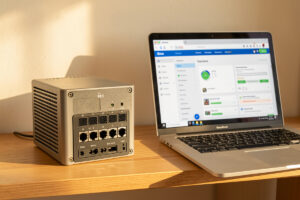
OPNsense has an ACME Client plugin that fetches a free Let’s Encrypt certificate for the firewall’s own web UI and auto-renews it — using the DNS-01 challenge so you never expose the firewall to the internet. The firewall admin page is the single most important login on your whole network, and it is the one place I refuse to have a certificate warning training me to click through. This is how you fix it properly, in about twenty minutes.
On my network the OPNsense box is the reliability benchmark everything else is measured against, and its web UI carries a real Let’s Encrypt certificate that renews itself on a schedule. The stakes here are higher than for any other service: this is the interface that controls every VLAN, every firewall rule, and every route. A real certificate on it means a warning becomes a genuine alarm again instead of background noise.
Why Put a Real Certificate on the Firewall Web UI at All?
Because the firewall admin interface is where you type the credentials that control your entire network, and it ships with a self-signed certificate that trains you to bulldoze through browser warnings — exactly the habit an attacker wants you to have. A real, trusted certificate on this one page restores the browser warning as a meaningful signal precisely where it matters most.
Out of the box, OPNsense generates its own self-signed certificate for the GUI. It encrypts fine, but nothing vouches for it, so every login greets you with a warning you learn to dismiss. The problem is habitual: once you are conditioned to click through the firewall’s warning, you will click through a warning that actually means a device on your network is impersonating the firewall. The whole value of TLS is that the warning is rare and therefore meaningful. Fix the firewall’s certificate and you keep that signal sharp.
There is a practical payoff too. Browsing to firewall.home.example.com with a valid certificate is simply cleaner than dismissing a warning to reach a raw IP, and it fits the broader internal HTTPS strategy where every service has a real name and a real certificate. The firewall should not be the one exception where you still tolerate a warning.
How Do You Install and Configure the OPNsense ACME Client?
You install the os-acme-client plugin from the firmware plugins list, register a Let’s Encrypt account, configure a DNS-01 challenge with your provider’s API token, and create a certificate for the firewall’s hostname. The plugin turns OPNsense into a full ACME client with a GUI — no shell scripting required. Each piece is a short form.
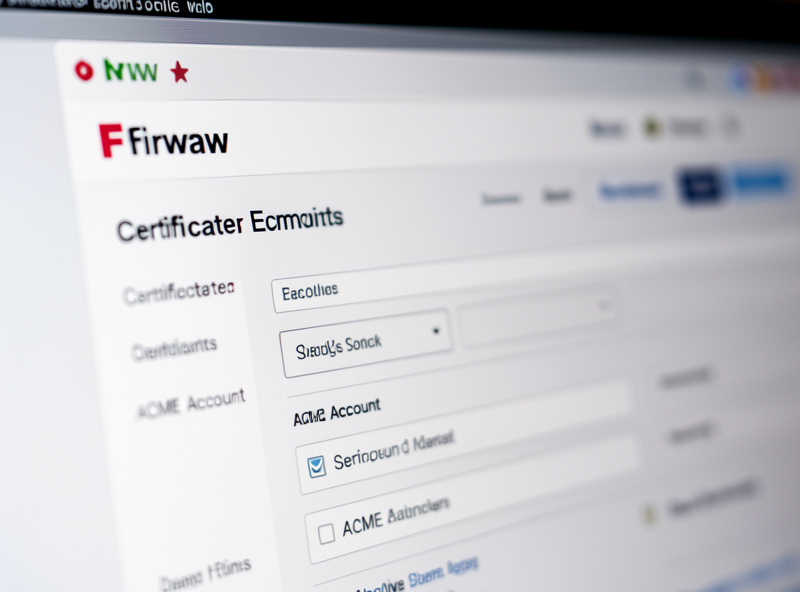
Install it under System → Firmware → Plugins by adding os-acme-client; an ACME Client section then appears under Services. The setup has four moving parts, documented in the OPNsense documentation: an Account that registers with Let’s Encrypt, a Challenge Type, an Automation that reacts after issuance, and the Certificate itself. For the account you just supply an email and accept the terms; the plugin registers you.
The Challenge Type is where the DNS-01 choice matters. Select DNS-01, pick your DNS provider from the plugin’s long supported list, and paste in a scoped API token — the same least-privilege token discipline from the wildcard DNS-01 workflow. This lets the firewall prove control of your domain by writing a TXT record, with nothing on the firewall exposed to the internet. Then create a certificate for firewall.home.example.com, tie it to your account and challenge, and issue it.
Why Use DNS-01 Instead of HTTP-01 for the Firewall?
Because HTTP-01 would require opening the firewall’s web port to the public internet for validation — the last thing you want — while DNS-01 validates entirely through your DNS provider with zero inbound exposure. For a device whose whole job is to keep the internet out, DNS-01 is the only sane choice. It keeps the firewall’s attack surface exactly where it should be: closed.
The HTTP-01 challenge needs Let’s Encrypt to reach a token on port 80 of the host being validated. Doing that for your firewall means exposing its administrative surface to the public internet during every issuance and renewal, which is a security trade no homelabber should make. The DNS-01 challenge sidesteps it: the firewall writes a TXT record via the DNS API, Let’s Encrypt reads it from public DNS, and the firewall’s admin interface never accepts a single inbound connection from outside. My WAN stays sealed.
DNS-01 also unlocks a wildcard, if you would rather issue *.home.example.com once and assign it to the firewall along with everything else. Either way, the principle holds: the firewall’s certificate should be provable without ever exposing the firewall. That is the rule I run, and it is non-negotiable on the one box that guards the perimeter.
How Do You Assign the Certificate and Confirm Auto-Renewal Works?
You bind the issued certificate to the GUI under System → Settings → Administration, set the ACME Automation to restart the web service on renewal, and then verify that a renewal actually swaps the live certificate rather than assuming it will. The assignment is one dropdown; the verification is the part people skip and regret. Auto-renewal that fails silently is the classic trap.
After issuance, go to System → Settings → Administration and select your new Let’s Encrypt certificate as the web GUI’s SSL certificate, then save — the GUI restarts on the new certificate. In the ACME Client’s Automation section, add an action that restarts the web service (or reloads the relevant service) so that when the plugin renews at the 60-day mark, the freshly issued certificate is actually loaded rather than sitting on disk unused. The plugin runs a daily cron that checks whether renewal is due.
The verification step is the one I insist on: after your first successful issuance, force a renewal from the plugin and confirm the browser presents the new certificate with a later expiry date. Because a Let’s Encrypt certificate lives only 90 days, a renewal automation that binds the certificate but never reloads the service will look fine for two months and then fail exactly when you are not watching. Confirm the whole loop once and you can trust it thereafter. The same ACME approach works on pfSense via its ACME package, if that is your firewall.
Frequently Asked Questions
Do I need to expose my OPNsense firewall to the internet to get a Let’s Encrypt certificate?
No. Using the DNS-01 challenge, the firewall proves control of your domain by writing a DNS TXT record through your provider’s API, so nothing on the firewall is ever exposed to the internet. This is why DNS-01 is the right challenge type for a firewall, whose administrative interface should never accept inbound connections from outside.
Which OPNsense plugin provides Let’s Encrypt support?
The plugin is os-acme-client, installed from System, Firmware, Plugins. Once installed it adds an ACME Client section under Services where you register a Let’s Encrypt account, configure a DNS-01 challenge, and create certificates that the firewall then auto-renews.
How do I make the firewall GUI actually use the new certificate?
After issuing the certificate, assign it as the web GUI SSL certificate under System, Settings, Administration, then add an automation action in the ACME Client that restarts the web service on renewal. Without that restart action, a renewed certificate can sit unused on disk while the GUI keeps serving the expiring one.
Will the certificate renew by itself, and how do I know it works?
Yes. The ACME Client plugin runs a daily cron that renews the certificate at around the 60-day mark. Because certificates last only 90 days, you should force a renewal once after setup and confirm the browser shows a new expiry date, so you know the whole renew-and-reload loop actually works before it matters.
The Mistake: My Renewal Bound the Cert but Never Reloaded the GUI
My first OPNsense ACME setup issued a certificate perfectly, bound it to the GUI, and looked flawless — so I moved on. What I had not done was add the automation action to restart the web service on renewal. Sixty days later the plugin dutifully renewed the certificate, wrote the new one to disk, and the GUI kept serving the old one because nothing told it to reload. I found out the ugly way: a warning page on the firewall login on a morning I had no time for it.
The feel of that moment — the small jolt of seeing a red certificate error on the one interface you most want to trust — is exactly what this whole exercise is meant to prevent. The fix was one automation entry and a forced renewal to prove the reload happened. The lesson generalizes to every ACME setup: issuing a certificate and loading a renewed certificate are two different steps, and you must verify the second one, not just the first. I never mark an ACME setup “done” now until I have watched a renewal swap the live certificate end to end.
What I’d Do Starting Today
Install os-acme-client, register a Let’s Encrypt account, and configure a DNS-01 challenge with a scoped DNS token so the firewall is never exposed. Issue a certificate for firewall.home.example.com, bind it to the GUI, add the restart-on-renewal automation, and then force one renewal to confirm the live certificate actually swaps. Twenty minutes of work removes a warning from the most sensitive login on your network — and keeps that warning meaningful for the day it should fire.
Keep Building
- Homelab Internal HTTPS Certificates: The Complete Guide
- Let’s Encrypt Wildcard Certs With DNS-01 for Internal Services
- Caddy vs Traefik vs Nginx Proxy Manager for Automatic HTTPS