
To trust your own certificate authority you install its root certificate into each device’s trust store — and the catch that trips everyone is that the process is genuinely different on Windows, macOS, Linux, Android, iOS, and Firefox. Get it right on one device and your internal certificates look identical to a public CA’s. Get it wrong and you are back to clicking through warnings, which defeats the entire reason you stood up a private CA.
This is the tax you pay for running your own internal CA with step-ca: a public certificate works on a new phone out of the box, and yours does not until you tell each device to trust you. I have walked people through all six platforms, and the same three traps catch them every time — Android’s split trust store, iOS’s hidden second step, and Firefox ignoring the operating system entirely. Let me save you those hours.
What Does Installing a CA Certificate Actually Do?
Installing your CA’s root certificate adds it to the device’s list of trusted authorities, so any certificate that chains up to that root is accepted without warning. You are teaching the device one new fact: “certificates signed by this authority are legitimate.” Nothing more, nothing less — and that is exactly why you must protect the root key, because trust flows entirely from it.
The critical detail: you install the root certificate, never the private key and never a service’s leaf certificate. The root certificate is public information — it contains no secret — so copying it onto every phone and laptop in the house is completely safe. What stays locked away on your CA is the root key, the thing that can sign new certificates. Confusing those two is the most common beginner error, and it is worth being precise: the file you distribute to devices is the harmless public half.
Once a device trusts your root, every leaf certificate your CA issues — for the NAS, Proxmox, Home Assistant — is accepted silently, because each chains back to the root the device now trusts. That is the payoff. Do this once per device and the whole internal HTTPS setup goes quiet. This is also the honest reason many people choose Let’s Encrypt instead: it skips this entire chore.
How Do You Install a Root CA on Windows, macOS, and Linux?
On each desktop OS you import the root certificate into the system-wide trust store: the Trusted Root Certification Authorities store on Windows, the System keychain set to “Always Trust” on macOS, and the anchors directory plus an update command on Linux. These are the easy platforms — the trust store is central and browsers on them respect it.

On Windows, import the root into “Trusted Root Certification Authorities” for the Local Machine (not just the current user) so every account and Edge/Chrome trust it. On macOS, drag the root into the System keychain in Keychain Access, open it, and set the trust policy to “Always Trust” — the certificate appears trusted but stays untrusted until you flip that setting, which catches people. On Debian or Ubuntu Linux, drop the root in /usr/local/share/ca-certificates/ and run update-ca-certificates; on RHEL-family systems, use /etc/pki/ca-trust/source/anchors/ and update-ca-trust.
Chrome and Edge on these platforms read the OS trust store, so once the root is installed system-wide they just work. The one desktop exception is Firefox, which I cover below because it is stubborn enough to deserve its own section. Everything else on the desktop side is genuinely a two-minute job per machine.
Why Won’t My Android Apps Trust the Certificate?
Because Android splits trust into a “system” store and a “user” store, and since Android 7 (Nougat, 2016) apps ignore user-installed CAs by default — so your browser trusts the certificate but a self-hosted app’s mobile client throws a cryptic error. This is the trap that generates the most confused messages I get, because the failure is partial: the website works, the app does not.
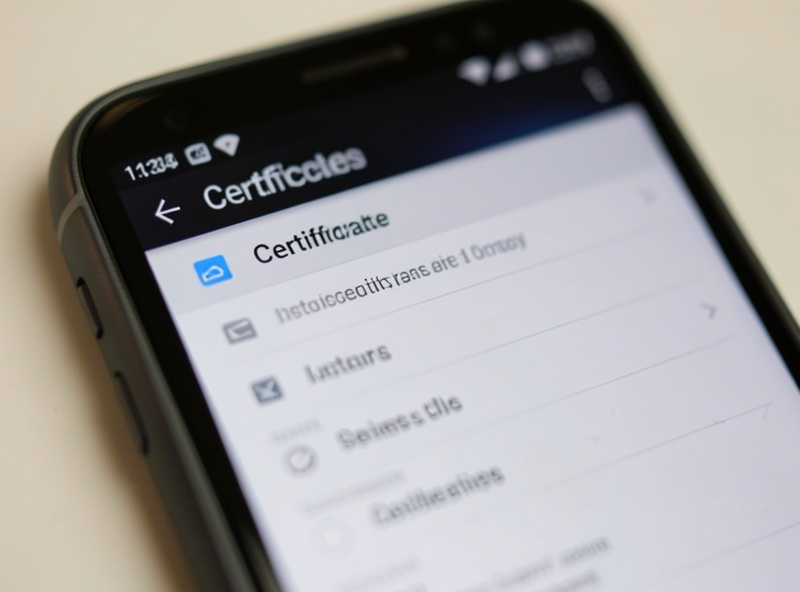
When you install a CA through Android’s settings, it lands in the user trust store. Chrome will use it for browsing (though Android nags you with a persistent “network may be monitored” notice, which is expected and harmless for your own CA). But per the Android network security configuration, apps compiled for Android 7 or later do not trust user-added CAs unless the app’s developer explicitly opts in. So the Nextcloud or Home Assistant app hits your service, sees a certificate signed by a CA it refuses to consult, and fails.
The honest options are limited. Getting your root into the system store — which apps do trust — requires root access or device management, which most people will not do to a daily phone. In practice this is the strongest argument for using Let’s Encrypt certificates on any service you access from a mobile app: a publicly-trusted certificate sidesteps Android’s user-store restriction entirely, because it is already in the system store. I run my own CA for browser-accessed lab services and lean on Let’s Encrypt for anything I open in a phone app.
How Do You Trust a CA on iPhone and iPad?
iOS makes you do two separate steps, and skipping the second is why “I installed it and it still doesn’t work” is the most common iOS complaint. First you install the certificate as a configuration profile; then you must separately enable full trust for it in a settings screen buried under General. Both steps, or nothing works.
Step one: get the root certificate onto the device (via email, a download, or a profile) and install it under Settings when iOS prompts. At this point the certificate is present but not trusted for TLS. Step two, the one everyone misses: go to Settings → General → About → Certificate Trust Settings, find your root in the list, and toggle on full trust. Only after that toggle does Safari and the rest of the system actually trust certificates from your CA. Apple deliberately separates installing from trusting as a safety measure, which is reasonable but genuinely non-obvious.
The sensory tell that you have done it right is anticlimactic: you reload the service and the certificate warning is simply gone, no fanfare. If the warning persists after installing, ninety percent of the time it is the trust toggle you have not flipped yet. Check there first before you touch anything on the CA side.
Why Does Firefox Still Show a Warning After I Trusted the CA Everywhere?
Because Firefox ships its own certificate trust store and ignores the operating system’s by default — so trusting your root system-wide does nothing for Firefox until you either import the root into Firefox directly or enable the enterprise-roots setting. This catches even experienced people, because every other browser on the machine already works.

You have two fixes. The direct one: open Firefox Settings → Privacy & Security → Certificates → View Certificates → Authorities → Import, and load your root certificate. The convenient one, on Windows and macOS: set security.enterprise_roots.enabled to true in about:config, which tells Firefox to read the operating system trust store you already populated. I use the enterprise-roots flag on my machines because it means I maintain trust in exactly one place — the OS store — instead of two.
This is the last trap in the whole exercise. Once Firefox is handled, every browser and OS on your devices trusts your CA, and your internal certificates are indistinguishable from a public authority’s. It is a fitting final boss: the one browser that does trust management its own way.
Platform Trust at a Glance
| Platform | Where the root goes | The gotcha |
|---|---|---|
| Windows | Trusted Root Certification Authorities (Local Machine) | Install machine-wide, not per-user |
| macOS | System keychain | Must set “Always Trust” after importing |
| Linux (Debian) | /usr/local/share/ca-certificates/ + update-ca-certificates | Forgetting to run the update command |
| Android | User trust store via settings | Apps ignore user CAs since Android 7 |
| iOS / iPadOS | Configuration profile | Second step: enable in Certificate Trust Settings |
| Firefox | Its own store, or enterprise-roots flag | Ignores the OS trust store by default |
Frequently Asked Questions
Is it safe to install my CA root certificate on all my devices?
Yes, because you install the public root certificate, not the private key. The root certificate contains no secret and only tells a device to trust certificates your CA signs. What you must keep locked away is the CA’s private key, which lives on the certificate authority itself and never leaves it.
Why does my website work in Chrome but my app fails on Android?
Since Android 7, apps do not trust user-installed CA certificates by default, while the Chrome browser still uses them for browsing. So a service loads fine in the browser but a self-hosted app rejects the same certificate. Getting the root into the system store needs root access, so many people use publicly trusted Let’s Encrypt certificates for anything accessed from a phone app.
I installed the certificate on my iPhone but it still shows a warning. Why?
You almost certainly missed the second step. On iOS you must both install the certificate and then separately enable full trust for it under Settings, General, About, Certificate Trust Settings. Until you flip that toggle, the certificate is present but not trusted for HTTPS.
Why does Firefox still warn me after I trusted the CA on my whole computer?
Firefox uses its own certificate trust store and ignores the operating system’s by default. You need to either import your root certificate directly into Firefox, or set security.enterprise_roots.enabled to true in about:config so Firefox reads the OS trust store you already set up.
The Mistake: I Trusted the Intermediate, Not the Root
Early on I distributed the wrong certificate to my devices — I grabbed the intermediate certificate instead of the root and pushed it to a laptop, and validation still failed in a way that made no sense to me for an embarrassingly long evening. The certificate chain from a leaf goes leaf → intermediate → root, and devices anchor trust at the root. Trusting only the intermediate leaves the chain unanchored, so it never validated cleanly.
The fix was trivial once I saw it — distribute the root, let the servers present the intermediate in their chain — but the lesson stuck: know exactly which certificate in the chain is your anchor, and put that one on your devices. When trust fails and the certificate itself looks valid, the very first thing I check now is whether the device actually has the root, not the intermediate. It is a five-second check that would have saved me the whole evening.
What I’d Do Starting Today
Export your CA’s root certificate once and install it methodically: system-wide on every desktop, the user store plus a Let’s Encrypt fallback for Android app access, the two-step trust flow on iOS, and the enterprise-roots flag for Firefox. Do the desktops first — they are quick wins — then the phones. Once every device anchors your root, your private CA is functionally indistinguishable from a public one, and you can move on to locking services down with mTLS client certificates.
Further Reading
- Homelab Internal HTTPS Certificates: The Complete Guide
- Running Your Own Internal Certificate Authority With step-ca
- Let’s Encrypt Wildcard Certs With DNS-01 for Internal Services