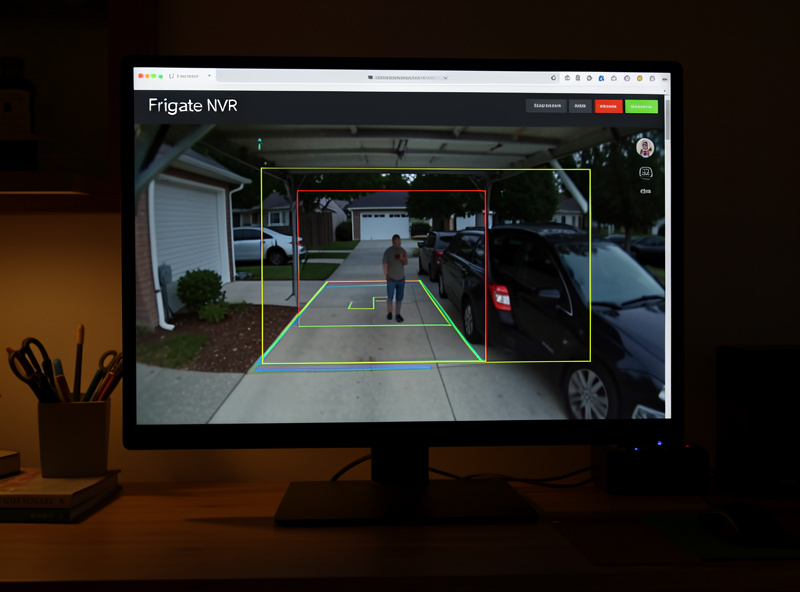
Frigate is an open-source NVR that runs real-time AI object detection entirely on your own hardware — it tells a person from a passing car before it writes a clip, and never sends a frame to anyone’s cloud. On my Proxmox host it records eight PoE cameras, runs object detection on a single Google Coral USB accelerator at roughly 8 ms per inference, and costs exactly nothing per month. This is the full build, from empty container to bounding boxes on the driveway.
I’ve run Frigate for years now, and the setup is genuinely approachable once you understand the three things that trip everyone up: the detect-vs-record stream split, the inference accelerator, and hardware-accelerated decoding. Get those three right and it’s rock-solid. Get them wrong and you’ll have a pegged CPU wondering why “the AI camera software” is melting your mini-PC. Let’s do it right the first time.
What Hardware Do You Need to Run Frigate?
Frigate needs three things: an always-on Linux host (a mini-PC, NUC, or a VM/LXC on a hypervisor), an inference accelerator for the object detection, and a hardware video decoder for the camera streams. The good news is that a modern Intel CPU with integrated graphics covers the video decode, and a $60 Google Coral USB TPU covers the AI — you don’t need a beefy GPU for a typical home rig.
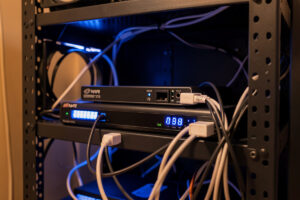
In my setup Frigate runs in an LXC container on my Proxmox host, with the Coral USB passed through and the Intel iGPU handling H.265 decode via VAAPI. The CPU — an unremarkable low-power Intel chip — sits mostly idle because the two heavy jobs, decoding and inference, are both offloaded to dedicated silicon. If you’re running Frigate on bare metal, an Intel N100 or N305 mini-PC is the sweet spot for 4–8 cameras: cheap, low-power, and its iGPU decodes H.265 all day. I explain why the LXC-on-Proxmox route works so well in the Proxmox homelab setup guide — the same host that runs my other services runs the NVR without breaking a sweat.
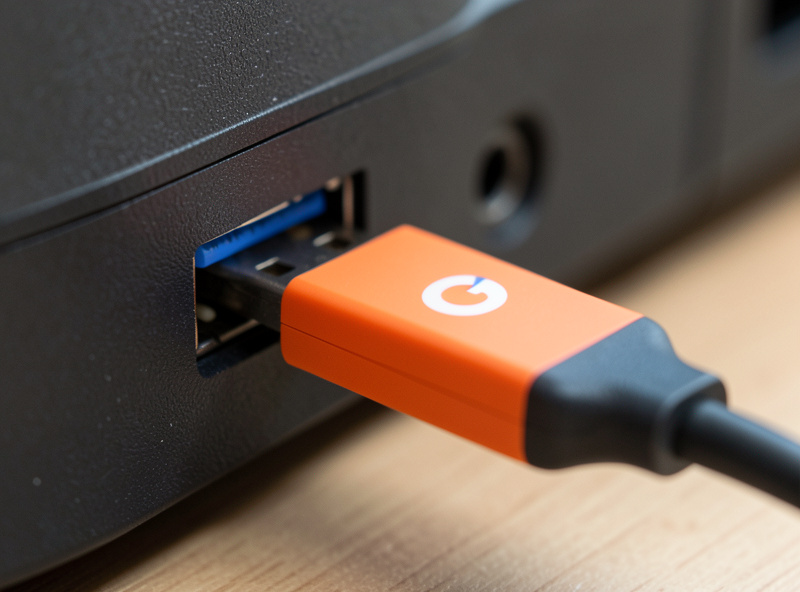
The Coral is the piece people skip and regret. Running detection on the CPU is possible, but it pegs cores and limits how many cameras you can watch. The Coral runs a quantized detection model at a couple of watts and single-digit milliseconds per frame. The Coral hardware is the cheapest path to real-time detection across a full camera fleet.
How Do You Get the Camera Streams Into Frigate?
Frigate connects to each camera over RTSP, using two streams per camera: the low-res sub-stream for detection and the high-res main stream for recording. This detect-vs-record split is the most important configuration decision in the whole build — point detection at the main stream and you’ll burn ten times the CPU for zero benefit.
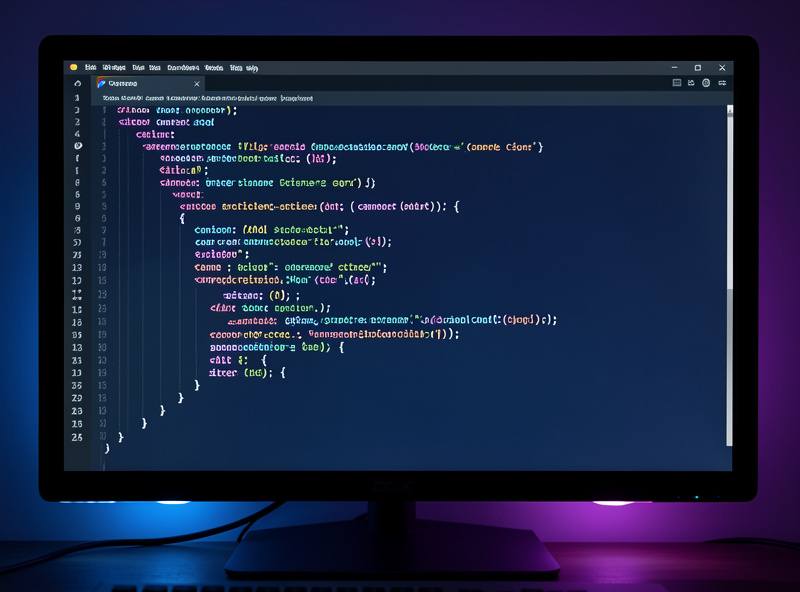
You feed Frigate a YAML config that names each camera, its stream URLs, and which role each stream plays. Here’s a trimmed version of how one camera looks in my config:
cameras:
  driveway:
    ffmpeg:
      inputs:
        - path: rtsp://user:[email protected]:554/stream2
          roles: [detect]
        - path: rtsp://user:[email protected]:554/stream1
          roles: [record]
    detect:
      width: 640
      height: 480
    objects:
      track: [person, car]
The stream2 path is the low-res sub-stream feeding detection at 640×480; stream1 is the full-resolution main stream that actually gets recorded. If you don’t know your camera’s RTSP paths, that’s the first thing to sort out — I walk through finding and testing them in RTSP, ONVIF, and the streaming protocols behind IP cameras. Test each URL in VLC before you paste it into Frigate; a stream that won’t play in VLC won’t play in Frigate either.
How Do You Set Up the Coral TPU for Detection?
Enabling the Coral is a two-line detector block in the Frigate config plus passing the USB device into the container. Once Frigate sees the Coral, all object detection routes to it automatically, and your CPU inference time drops from tens of milliseconds to single digits. The block looks like this:
detectors:
  coral:
    type: edgetpu
    device: usb
That’s it — Frigate loads the EdgeTPU model and every detection now runs on the Coral. On my rig the Frigate dashboard shows inference speeds around 8 ms even with all eight cameras active, and the host CPU barely registers it. The one gotcha with the USB Coral is passing it through cleanly to a container or VM; on Proxmox LXC I map the USB device into the container, and on Docker it’s a device passthrough flag. If you’re weighing the Coral against just using a GPU you already own, I break down the tradeoff — power draw, model flexibility, passthrough pain — in the main camera network guide.
How Do You Cut Down False Alarms With Zones and Masks?
Zones and motion masks are how you stop Frigate from alerting on the neighbor’s tree swaying or a car on the far road. A mask tells Frigate to ignore motion in a region entirely; a zone defines an area where a detected object actually matters, so you can trigger recording only when a person enters the walkway, not when a cat crosses the lawn.
This is where the tuning payoff lives. When I first set up my driveway camera, it fired on every passing car on the street behind it — dozens of useless clips a day. I drew a motion mask over the street and a zone around my actual driveway, set the camera to only record and notify when a person or car object entered the zone, and the noise dropped to near zero overnight. The sensory difference is real: instead of my phone buzzing every ten minutes with a false alarm, it now buzzes when something is genuinely in my space, and I trust it. That trust is the entire point — an NVR that cries wolf gets ignored, and an ignored NVR is useless.
Where Should Frigate Store Its Recordings?
Frigate should record to a dedicated disk separate from its config and the host OS, because 24/7 recording fills storage relentlessly and you never want a full recording drive to take down the NVR itself. I mount a dedicated recording drive to the container and point Frigate’s media path at it; the config lives on fast, backed-up storage while the bulky recordings live on cheap, expendable capacity.
Frigate lets you set retention independently for continuous recordings and for detection events — keep 7 days of everything but 30 days of clips where a person appeared, for example. Sizing that drive correctly is its own exercise in bitrate math, which I work through in the storage section of the main guide. The key discipline: never let Frigate share a disk with anything that matters, so that when the surveillance storage fills — and it will — nothing else even notices.
How Does Frigate Connect to Home Assistant?
Frigate integrates natively with Home Assistant through an official add-on and MQTT, turning every detection into an automation trigger. When Frigate sees a person at the front door, Home Assistant can flip on the porch light, announce it on a speaker, and push a snapshot to your phone — all locally, with no cloud in the loop. This is the payoff that turns a passive recorder into an active part of the house.
In my setup Frigate publishes detection events over MQTT, and Home Assistant subscribes to them. The automations I actually use are simple: person detected in the driveway zone after dark turns on the floodlight, and a snapshot lands in the family chat. Because everything is local, the latency from detection to porch-light is under a second, and it keeps working when the internet is down. That’s the difference between a camera system and a smart home nervous system — and it’s why I run the NVR on the same host as the rest of my services, all reachable on the trusted LAN while the cameras themselves stay sealed on their own segment.
The Mistake That Taught Me to Watch the Decode Path
My first Frigate build ran fine for a week, then the CPU started climbing until the whole host was sluggish. The cause: hardware-accelerated decoding wasn’t actually engaging, so ffmpeg was decoding every camera’s H.265 stream in software on the CPU. It looked like it worked because it did work — just at enormous cost. I’d assumed hardware acceleration was on because I’d added the config line, but I hadn’t confirmed the iGPU was actually being used.
The fix was verifying VAAPI acceleration with the right ffmpeg preset for my Intel hardware and confirming the decode was offloaded. Now I check the Frigate dashboard’s CPU-per-camera figure on every new build — if a camera is eating whole CPU cores, decoding isn’t accelerated, full stop. The official Frigate documentation has the exact hardware-acceleration presets per platform, and getting the right one is the difference between an idle host and a space heater.
Can Frigate run without a Coral TPU?
Yes, Frigate can run object detection on the CPU, but it pegs cores and limits how many cameras you can watch. A Google Coral TPU runs detection at a couple of watts and single-digit milliseconds per frame, which is why it is the recommended accelerator for anything beyond one or two cameras.
Does Frigate work on Proxmox?
Yes. Frigate runs well in an LXC container or a VM on Proxmox, with the Coral USB accelerator and the Intel iGPU passed through. Running it alongside other homelab services on the same host works fine because the heavy decode and inference jobs are offloaded to dedicated hardware.
Why is my Frigate CPU usage so high?
The two most common causes are running object detection on the high-resolution main stream instead of the low-res sub-stream, and hardware-accelerated video decoding not actually engaging. Point detection at the sub-stream and confirm the iGPU is decoding via the correct ffmpeg preset for your platform.
How do I stop Frigate from sending false alerts?
Use motion masks to ignore regions like a busy street or a swaying tree, and define zones so recording and notifications trigger only when a tracked object such as a person or car enters an area that matters. This eliminates the majority of nuisance alerts.
Does Frigate need an internet connection?
No. Frigate performs all object detection locally and records to local storage, so it needs no internet at all. It integrates with Home Assistant on the LAN, and remote viewing is done through a VPN to the NVR rather than exposing anything to the internet.
Related Guides
- Home Camera Network & NVR: The Self-Hosted Guide — the full architecture Frigate plugs into.
- RTSP, ONVIF, and the Streaming Protocols Behind IP Cameras — finding the stream URLs Frigate needs.
- Proxmox Homelab Setup Guide — the host that runs my NVR alongside everything else.
What I’d do starting today: install Frigate with a single camera and the CPU detector first, confirm you get bounding boxes, then add the Coral and the rest of the cameras. Prove each layer works before you stack the next — it’s a fifteen-minute debug instead of a three-hour one.