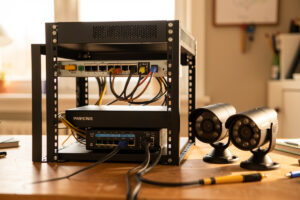
A self-hosted home camera network keeps every frame on hardware you own: PoE cameras feed an on-site NVR, the cameras sit on an isolated VLAN with no internet egress, and nothing streams to a vendor cloud. In my setup that’s eight cameras pulling roughly 12 Mbit/s of continuous H.265, recorded to a dedicated disk, with zero monthly subscription.
I built mine the hard way first. My earliest version was three consumer Wi-Fi cameras all phoning home to three different apps, saturating the 2.4 GHz band, and dropping clips exactly when I wanted them. The rebuild — wired PoE, one NVR, one segmented subnet — is the version I’ve run for years now, and it’s the version this guide walks through. If you’ve outgrown the ISP router and the app-per-camera circus, this is the whole map: the network, the cameras, the recorder software, the storage math, and the segmentation that keeps a cheap camera’s firmware from becoming a hole in your LAN.
Why Self-Host Your Camera System Instead of Using the Cloud?
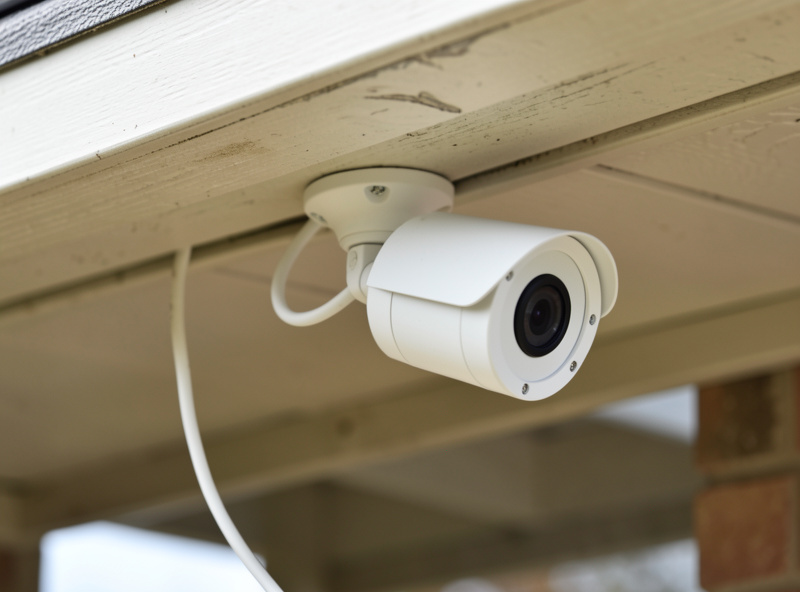
Self-hosting means your footage never leaves the building unless you deliberately send it. A cloud camera uploads a continuous or event-triggered stream to a vendor’s servers, gates the useful features behind a subscription (often $3–$10 per camera per month), and stops working the day the company sunsets the product. A local NVR removes all three problems at once.
The privacy argument is the obvious one, but the reliability argument is what actually converted me. Cloud cameras depend on your upload bandwidth and the vendor’s uptime. My cameras record whether or not the WAN is up — the recording path is entirely on the LAN, so a fibre cut or a CGNAT hiccup at the ISP never costs me footage. When my kids knocked a bike into the garage door last winter, the clip was on my own disk within the second, no “processing in the cloud” spinner, no clip that expired after seven days because I hadn’t paid for longer retention.
There’s a cost curve too. Eight cloud cameras at $6/month each is $576 a year, every year, forever. A one-time spend on a used mini-PC, a PoE switch, and a recording drive pays that back inside the first year and then costs nothing but electricity. The tradeoff is that you are now the sysadmin — which is exactly why the rest of this guide exists.
What Does a Home Camera Network Actually Look Like?
A working home camera network is four layers: the cameras, the switch that powers and connects them, the recorder that ingests and stores the streams, and the VLAN boundary that isolates the whole thing from your trusted LAN. Get those four right and everything else is tuning.
Here’s how mine is laid out. Cameras are wired PoE devices — no Wi-Fi, no batteries — each running a single Cat6 run back to a managed PoE switch. That switch tags every camera port onto a dedicated CAMERA VLAN. The NVR (a Proxmox VM in my case, but a mini-PC or a Synology works identically here) has one leg on that camera VLAN so it can pull the RTSP streams, and the camera VLAN itself has a default-deny firewall rule with no internet egress. The cameras can talk to the recorder and nothing else. They can’t reach the internet, they can’t reach my LAN, and they certainly can’t reach the kids’ Switch or the hydro lab’s controller.
That last part is the difference between a hobby project and something you’d actually trust. Consumer IP cameras are some of the worst-maintained firmware in the house — cheap SoCs, abandoned update channels, hardcoded credentials in the news every other month. Treating them as hostile devices on their own segment is the correct default. I go deep on exactly how to build that boundary in putting cameras on their own VLAN with no internet egress, because it’s the single most important decision in this whole build.
How Do PoE Cameras Change the Wiring?
Power over Ethernet delivers both data and power over one Cat5e/Cat6 run, so each camera needs a single cable back to the switch — no separate power adapter at the mounting point, no electrician for a socket in the soffit. A standard 802.3af port supplies up to 15.4 W and 802.3at (PoE+) up to 30 W, which comfortably covers a bullet or dome camera that typically draws 4–12 W with its IR illuminators lit.
This is the reason wired PoE beats Wi-Fi cameras for anything permanent. There’s no radio contention, no WPA handshake to drop, no battery to charge on a ladder in February. The camera just sits there, powered and reachable, for years. The catch is the switch: you need enough total PoE budget across all ports, not just per-port. A cheap switch might advertise eight PoE ports but only 60 W of total budget — fine for four low-draw cameras, a brownout waiting to happen when all eight fire their IR at dusk simultaneously.
I size for the worst case: every camera at its maximum rated draw, plus headroom. Which specific cameras earn a spot on that switch is its own rabbit hole — sensor size, IR range, whether they do on-camera H.265, how honest their “starlight” low-light claims are. I break down the ones I actually run and why in best PoE cameras for a self-hosted NVR. The short version: buy cameras that speak standard RTSP and ONVIF, avoid anything that requires a vendor app to configure.
Do Security Cameras Belong on Their Own VLAN?
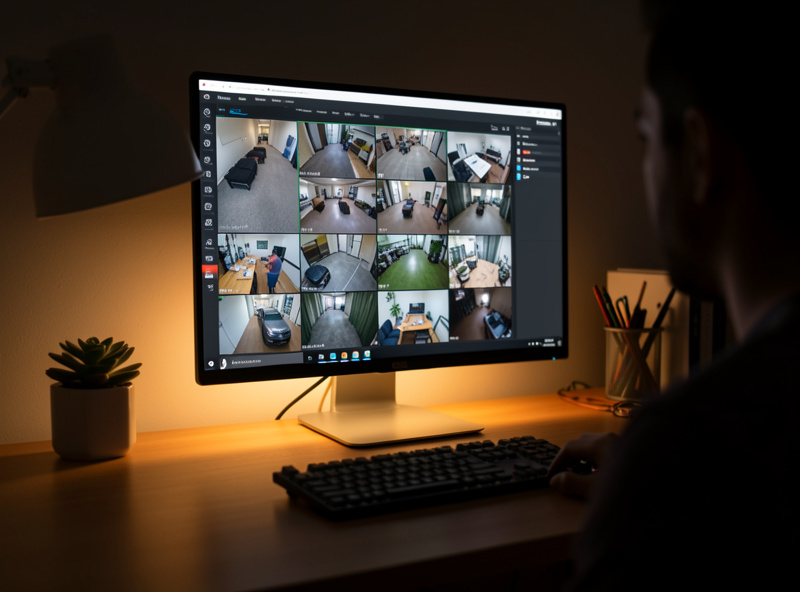
Yes — cameras belong on a dedicated VLAN with no internet egress and no route to your trusted LAN, full stop. This is not paranoia; it’s the standard treatment for any class of device you can’t patch and don’t fully trust, and IP cameras are the textbook example. The VLAN gives you a firewall boundary you control instead of hoping the camera’s own firmware behaves.
In my setup the CAMERA VLAN is a separate subnet — a private RFC 1918 range distinct from my LAN — with three firewall rules: allow the NVR to reach the cameras on RTSP/ONVIF ports, allow the cameras to reach the NVR for nothing else, and a final default-deny that drops everything, including all outbound internet. The cameras genuinely cannot phone home even if the firmware wants to, because there’s no route out and no NAT rule permitting it. The only device that talks to the internet on their behalf is the NVR, and only if I’ve explicitly allowed a time sync or an update.
The one wrinkle people trip on is discovery. ONVIF and many camera apps rely on multicast/mDNS to find devices, and multicast doesn’t cross VLAN boundaries by default. You either configure the NVR by static IP (my preference — cameras get DHCP reservations and I point Frigate straight at the RTSP URL) or run an mDNS reflector on the firewall for that specific traffic. I lay out the exact rule order, the reservation strategy, and the reflector config in the camera VLAN guide — get the rule order wrong and you’ll spend an evening wondering why the NVR can’t see cameras that ping fine.
Which NVR Software Should You Run?
The recorder is the brain, and there are three serious contenders for a home build: Frigate (open-source, local AI object detection), Blue Iris (paid Windows software, deep feature set), and Synology Surveillance Station (turnkey, tied to Synology hardware). I run Frigate as a container on my Proxmox host, and it’s the one I recommend to most homelabbers — but the honest answer depends on what you already own and how much you want to tinker.
Here’s how the three stack up on the decisions that actually matter:
| Factor | Frigate | Blue Iris | Synology Surveillance Station |
| License cost | Free / open-source | ~$70 one-time + updates | 2 free camera licenses, then paid per camera |
| Platform | Linux/Docker (any hardware) | Windows only | Synology NAS only |
| AI object detection | Built-in, local (Coral/GPU) | Add-on (CodeProject.AI/DeepStack) | Deep Video Analytics (limited models) |
| Home Assistant integration | Native, excellent | Via MQTT, workable | Limited |
| Resource use | Low with a Coral TPU | Higher (CPU-hungry) | Bundled into the NAS |
| Best for | Homelabbers who want local AI + HA | Windows users wanting a mature GUI | Existing Synology owners wanting turnkey |
I go head-to-head on all three — including the resource numbers, the false-alarm behavior, and where each one bit me — in Blue Iris vs Frigate vs Synology Surveillance Station. If you’re leaning Frigate like I did, the full build from empty container to working detections is in Frigate NVR on a homelab.
How Does Frigate Do Local AI Detection Without the Cloud?
Frigate runs a real-time object detector on the camera streams entirely on your own hardware, so it can tell the difference between a person, a car, and a cat before it ever writes a clip — and it never sends a frame off-site to do it. That’s the whole pitch: the “AI camera” features the cloud vendors charge a subscription for, running on a $60 accelerator on your own network.
Mechanically, Frigate decodes each camera’s stream, runs motion detection cheaply on the CPU, and only when motion crosses a zone does it hand a frame to the object detector. That detector needs real inference horsepower, which is where a Google Coral TPU or a GPU comes in — running the neural net on the main CPU works but pegs it. In my setup a single Coral USB accelerator handles all eight cameras’ object detection at a few milliseconds per inference, and the CPU barely notices. The full walkthrough — config, zones, masks, and the recording settings — lives in the Frigate homelab setup guide.
Coral TPU or GPU — What Runs the Object Detection?
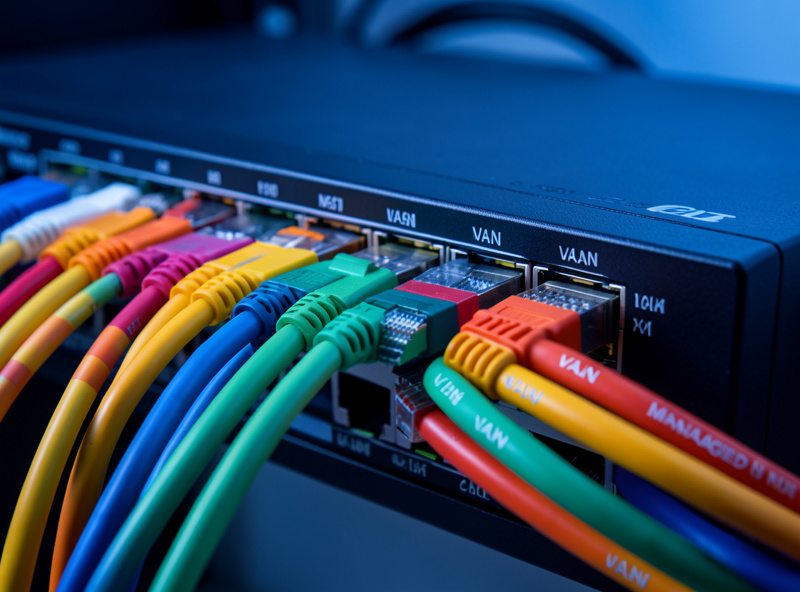
For Frigate specifically, a Google Coral TPU is the cheapest and most power-efficient way to run object detection, delivering roughly 6–10 ms inference per frame at a couple of watts; a GPU is faster and more flexible but draws far more power and costs more. For a typical home rig of 4–12 cameras, the Coral is almost always the right call.
The Coral is a purpose-built inference chip — it does one thing, run a quantized detection model, and it does it with almost no heat or power. A GPU (even a modest one) can run larger, more accurate models and handle hardware video decoding at the same time, which matters once you’re pushing a dozen-plus high-resolution streams or want to experiment with bigger models. I run the Coral because eight cameras don’t justify the extra 100+ watts a GPU idles at, and my Proxmox host is already doing plenty. If you’re weighing the two — including passthrough headaches, the model differences, and where the GPU genuinely wins — I lay it out in Coral TPU vs GPU for Frigate object detection.
How Do IP Cameras Actually Stream? RTSP and ONVIF Explained
IP cameras deliver video over RTSP (Real Time Streaming Protocol), and expose a standard control and discovery interface over ONVIF. RTSP is the pipe that carries the actual H.264/H.265 video; ONVIF is the vendor-neutral standard that lets any compliant NVR discover the camera, pull its stream URLs, and control PTZ or events without a proprietary app. If a camera speaks both, it’ll work with Frigate, Blue Iris, or Synology.
This is the part I wish I’d understood on day one. My first “smart” cameras spoke only their own app’s protocol, which meant they were useless the moment I wanted a real NVR — I couldn’t even get an RTSP URL out of them. Now I buy nothing that doesn’t publish a documented RTSP path and pass ONVIF conformance. Each camera typically exposes two RTSP streams: a high-res “main” stream for recording and a low-res “sub” stream that Frigate uses for the cheap motion-detection pass. Understanding that main/sub split alone will halve your CPU load. I unpack RTSP URLs, ONVIF profiles, and the codec choices in RTSP, ONVIF, and the streaming protocols behind IP cameras.
How Much Storage Does 24/7 Recording Actually Need?
Continuous recording storage is a straight function of bitrate, camera count, and retention: a single 4 MP camera at a 4 Mbit/s H.265 bitrate writes about 43 GB per day, so eight of them recording 24/7 for 30 days needs roughly 10 TB. Drop to motion-only recording and that can fall by 60–80%, but I keep continuous on the driveway and door cameras because the one time you want the two minutes before the event is the one time motion-triggering failed you.
The variables that move the number most are bitrate and codec. H.265 (HEVC) roughly halves the file size of H.264 at the same visual quality, so a camera that supports it is worth buying for the storage savings alone. Resolution matters less than people think — a well-tuned 4 MP camera at a sane bitrate beats a 4K camera cranked to a bitrate your disk can’t sustain. I keep a dedicated recording drive off the camera VLAN’s NVR, separate from my Proxmox boot and VM storage, so a full surveillance disk never takes down anything else. The actual math — per-camera formulas, the H.264-vs-H.265 delta, and a worked example for common camera counts — is in sizing storage for 24/7 camera recording.
How Much Network Bandwidth Do the Cameras Actually Use?
Camera bandwidth is almost entirely internal — it’s the LAN link between the cameras and the NVR that carries the load, not your internet connection. A 4 MP camera streaming H.265 at 4 Mbit/s uses that 4 Mbit/s continuously on the camera VLAN; eight of them is about 32 Mbit/s of sustained traffic hitting the NVR’s network leg. A gigabit switch and a gigabit NIC on the recorder swallow that without noticing.
The trap is the sub-stream. Every decent camera publishes a main stream (high-res, for recording) and a sub-stream (low-res, a few hundred Kbit/s). If your NVR runs motion detection on the main stream instead of the sub-stream, you multiply both bandwidth and CPU load for no benefit. In my Frigate config the detect role points at the sub-stream and the record role at the main stream — that one setting is the difference between a Coral handling eight cameras and a CPU melting under four. It also means the only high-bitrate traffic is the recording pull, which stays neatly inside the camera VLAN and never touches the rest of the house.
Your internet upload only matters if you’re streaming footage out remotely, and even then you’re pulling the sub-stream on demand, not uploading everything continuously the way a cloud camera does. That asymmetry — heavy on the LAN, nearly nothing on the WAN — is exactly backwards from the cloud model, and it’s why a self-hosted rig doesn’t choke a modest home internet connection.
How Do You View the Cameras Remotely Without Exposing Them?
You reach the NVR through a VPN, not by port-forwarding the cameras. A WireGuard tunnel into your network lets you open the Frigate or Blue Iris interface from your phone as if you were home, while the cameras stay completely sealed behind their default-deny VLAN. Nothing camera-related is ever exposed to the public internet — you authenticate into the network first, then reach the recorder.
I run WireGuard terminating on my OPNsense firewall. From my phone, the tunnel comes up, and I hit the NVR’s LAN address; the camera VLAN remains egress-blocked and unreachable from the internet the entire time. The alternative some people use is a reverse proxy (Nginx or Caddy) with strong authentication in front of the NVR web UI, which is workable but is a genuinely exposed surface you have to keep patched. WireGuard is the safer default because there’s nothing to attack until you’ve already authenticated the tunnel — an unauthenticated attacker sees a closed UDP port and nothing else. Whichever you choose, the rule holds: expose the NVR under one deliberate, authenticated door, never the cameras.
What’s the Right Order to Build This?
Build the network before the cameras. The mistake I see most often — and made myself — is buying eight cameras, plugging them into the ISP router, and only then discovering there’s no segmentation, no PoE budget, and no plan for where the footage lives. Do it in this order and you’ll skip the rework.
First, stand up the managed PoE switch and the CAMERA VLAN with its default-deny egress rule — prove the isolation with the switch empty. Second, pick cameras that speak RTSP and ONVIF and confirm their total draw fits your PoE budget. Third, stand up the NVR (Frigate for me) on hardware with an inference accelerator, and point it at the cameras by static reservation. Fourth, size and mount a dedicated recording drive, then dial in retention. Only at the very end do you open a single, deliberate hole — a WireGuard tunnel or a reverse proxy — if you want to view the cameras remotely, and even then the cameras themselves stay egress-blocked; you reach the NVR, never the cameras directly.
That WireGuard-not-port-forward rule is the one I’ll die on. Never port-forward an IP camera to the internet. Never. The number of exposed camera web interfaces indexed on Shodan is a standing monument to why. Remote access goes through the VPN to the NVR, and the camera VLAN stays sealed.
The Mistake That Taught Me to Segment First
Early on, before I segmented, one of my cheap cameras started hammering an outbound connection to an IP in another country at 3 a.m. I only noticed because the OPNsense dashboard showed a device on my LAN with steady upstream traffic that made no sense for a camera that should only ever receive a pull request. I never fully diagnosed whether it was benign telemetry or something worse — and that’s exactly the point. I couldn’t trust it, and it was sitting on the same flat network as everything else I owned.
The rebuild put every camera behind a wall it can’t climb. Now if a camera wants to talk to Guangdong at 3 a.m., the firewall drops the packet and logs it, and I sleep fine. That single incident is why this guide leads with the network and the VLAN, not the cameras — the cameras are the easy part. The boundary is the part that’s actually protecting you.
Do I need a special NVR box, or can I use a regular computer?
Any always-on computer works as an NVR. A used mini-PC, an Intel NUC, an old desktop, or a VM on a Proxmox host all run Frigate or Blue Iris fine. A dedicated appliance like a Synology just packages the same idea. The two things that matter are enough storage and, for AI detection, an inference accelerator like a Coral TPU or a GPU.
Can IP cameras record without any internet connection?
Yes. Wired PoE cameras and a local NVR record entirely over the LAN and do not need internet at all. In a properly segmented build the cameras have no internet egress by design. Internet is only needed if you want to view footage remotely, and even then only the NVR should be reachable, never the cameras directly.
Why put cameras on their own VLAN instead of the main network?
IP cameras often run poorly maintained firmware with known vulnerabilities and a history of phoning home. Isolating them on a dedicated VLAN with no internet egress and no route to your trusted LAN means a compromised camera cannot reach your other devices or the internet. The NVR is the only device that talks to them.
How much does a self-hosted camera setup cost versus cloud cameras?
A self-hosted build is a one-time hardware cost: cameras, a PoE switch, an NVR, and a recording drive. Cloud cameras charge a recurring subscription, often three to ten dollars per camera per month. For a multi-camera setup the self-hosted approach typically pays for itself within the first year and then costs only electricity.
Is Frigate or Blue Iris better for a home setup?
Frigate is free, open-source, runs on Linux or Docker on any hardware, and has excellent Home Assistant integration and built-in local AI detection, which makes it the best fit for most homelabbers. Blue Iris is a mature paid Windows application with a deep feature set that suits people already comfortable in a Windows environment.
Keep Building Your Camera Network
This hub is the map; each guide below is the turn-by-turn. Start with the network and the recorder, then work outward to cameras and storage.
- Frigate NVR on a Homelab: Local AI Detection Without the Cloud — the full build from empty container to working detections.
- Putting Cameras on Their Own VLAN With No Internet Egress — the firewall rules and reservation strategy that seal the segment.
- Best PoE Cameras for a Self-Hosted NVR — the cameras I actually run and why.
- Coral TPU vs GPU for Frigate Object Detection — which accelerator earns a slot in your rig.
- RTSP, ONVIF, and the Streaming Protocols Behind IP Cameras — the protocols every NVR speaks.
- Sizing Storage for 24/7 Camera Recording — the bitrate math and a worked example.
- Blue Iris vs Frigate vs Synology Surveillance Station — the head-to-head that picks your recorder.
For the standards themselves, the official Frigate documentation is the authoritative reference for the NVR software, and ONVIF.org publishes the camera interoperability profiles every compliant camera implements.
What I’d do starting today: buy the managed PoE switch first, build the isolated CAMERA VLAN before a single camera arrives, and only then start hanging cameras. The network is the project. The cameras are just the payload.