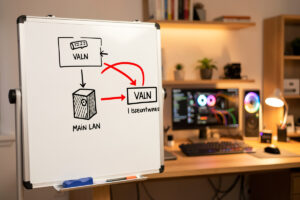
Putting IP cameras on their own VLAN with no internet egress means the cameras live on an isolated subnet where the firewall permits exactly one thing — the NVR pulling their video — and drops everything else, including any attempt by the camera to reach the internet. In my setup that’s a dedicated CAMERA VLAN with three firewall rules and a default-deny at the bottom. The cameras record perfectly and can’t phone home even if their firmware wants to.
This is the single most important decision in a self-hosted surveillance build, and it’s the one people skip because the cameras “work fine” on the flat network. They do work fine — right up until one of them is the weak link. IP cameras run some of the worst-maintained firmware in the house: cheap SoCs, abandoned update channels, and a long public history of hardcoded credentials and botnet conscription. You isolate them not because you’re paranoid but because you can’t patch them and you don’t trust them. Here’s exactly how I build that boundary.
Why Do IP Cameras Need Their Own VLAN?
Cameras need their own VLAN because they are untrusted, unpatchable devices that, on a flat network, can reach every other device you own and the open internet. A VLAN gives you a firewall boundary you control instead of hoping the camera’s firmware behaves. If a camera is compromised — and cheap cameras are compromised constantly — isolation is the difference between “one camera is owned” and “an attacker is on the same subnet as my NAS, my workstation, and my kids’ devices.”
The threat isn’t hypothetical. The Mirai botnet was built largely out of exactly these devices — internet-exposed IP cameras and DVRs with default credentials. A camera on a flat network with internet access is a candidate for that fate. The same instinct that makes me separate the hydro lab, the workshop sensors, and the kids’ consoles onto different trust zones applies double to the cameras: they’re the least trustworthy hardware on the property, so they get the tightest cage. This is the applied version of the thinking in my broader network segmentation guide, focused on the one device class that most needs it.
How Do You Build the Camera VLAN?
You create a tagged VLAN on your managed switch, assign the camera ports to it as untagged (access) members, give it its own subnet in RFC 1918 space, and hand out addresses with a dedicated DHCP scope. The cameras never touch your main LAN’s subnet — they live in their own address space that the firewall governs. On my managed switch the camera ports are untagged members of the CAMERA VLAN, and the trunk port up to the firewall carries that VLAN tagged with 802.1Q.
The subnet choice is deliberate: a private range from RFC 1918 (10.0.0.0/8, 172.16.0.0/12, or 192.168.0.0/16), distinct from every other VLAN so the firewall rules can reference it cleanly. I give cameras static DHCP reservations rather than free-for-all leases, so each camera always has the same address and my Frigate config can point at fixed RTSP URLs. If the tagging and trunking is unfamiliar, the mechanics are the same as any other VLAN — I cover port tagging discipline in managed switch setup. The camera VLAN is just another VLAN; what makes it special is the firewall policy on top.
What Firewall Rules Actually Lock the Cameras Down?
The rule set is short and the order matters: allow the NVR to reach the cameras, block the cameras from reaching any other local network, block the cameras from the internet, and default-deny everything else. Firewalls evaluate rules top to bottom and act on the first match, so the sequence is the security — get the order wrong and a permissive rule higher up silently defeats a restrictive one below it.
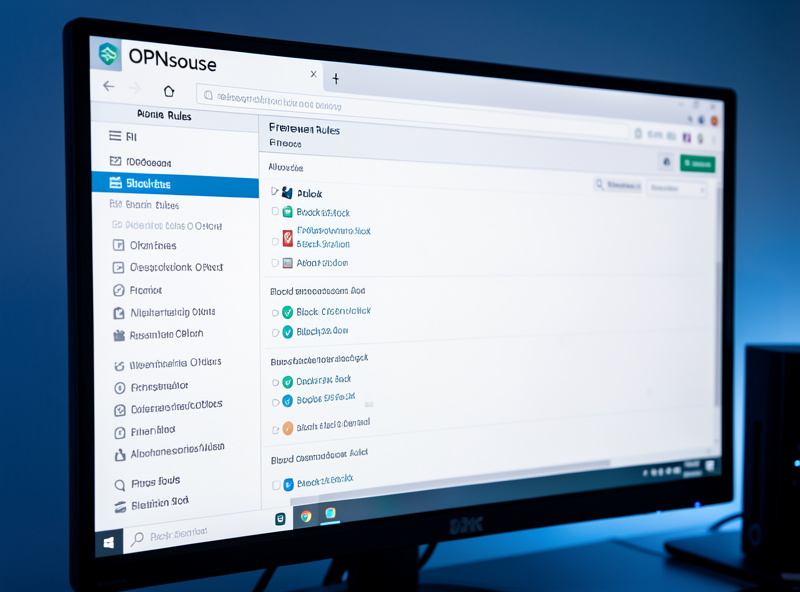
On the CAMERA VLAN interface in OPNsense, my rules read in this order:
- Allow the NVR’s IP to reach cameras on the RTSP/ONVIF ports (this is the one flow that must work).
- Block camera subnet → any other RFC 1918 network (stops lateral movement to the LAN, NAS, or other VLANs).
- Block camera subnet → the WAN / internet (the no-egress rule — cameras can’t phone home).
- Default deny catches anything not explicitly permitted.
Note what’s not here: no allow rule for the cameras to initiate anything. The NVR reaches into the camera VLAN to pull streams; the cameras never initiate outbound connections that get anywhere. Because there’s no NAT rule and no allow rule permitting camera-originated internet traffic, egress is dead. The OPNsense documentation covers the rule-editor mechanics, but the policy above is the part that matters, and it maps directly onto the general approach in my VLAN firewall rules guide.
How Does the NVR See Cameras Across the VLAN Boundary?
The NVR reaches the cameras because you explicitly allow that one flow — the NVR pulling RTSP — across the boundary, while everything else stays blocked. The cleanest way is to give the NVR a leg on the camera VLAN or a single allow rule from the NVR’s address into the camera subnet on the streaming ports. In my setup the NVR connects to each camera by its reserved IP on RTSP port 554, and that’s the only cross-boundary flow that succeeds.
The trap everyone hits is discovery. ONVIF auto-discovery and many camera apps rely on multicast and mDNS, which do not cross VLAN boundaries by default — that’s working as designed, since the whole point is isolation. You have two clean options: configure the NVR by static IP so it never needs discovery (my choice — reservations plus hardcoded RTSP URLs in Frigate), or run an mDNS reflector on the firewall for that specific traffic if you genuinely need cross-VLAN discovery. I use the static route every time; it’s simpler and it doesn’t poke a hole in the isolation for a convenience I don’t need. Finding those RTSP URLs is covered in RTSP, ONVIF, and the streaming protocols behind IP cameras, and pointing Frigate at them is in the Frigate setup guide.
How Do Camera Firmware Updates Work With No Internet?
With egress blocked, cameras can’t auto-update — which is fine, because you update them deliberately instead. Most IP cameras update via a firmware file you download and upload through the camera’s web UI, all over the LAN, no internet access required on the camera itself. When I update a camera, I fetch the firmware on my workstation, reach the camera’s web interface from the NVR-side allow, and flash it manually. The camera never needs its own internet path.
This is actually more secure than auto-update, not less. Auto-update requires the camera to reach a vendor server, which is exactly the egress you’re trying to kill, and it hands the vendor a persistent channel into a device on your property. Manual updates keep you in control of what firmware runs and when. The tradeoff is discipline — you have to actually check for updates rather than assuming they happen — but for a device class this untrustworthy, being the one who decides what code runs on it is the right side of the trade.
The Rule Order That Bit Me
The first time I built a camera VLAN, the cameras still had internet. I’d written the block-to-internet rule but placed it below a broad “allow camera VLAN to any” rule I’d left over from testing. The firewall matched the permissive rule first and never reached the block. Everything looked isolated on the diagram; nothing was isolated in reality. I only caught it because the OPNsense live-view showed a camera happily talking out to the internet.
The lesson is permanent: after you write the rules, verify egress is actually dead. Watch the firewall’s live log, or better, temporarily point a camera at a known external host and confirm the packets get dropped. A rule set that looks right on screen but has one stale permissive rule above the blocks is worse than no rules, because it gives you false confidence. Isolation you haven’t tested isn’t isolation — it’s a diagram.
Can IP cameras work without internet access?
Yes. Wired PoE cameras and a local NVR record entirely over the LAN and need no internet at all. On an isolated camera VLAN, the cameras are deliberately blocked from the internet and only communicate with the NVR, which pulls their video streams. Recording and detection work exactly the same.
How do I stop my security cameras from phoning home?
Put the cameras on a dedicated VLAN and add a firewall rule that blocks the camera subnet from reaching the internet, with a default-deny at the bottom. With no allow rule permitting camera-originated outbound traffic and no NAT rule, the cameras cannot reach any external server even if their firmware tries.
Why can my NVR ping the camera but not get video across a VLAN?
The camera web interface and the RTSP video stream use different ports. A firewall rule that allows the NVR to reach the camera on HTTP does not allow the RTSP stream on port 554. Allow the NVR to reach the cameras on the streaming port specifically, and confirm the rule sits above any block rules.
Do I need an mDNS reflector for cameras on their own VLAN?
Only if you rely on ONVIF or app-based auto-discovery, which uses multicast that does not cross VLAN boundaries by default. The simpler approach is to give cameras static DHCP reservations and point the NVR at fixed RTSP URLs, which needs no discovery and keeps the isolation intact.
How do I update camera firmware if it has no internet?
Download the firmware file on a trusted computer and upload it through the camera web interface over the LAN. The camera itself never needs internet access. Manual updates are more secure than auto-update because they do not require the camera to hold an open channel to a vendor server.
Keep Building
- Home Camera Network & NVR: The Self-Hosted Guide — where camera isolation fits the whole build.
- VLAN Firewall Rules — the general default-deny approach these camera rules extend.
- Frigate NVR Homelab Setup — the NVR that reaches across the boundary to record.
What I’d do starting today: build the VLAN empty, write the four rules, and confirm egress is dead before a single camera goes on it. Prove the cage holds, then put the animals in it. Testing an empty VLAN takes five minutes and saves you from ever wondering whether a camera got out.