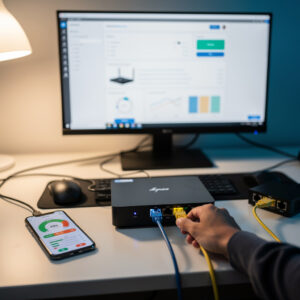
From Hardware to Fully Functional Network
You have selected your hardware and chosen your router operating system. Now comes the rewarding work of assembling your custom router and configuring it to handle your network traffic. This comprehensive walkthrough takes you from first boot to fully operational router, explaining each step and the reasoning behind configuration choices.
Whether you chose pfSense, OPNsense, or OpenWrt, the fundamental concepts remain similar. Interfaces must be assigned, IP addresses configured, and basic security established. By the end of this guide, you will have a functioning router ready for advanced features and optimizations.
Pre-Installation Preparation
Gather Required Materials
Before beginning, ensure you have everything needed:
- Router hardware: Assembled and ready to power on
- Installation media: USB drive with router OS image
- Monitor and keyboard: For initial setup (VGA/HDMI and USB)
- Ethernet cables: At least two (one for WAN, one for LAN)
- Existing router (temporary): To maintain internet during setup
- Computer for testing: To verify connectivity
- ISP information: Any required configuration details
Do not disconnect your existing internet connection yet. You will configure the new router while maintaining connectivity for reference and troubleshooting.
Network Diagram Planning
Sketch your intended network layout:
Internet
    |
    | (Ethernet cable)
    |
[Your ISP Modem]
    |
    | (Ethernet cable)
    |
[DIY Router WAN Port]
    |
    | (Internal routing)
    |
[DIY Router LAN Port]
    |
    | (Ethernet cable)
    |
[Switch or Wireless AP]
    |
    |----- [Computer 1]
    |----- [Computer 2]
    |----- [Other devices]
Understanding traffic flow helps troubleshoot when things do not work as expected.
Physical Hardware Setup
Connect your router hardware:
- Power connection: Connect power supply, but do not turn on yet
- Monitor and keyboard: Connect display output and USB keyboard
- Installation USB: Insert your prepared USB drive with router OS
- Initial network: Do not connect WAN or LAN Ethernet yet
Leave internet-disconnected until the router is configured. This prevents IP conflicts and ensures clean setup.
Operating System Installation
Booting the Installer
Power on your router hardware and access the boot menu:
- Power on the device
- Watch for the boot screen (often shows manufacturer logo)
- Press the key for boot menu (typically F2, F10, F12, or Delete)
- Select your USB drive as the boot device
If the system boots into existing OS instead of the installer, retry and watch carefully for the brief window when boot options appear.
Installation Process
The exact installation varies by operating system, but generally follows this pattern:
For pfSense/OPNsense:
- Boot to text-mode installer
- Select “Install” (vs. “Live CD” or rescue options)
- Choose keyboard layout (typically US)
- Select target drive (SSD or internal storage)
- Confirm destructive installation (erases drive)
- Wait for installation (typically 2-5 minutes)
- When complete, remove USB and select reboot
For OpenWrt on x86:
- Boot to OpenWrt
- Login as root (no password initially)
- Write image to internal storage using dd command
- Reboot from internal storage
The installation is straightforward. The text-based interface lacks graphics but is reliable across diverse hardware.
First Boot and Interface Assignment
After installation, the router boots to its operating system and presents a console menu. The critical first step is assigning network interfaces:
Identifying Physical Ports:
Routers need at least two interfaces: WAN (connecting to internet) and LAN (your internal network). You must identify which physical Ethernet port corresponds to which interface name.
The console typically shows options like:
- em0, em1, em2 (FreeBSD/BSD-based systems like pfSense/OPNsense)
- eth0, eth1, eth2 (Linux-based systems like OpenWrt)
Assignment Procedure:
- Connect an Ethernet cable to the port you want as WAN
- Connect the other end to your computer
- In the router console, select “Assign Interfaces”
- The system asks you to identify interfaces by plugging/unplugging
- Plug and unplug the cable while watching the screen
- The interface showing link up/down is your WAN port
- Assign it as WAN interface
- Repeat for LAN interface using another port
This physical identification ensures you know which port serves which function. Label your ports after assignment to avoid confusion later.
Initial Network Configuration
LAN Interface Setup
Configure your internal network:
IP Address Assignment:
Set a static IP address for your router’s LAN interface. Common choices:
- 192.168.1.1 (most common)
- 10.0.0.1
- 172.16.0.1
This address becomes your router’s identity on your network. All devices will use it as their “gateway” to reach the internet.
Subnet Configuration:
Set the subnet mask, typically 255.255.255.0 (or /24 in CIDR notation). This allows 254 usable device addresses on your network.
DHCP Server Configuration
Enable the DHCP server to automatically assign IP addresses to connecting devices:
DHCP Range:
Define the range of addresses the DHCP server can assign:
- Start: 192.168.1.100
- End: 192.168.1.200
This leaves addresses below 100 available for static assignments (servers, printers, etc.) and above 200 unused for future expansion.
DNS Forwarding:
Configure which DNS servers to provide clients. Options include:
- Your ISP’s DNS servers (fastest, least private)
- Public DNS (Google 8.8.8.8, Cloudflare 1.1.1.1)
- Your router itself (if running local DNS resolver)
Initially, use public DNS servers like 1.1.1.1 and 1.0.0.1 (Cloudflare) for reliable resolution.
Connecting to the Web Interface
With LAN configured, access the router through a web browser:
- Connect your computer to the router’s LAN port via Ethernet
- Your computer should receive an IP address via DHCP (192.168.1.100+)
- Open a web browser
- Navigate to your router’s LAN IP address (e.g., https://192.168.1.1)
- Accept the self-signed certificate warning (expected for new routers)
- Login with default credentials (varies by OS, check documentation)
You are now in the router’s web interface, ready for detailed configuration.
WAN Configuration and Internet Connection
WAN Interface Setup
Configure how your router connects to your ISP:
DHCP (Most Common):
If your ISP provides automatic configuration, set WAN to DHCP:
- In web interface, navigate to WAN interface settings
- Set IPv4 Configuration Type to “DHCP”
- Save and apply
The router automatically obtains an IP address from your ISP.
Static IP (Business Connections):
If your ISP assigned a static IP address:
- Set configuration type to “Static IPv4”
- Enter the IP address provided by your ISP
- Enter subnet mask
- Enter gateway IP (your ISP’s router)
- Enter DNS servers
PPPoE (DSL Connections):
Some DSL connections require PPPoE authentication:
- Set configuration type to “PPPoE”
- Enter username and password from your ISP
- Set service name if required (usually blank)
Physical WAN Connection
Now connect to your ISP:
- Connect Ethernet cable from your modem to router’s WAN port
- Check WAN interface status in web interface
- Verify WAN interface shows “up” and has IP address
- Check that gateway is reachable (ping test in router diagnostics)
If the WAN interface shows no IP address, verify the modem is in bridge mode (if required) and cables are secure.
Testing Internet Connectivity
Verify your router can reach the internet:
- In router’s web interface, find diagnostic tools
- Ping 8.8.8.8 (Google’s DNS server)
- If ping succeeds, your router has internet connectivity
- If ping fails, check WAN configuration and physical connections
Router-level internet access does not yet mean your computers have access. Continue to firewall configuration.
Basic Firewall Configuration
Understanding Firewall Zones
Firewalls control traffic between network segments. By default, your router should:
- Allow all traffic from LAN to WAN (outbound internet access)
- Block all traffic from WAN to LAN (inbound protection)
- Allow established connections to return (stateful inspection)
This default “deny inbound, allow outbound” posture protects your network while enabling internet access.
Default LAN-to-WAN Rules
Verify and configure outbound rules:
In pfSense/OPNsense:
- Navigate to Firewall → Rules → LAN
- Confirm default “allow any” rule exists
- This permits all traffic from LAN to any destination
- Save if any changes made
In OpenWrt:
- Navigate to Network → Firewall
- Verify “lan” zone has forwarding to “wan” enabled
- Check that input/output/forward are set appropriately
Verify End-to-End Connectivity
Test from a computer on your network:
- Connect computer to router’s LAN port (or connected switch)
- Verify computer received IP via DHCP
- Open web browser
- Visit a website (e.g., google.com)
- If it loads, basic routing works
If websites do not load:
- Check that computer has correct gateway (router’s LAN IP)
- Verify DNS resolution works (try ping 8.8.8.8 vs. ping google.com)
- Review firewall rules for any blocks
- Check router’s WAN connectivity
Essential Post-Installation Steps
Change Default Passwords
Security starts with strong credentials:
- Navigate to user management in web interface
- Change default admin password to strong, unique password
- Consider creating a separate user for daily use with limited privileges
- If SSH access is enabled, set strong password for root/admin
Use a password manager to generate and store complex passwords. Never reuse passwords from other services.
Configure Time Synchronization
Accurate time is essential for logs, certificates, and scheduled tasks:
- Enable NTP (Network Time Protocol) client
- Use reliable time servers (the volunteer-run NTP Pool Project at pool.ntp.org, or its region-specific zones)
- Set correct timezone for your location
- Verify time is accurate in system status
Enable and Configure Logging
Logs help troubleshoot issues and detect problems:
- Enable system logging to local storage
- Configure log rotation to prevent disk fill
- Consider remote logging for critical systems
- Review log settings for firewall, DHCP, and DNS
Set appropriate log levels: “Notice” or “Warning” for normal operation, “Debug” only when troubleshooting.
Backup Your Configuration
Before making further changes, backup your working configuration:
- Navigate to backup section in web interface
- Download configuration backup file
- Store in multiple locations (local drive, cloud storage)
- Document the backup date and router state
If you break configuration later, you can restore this known-good backup.
Basic Network Services Setup
DHCP Static Mappings
For devices needing consistent IP addresses (servers, printers, cameras):
- Identify device MAC addresses (from DHCP lease list or device label)
- Create static DHCP mappings in desired range (192.168.1.10-99)
- Assign descriptive hostnames
- Save and apply
These devices will always receive the same IP address, making port forwarding and service access reliable.
DNS Configuration
Optimize DNS for performance and security:
Using External DNS:
- Cloudflare: 1.1.1.1, 1.0.0.1 (fast, privacy-focused)
- Quad9: 9.9.9.9 (blocks known-malicious domains using multiple threat-intelligence feeds)
- Google: 8.8.8.8, 8.8.4.4 (reliable, logged)
Local DNS Resolver (Advanced):
For advanced DNS privacy and filtering, configure Unbound or similar resolver. This sends encrypted DNS queries and caches results locally.
Basic Quality of Service (QoS)
If you experience lag during heavy usage, basic QoS helps:
- Enable QoS/SQM feature
- Enter your actual internet speeds (use speed test)
- Set to 90-95% of measured speeds (leaves headroom)
- Apply and test
QoS prioritizes latency-sensitive traffic (gaming, VoIP) over bulk transfers (downloads, backups).
Physical Network Integration
Connecting Your Network Devices
Now integrate your DIY router into your full network:
- Switch connection: Connect router LAN port to your main switch
- Wireless access point: If separate from router, connect to switch or router LAN
- Key devices: Connect computers, NAS, printers
- Test each device: Verify internet connectivity
IP Address Planning
As your network grows, organize addressing:
- .1-9: Network infrastructure (router, switches, APs)
- .10-49: Static assignments (servers, printers, cameras)
- .50-99: Reserved for future static
- .100-200: DHCP dynamic pool
- .201-254: Reserved or guest network
Consistent organization simplifies troubleshooting and expansion.
Verification and Testing
Connectivity Tests
Verify complete network operation:
- Wired connectivity: Connect computer via Ethernet, test internet
- Wireless connectivity: Connect via WiFi (if AP connected), test internet
- Device-to-device: Ping between devices on LAN
- DNS resolution: nslookup google.com succeeds
- Speed test: Measure actual internet performance
- Latency test: ping 8.8.8.8 shows consistent low latency
Firewall Verification
Confirm security posture:
- From internet (use mobile hotspot), attempt to access router’s WAN IP
- Verify no response (ports should be closed)
- Check router logs for any suspicious access attempts
- Review firewall rules match your security intent
Stability Testing
Monitor for 24-48 hours:
- Check system logs for errors
- Monitor temperature (if available)
- Verify no unexpected reboots
- Confirm DHCP leases renew properly
- Test under load (streaming, downloads, video calls)
Common First-Setup Issues
No WAN IP Address
If WAN interface shows no IP:
- Verify modem is in bridge mode (not routing mode)
- Check physical cable connections
- Power cycle modem (unplug 30 seconds)
- Verify MAC address cloning if required by ISP
- Check PPPoE credentials if DSL
LAN Devices Cannot Reach Internet
If router has internet but LAN devices do not:
- Verify DHCP is providing correct gateway address
- Check firewall rules allow LAN to WAN traffic
- Confirm DNS servers are being provided via DHCP
- Test with static IP to bypass DHCP issues
Slow Internet Speeds
If speed test shows poor performance:
- Check CPU usage during speed test (may indicate underpowered hardware)
- Disable QoS temporarily (may be throttling)
- Verify no VPN enabled accidentally
- Test with direct modem connection to verify ISP speeds
- See full troubleshooting guide
Next Steps: Advanced Configuration
With basic routing functional, you can explore advanced features:
- Security hardening with VLANs and IDS
- VPN server for remote access
- DNS-based ad blocking
- Traffic monitoring and analysis
- Multi-WAN for redundancy
- Guest network isolation
Conclusion
You have transformed hardware and software into a functioning router. This foundation supports everything else on your network, from basic browsing to advanced homelab services. The skills practiced here—interface assignment, IP configuration, firewall rules, and troubleshooting—transfer to virtually all networking scenarios.
Your DIY router is now ready for production use. It routes traffic between your devices and the internet, protects against unwanted intrusion, and provides the platform for expanding into advanced homelab capabilities. Take pride in this accomplishment; you have built infrastructure that many assume only corporations can provide.
Document your configuration, maintain backups, and monitor performance. As you add features and complexity, this solid foundation ensures reliable operation. This is homelab-scale networking done right, right-sized for what your house actually needs, built by your own hands.