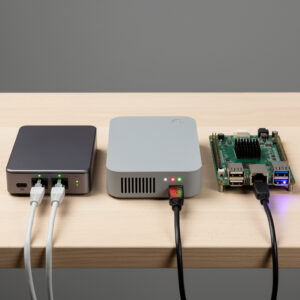
Selecting the Foundation of Your Custom Router
Building a DIY router begins with choosing appropriate hardware. Unlike consumer routers where you accept whatever the manufacturer provides, building your own means making informed decisions about every component. The hardware you select determines your router’s performance ceiling, feature capabilities, power consumption, and expansion potential.
This guide walks you through the hardware selection process without recommending specific products. Instead, we provide a framework for evaluating options based on your unique requirements. Whether you repurpose an old computer, purchase a dedicated appliance, or build from components, these principles ensure your hardware matches your networking ambitions. Many of the same hardware decisions apply when choosing components for a NAS — for the specific considerations around drive bays, ECC memory, and low-idle power draw, the DIY NAS build guide walks through a home storage server build from the same hardware-first perspective.
Understanding Hardware Requirements
Processing Power Needs
Router software performs numerous computation-intensive tasks. The processor must handle:
- NAT and firewall inspection: Examining every packet crossing your network boundary requires CPU cycles. More connections and higher speeds demand more processing power.
- VPN encryption/decryption: VPNs use cryptography to secure traffic. Encrypting a gigabit connection can overwhelm weak processors, causing massive speed reductions.
- Deep packet inspection: Advanced features like intrusion detection systems analyze packet contents, significantly increasing CPU load.
- QoS and traffic shaping: Prioritizing traffic and managing bandwidth requires constant processing to evaluate and re-order packets.
General guidelines for processor requirements (in line with Netgate’s official pfSense hardware sizing guidance, which weighs required throughput and enabled features as the primary sizing factors):
- Basic routing under 500 Mbps: Dual-core processor at 1.5 GHz or higher
- Gigabit routing without VPN: Quad-core processor at 2.0 GHz or higher
- Gigabit routing with VPN: Modern quad-core with AES-NI support
- Multi-gigabit or heavy inspection: Intel Core i3/i5 or equivalent
Remember that processor requirements scale with connection count. A smart home with 100+ devices generates more load than a simple apartment with 10 devices, even at the same internet speed.
The Importance of AES-NI
AES-NI (Advanced Encryption Standard New Instructions) is a set of processor instructions that accelerate encryption and decryption. For VPN use, AES-NI support is essential.
Without AES-NI, encrypting high-speed traffic consumes enormous CPU resources. A processor might handle 900 Mbps unencrypted but only 100 Mbps through a VPN tunnel. With AES-NI, that same processor maintains far more of its unencrypted throughput through the VPN — Netgate’s own pfSense VPN scaling documentation confirms AES-NI (and AES-GCM acceleration built on it) is the single biggest lever for IPsec/VPN throughput on firewall hardware.
When selecting hardware for VPN use, verify AES-NI support in your chosen processor. Intel processors from the last decade typically include it. Many AMD processors also support AES-NI. Check specifications before purchasing.
Network Interface Considerations
Your router needs at least two network interfaces: one for WAN (connecting to your ISP) and one for LAN (your internal network). More interfaces enable advanced features like multiple WAN connections or dedicated network segments.
Interface Types
Ethernet Ports: The standard for wired networking. Modern routers should support gigabit Ethernet (1000 Mbps) minimum. Multi-gigabit Ethernet (2.5 Gbps, 5 Gbps, or 10 Gbps) future-proofs for faster internet connections or high-speed internal networks.
Intel vs. Realtek Network Chips: Network interface quality varies significantly:
- Intel NICs: Superior performance, lower CPU overhead, excellent driver support in BSD-based router software (pfSense, OPNsense). Preferred for serious router builds.
- Realtek NICs: Common in consumer hardware, less expensive, historically problematic driver support in some router operating systems. Improved recently but still less reliable than Intel for high-throughput applications.
For mission-critical routers, Intel network interfaces justify their higher cost through reliability and performance. For budget builds or experimentation, Realtek often works adequately.
Minimum Interface Requirements
- Basic setup: 2 Ethernet ports (WAN and LAN)
- With separate wireless access point: 2 ports still sufficient
- Multiple network segments (VLANs): 2 ports with VLAN support or 3+ physical ports
- Dual WAN: 3 ports minimum (2 WAN + 1 LAN)
- High-availability setups: 4+ ports for complex configurations
Interface configuration determines how your router connects to the broader network infrastructure.
Memory (RAM) Requirements
Router software keeps connection states, firewall rules, and various data structures in memory. Insufficient RAM causes performance degradation or crashes.
RAM requirements by use case:
- Basic home router: 2 GB minimum, 4 GB recommended
- With VPN and moderate packages: 4 GB minimum
- Heavy IDS/IPS usage: 8 GB or more
- Large networks (100+ devices): 4-8 GB
- Multiple advanced packages: 8 GB recommended
More RAM allows more concurrent connections, larger firewall rule sets, and running additional services. While 2 GB suffices for basic routing, 4 GB provides comfortable headroom for most home users. Enthusiasts running extensive packages benefit from 8 GB or more.
Storage Considerations
Router operating systems require minimal storage. A 16 GB drive easily accommodates the OS with room for logs and packages. However, storage type affects performance and reliability:
Solid State Drives (SSD): Fast, reliable, no moving parts. Ideal for routers that will run continuously for years. SATA SSDs offer excellent price-to-performance.
eMMC Storage: Built into many mini PCs and single-board computers. Slower than SSDs but adequate for router use. Limited write endurance but typically sufficient for the light write loads of routing.
SD Cards: Convenient for single-board computers but less reliable for continuous operation. Frequent logging can wear out consumer-grade SD cards. Use high-endurance cards if SD is your only option.
USB Drives: Possible but not recommended for primary storage. USB reliability varies, and drive disconnection causes router failure.
For production routers, SSD storage provides the best combination of speed, reliability, and longevity.
Hardware Platform Options
Dedicated Mini PCs
Mini PCs designed for networking or industrial applications have become popular for DIY routers. These compact computers typically feature:
- Intel Celeron or Atom processors (often with AES-NI)
- Multiple Intel Ethernet ports (2-6 ports common)
- 4-8 GB RAM
- SATA or M.2 SSD slots
- Compact, fanless designs available
- Low power consumption (10-20 watts typical)
Advantages:
- Purpose-built for networking with multiple Ethernet ports
- Low power consumption and heat generation
- Compact size fits in network cabinets
- Intel NICs provide reliable performance
- Silent operation (fanless models)
Considerations:
- Higher cost than repurposed hardware
- Limited upgrade path for CPU or RAM
- May require external WiFi if wireless needed
Dedicated mini PCs suit users wanting a clean, purpose-built solution without hunting for compatible hardware.
Repurposed Desktop Computers
Converting an old desktop or laptop into a router leverages hardware you already own. This approach is budget-friendly and uses capable hardware.
Requirements:
- Computer from the last 5-10 years (Core i3/i5/i7 or equivalent AMD)
- Minimum 4 GB RAM
- Storage drive (SSD preferred, hard drive acceptable)
- Two network interfaces (can add via PCIe Ethernet card)
Advantages:
- Use existing hardware at no additional cost
- Powerful processors handle any workload
- Easy to upgrade components
- Standard parts readily available
Considerations:
- Higher power consumption than dedicated mini PCs
- Larger physical size
- Fan noise may be noticeable
- Requires technical comfort opening computer cases
Repurposed computers excel for those wanting maximum performance without spending money, or for experimenting before committing to dedicated hardware.
Thin Clients and Small Form Factor PCs
Corporate thin clients and small form factor business computers offer excellent router platforms. These devices were designed for 24/7 operation with reliability priorities.
Characteristics:
- Intel processors (often with AES-NI)
- Compact size
- Low power consumption
- Built for continuous operation
- Readily available used for $50-150
Popular models include HP T620/T630, Dell Wyse, and Lenovo ThinkCentre Tiny. These often require adding a second Ethernet port via USB adapter or PCIe card.
Advantages:
- Business-grade reliability
- Low cost for used equipment
- Compact yet upgradeable
- Proven 24/7 operation capability
Considerations:
- May need network interface expansion
- Used equipment has unknown history
- Research specific model compatibility before purchasing
Single Board Computers (SBC)
Raspberry Pi and similar single board computers tempt budget-conscious builders. While these work for light routing duties, significant limitations exist.
Capable SBC options:
- Raspberry Pi 4: Quad-core 1.5 GHz, 2-8 GB RAM, USB Ethernet adapters required for second interface
- Odroid: More powerful than Pi, better I/O
- Orange Pi: Budget alternative with gigabit Ethernet
- NanoPi: Some models include dual Ethernet
Limitations:
- USB-based Ethernet adapters limit throughput
- Processor struggles with high-speed VPN
- SD card storage less reliable for 24/7 operation
- Single Ethernet port requires USB adapters
- Limited RAM constrains advanced features
SBCs suit learning and experimentation but rarely provide the performance and reliability needed for primary home routers. Consider them for secondary routers, travel setups, or educational projects rather than main internet connections.
Evaluating Specific Requirements
Internet Speed vs. Internal Network Speed
Two different speed considerations affect hardware selection:
Internet Speed (WAN): Your connection to your ISP. If you have gigabit fiber, you need hardware that can route at gigabit speeds with all features enabled.
Internal Network Speed (LAN): Traffic between devices on your network. File transfers between NAS and computers, streaming from local servers, or backups to local storage.
For most users, WAN speed drives hardware requirements. However, if you run local servers or transfer large files internally, ensure your router’s internal switching or throughput matches your LAN needs.
VPN Throughput Requirements
VPN encryption dramatically increases CPU load. Hardware adequate for unencrypted gigabit routing may struggle with 100 Mbps VPN tunnels.
To estimate VPN requirements:
- Identify your internet speed
- Determine what percentage will use VPN (all traffic? specific devices?)
- Select hardware capable of encrypting that throughput
For example, if you have 500 Mbps internet and want all traffic VPN-protected, you need hardware capable of 500+ Mbps VPN throughput. This typically requires modern Intel processors with AES-NI, not older repurposed hardware.
VPN implementation depends heavily on hardware capabilities.
Physical Environment Considerations
Your router’s physical location affects hardware selection:
Noise Tolerance: Fanless mini PCs operate silently. Repurposed desktops with case fans generate noticeable noise. Consider where the router will live and who will hear it.
Heat and Ventilation: Routers generate heat, especially under load. Ensure adequate airflow. Fanless designs require passive cooling through heatsinks and case design. Avoid enclosing routers in tight cabinets without ventilation.
Power Availability: Mini PCs consume 10-20 watts. Desktops use 50-150 watts. Consider electricity costs for always-on equipment, especially with high electricity rates.
Space Constraints: Network cabinets or shelves have limited space. Measure available space and ensure your chosen hardware fits with room for cables and airflow.
Power Over Ethernet (PoE) Requirements
If you plan to power wireless access points or cameras via PoE, consider hardware with built-in PoE switch ports or budget for a separate PoE switch. This simplifies wiring and eliminates separate power adapters for remote devices.
Some dedicated router mini PCs include PoE ports. Alternatively, managed switches with PoE support connect to your router and provide power to remote devices.
Future-Proofing Your Investment
Upgrade Paths
Consider future expansion when selecting hardware:
- RAM slots: Can you add more memory later if needed?
- Storage: Is there room for larger or faster storage?
- Network interfaces: Can you add cards for additional ports?
- Processor: Is the CPU soldered or socketed (socketed allows upgrades)?
Repurposed desktops often offer the best upgrade paths. Dedicated mini PCs and SBCs typically have fixed specifications.
Growth Headroom
Select hardware exceeding your current needs by 30-50%. This accommodates:
- ISP speed upgrades
- Adding more smart home devices
- Enabling new features (IDS/IPS, advanced QoS)
- Multiple simultaneous VPN connections
- Guest networks and IoT segmentation
Oversizing slightly now prevents expensive replacement later.
Cost Considerations and Budget Planning
Total Cost of Ownership
Hardware cost is only part of the equation. Consider:
- Initial hardware purchase
- Power consumption over years (20W × 24 hours × 365 days × electricity rate)
- Storage replacement if using SD cards or aging drives
- Network cables, switches, and accessories
- Potential hardware upgrades
A $300 mini PC using 15 watts costs less over 5 years than a free repurposed desktop using 100 watts in regions with high electricity costs.
Budget Categories
Budget Build ($0-100): Repurposed existing computer, USB Ethernet adapter, existing storage. Suitable for experimentation or sub-gigabit connections.
Entry-Level Build ($150-300): Used thin client or budget mini PC with dual Ethernet. Handles gigabit routing and light VPN for small networks.
Mid-Range Build ($300-600): New mini PC with Intel processor, multiple Intel NICs, 4-8 GB RAM, SSD. Handles gigabit with VPN, suitable for most advanced home users.
High-Performance Build ($600+): Industrial mini PC or repurposed high-end desktop. Multi-gigabit support, heavy IDS/IPS, multiple VPNs, large device counts.
Match your budget to your actual needs. Expensive hardware provides diminishing returns for modest requirements.
Making Your Selection
Decision Framework
Use this checklist to guide your hardware choice:
- Define requirements: Internet speed, VPN needs, device count, desired features
- Set budget: Including power costs over expected lifespan
- Evaluate platforms: Mini PC, repurposed desktop, thin client, or SBC
- Verify compatibility: Check router OS hardware compatibility lists
- Confirm specs: Ensure processor, RAM, and NICs meet requirements
- Consider future: Will this hardware serve you for 3-5 years?
- Make selection: Purchase hardware meeting your criteria
Red Flags to Avoid
Certain hardware characteristics indicate unsuitable choices:
- Realtek-only networking for high-throughput applications
- Processors without AES-NI when VPN is planned
- Less than 2 GB RAM for any serious use
- Unknown-brand mini PCs with no community support
- Hardware without documented compatibility with your chosen router OS
- Single Ethernet port without quality USB adapter option
Conclusion
Hardware selection for DIY routers balances performance requirements, budget constraints, and future growth. Understanding your specific needs allows informed decisions rather than guessing or over-buying.
There is no single “best” hardware for everyone. A repurposed desktop excels for one user while a fanless mini PC suits another. The key is matching hardware capabilities to your network requirements, today and in the coming years.
Consider starting with available hardware for experimentation. Learn the software, understand your feature needs, then invest in dedicated hardware that matches your refined requirements. Once hardware is selected, your next decision is which router operating system to run on it.
The time invested in proper hardware selection pays dividends through years of reliable, high-performance networking. Your router is infrastructure you interact with daily but rarely think about when working properly. Select hardware that fades into the background, silently doing its job while you enjoy the benefits of a network truly under your control.