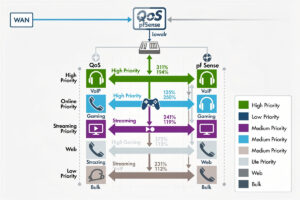
pfSense traffic shaping prevents the “kid is gaming, breaks Mom’s video call” scenarios that plague unmanaged home networks. In ~40 words: traffic shaping prioritizes latency-sensitive traffic (VoIP, gaming, video calls) over bulk traffic (downloads, streaming, backups) when bandwidth is constrained. The pfSense Wizard configures common scenarios in 10 minutes; advanced shaping uses HFSC or fq_codel queue disciplines for fine control.
This guide walks through pfSense traffic shaping setup using the built-in Wizard, then covers when to graduate to manual queue configuration. The Wizard handles 80% of home use cases; manual configuration is needed only for unusual setups (multi-WAN, asymmetric upload/download priorities).
When Traffic Shaping Actually Helps
Traffic shaping only matters when bandwidth is constrained. On gigabit fiber that’s rarely saturated, shaping makes no measurable difference because there’s always headroom. On slower connections (DSL, fixed wireless, sometimes cable) where saturation is common, shaping noticeably improves user experience under load.
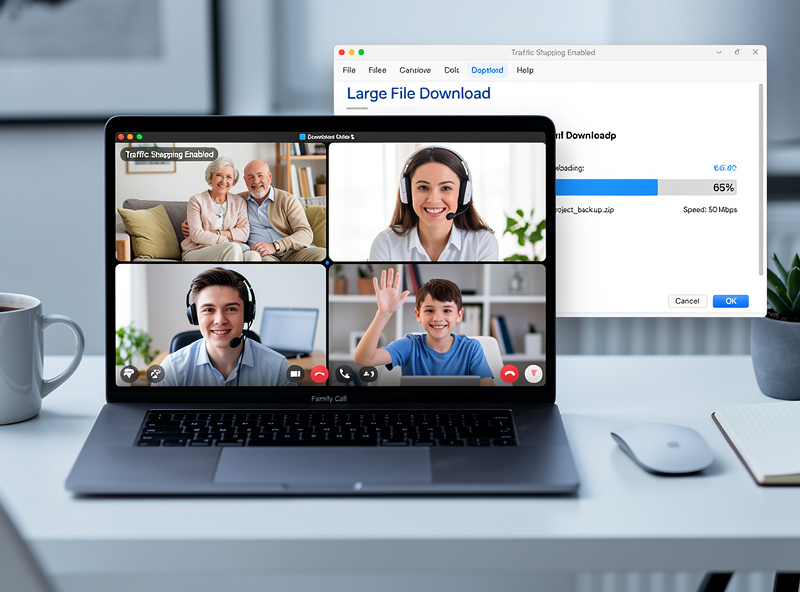
The classic shaping benefit: family on 50Mbps cable. Without shaping, when one device starts a large download, video calls stutter, gaming pings spike, and streaming buffers. With shaping, the download throttles automatically when latency-sensitive traffic appears. The video call stays smooth; the download just takes a few minutes longer.
For users on slower internet (under 200 Mbps), traffic shaping is one of the highest-ROI pfSense features. For gigabit fiber users, shaping is mostly unnecessary unless multiple devices simultaneously stream 4K. See our pfSense configuration guide for context on the broader pfSense feature set.
The Traffic Shaping Wizard
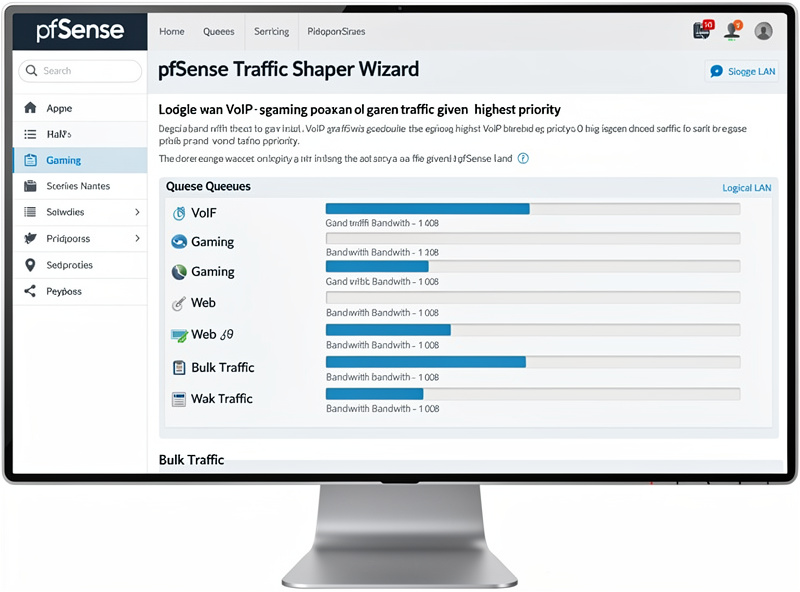
Firewall → Traffic Shaper → Wizards. Three wizards: Single LAN (typical home network), Multi-LAN (multi-WAN setups), and Multi-LAN traffic shaper (advanced). For most home networks, Single LAN is the right choice.
The wizard walks through:
Step 1 — Set bandwidth: Enter your actual upload and download speeds. Use a speed test (speedtest.net, fast.com) to verify. Report 95% of your actual speed (e.g., 47 Mbps if speedtest shows 50) — this gives shaping headroom to work.
Step 2 — Voice over IP priorities: Enable VoIP optimization if you make voice/video calls. Select your VoIP provider type (Generic, Vonage, Asterisk, etc.). The wizard creates queue rules to prioritize VoIP traffic.
Step 3 — Penalty Box: Optionally throttle a specific IP (the kid’s PC, the BitTorrent box). Useful when one device consistently saturates the connection. Skip if not needed.
Step 4 — P2P: Configure BitTorrent / P2P throttling. Enable if you have torrent users; disable if not. Throttled P2P uses leftover bandwidth without crowding out other traffic.
Step 5 — Network games: Select games to prioritize (Call of Duty, Counter-Strike, Steam in general). Game traffic gets latency priority over bulk.
Step 6 — Other applications: Streaming services, work-from-home priorities, etc. Configure as needed for your household.
Save and Apply. The wizard creates the queue structure automatically. Test by running a large download while making a video call — the call should stay smooth.
HFSC vs fq_codel Queue Disciplines
pfSense supports multiple queue disciplines (the math that decides which packets to send when). HFSC and fq_codel are the two production options.
HFSC (Hierarchical Fair Service Curve): The traditional pfSense queue discipline. Configurable, well-documented, but requires manual tuning. The Traffic Shaper Wizard creates HFSC queues by default.
fq_codel (Fair Queue with Controlled Delay): Modern queue discipline that auto-tunes for low latency. Less configurable but produces excellent results out of the box. Configured through CoDel limiters rather than the ALTQ-based Wizard.
For most home networks, HFSC via the Wizard is sufficient. fq_codel is the better choice for users who don’t want to think about queue tuning — set it and forget it. The performance difference between properly-tuned HFSC and default fq_codel is small.
Measured Results
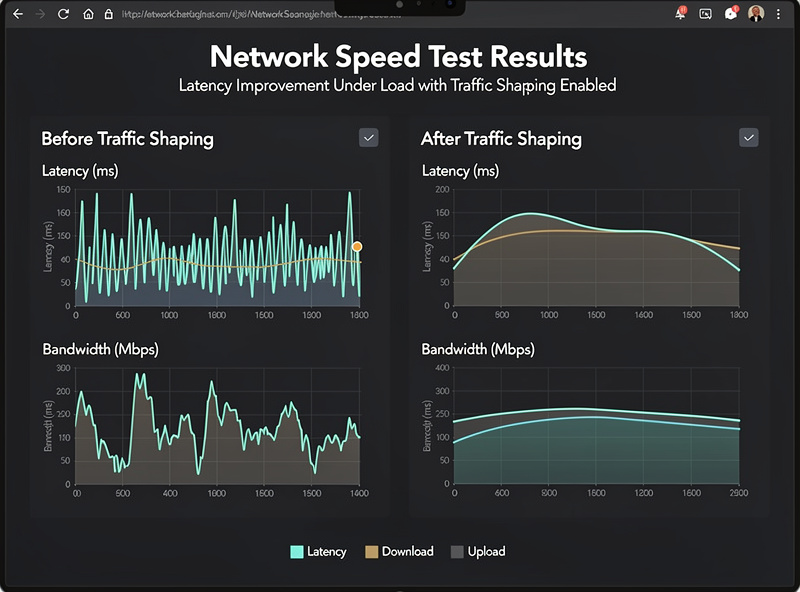
Real-world traffic shaping impact on a 50 Mbps cable connection:
Without shaping, 100% load: Speed test ping ~150ms (vs ~25ms idle). Video calls stutter or drop. Gaming pings spike to 200ms+ regularly. Webpage loads slow noticeably.
With shaping, 100% load: Speed test ping ~30ms (only 5ms over idle). Video calls smooth. Gaming pings stable at 25-35ms. Webpage loads barely affected.
The mechanism: when bulk traffic (download) tries to saturate the connection, the shaper holds it back so latency-sensitive traffic (call, game, browsing) can pass first. The download takes a few seconds longer total; the user experience for everything else stays excellent.
Upload vs Download Shaping
Most home connections have asymmetric speeds — much slower upload than download. Cable internet typically has 10-15% upload of download (e.g., 500/50 Mbps). Upload saturation is the more common cause of perceived slowness.
When upload saturates: video calls degrade (the call needs upload bandwidth for outgoing audio/video), gaming pings spike (game packets are small but need to escape immediately), web browsing becomes slow (TCP ACKs queue behind bulk uploads).
The Traffic Shaper Wizard handles upload shaping automatically based on the bandwidth values you enter. Verify upload shaping is working by uploading a large file (cloud backup, video upload) while testing latency — pings should stay reasonable instead of spiking.
For BitTorrent users specifically, upload shaping is essential. BitTorrent’s default behavior saturates upload, which destroys all other traffic. Shaping limits BitTorrent’s upload to a percentage that leaves room for other traffic.
Frequently Asked Questions
Do I need traffic shaping on gigabit fiber?
Usually no. Gigabit connections have enough headroom that shaping makes no measurable difference for typical home use. The exception: multiple simultaneous 4K streams, large multi-device cloud backups running concurrently, or unusual setups where you want bandwidth caps. For typical 1Gbps fiber families, shaping is unnecessary.
Why does my latency spike during downloads even with shaping?
Most common cause: shaping bandwidth values too high. If you set the wizard to 100 Mbps but your actual upload speed is 95 Mbps, the shaper has no headroom to prioritize. Set values to 90-95% of actual measured speeds. Run a speed test to verify actual values.
Can I shape per-device?
Yes via Penalty Box queues or per-IP rules. Configure: Firewall → Traffic Shaper → Limiters tab → create per-IP limiters (see pfSense’s own Limiters documentation). Common use: capping kids’ devices at lower bandwidth during work hours, throttling a specific IoT device that misbehaves. Limiters are more flexible than the Wizard for per-device control.
What’s the difference between QoS and traffic shaping?
QoS (Quality of Service) is the broader concept of prioritizing certain traffic. Traffic shaping is the specific technique of constraining bandwidth to meet QoS goals. In pfSense, the Traffic Shaper module implements QoS via shaping queues. The terms are often used interchangeably.
Does traffic shaping work on encrypted traffic?
Yes — shaping works on packet metadata (size, destination, port) without inspecting encrypted contents. The shaper can prioritize traffic to a specific IP/port even if the contents are encrypted (HTTPS, VPN, etc.). The exception: shaping by application via DPI requires reading content, which doesn’t work on encrypted traffic. Most home shaping uses port-based rules that work fine with encryption.
Should I use HFSC or fq_codel?
fq_codel for set-and-forget low-latency. HFSC for users who want manual control over queue weights and bandwidth allocation. The Traffic Shaper Wizard uses HFSC by default; switch to fq_codel via advanced options if you want auto-tuning. Performance difference between properly-tuned HFSC and default fq_codel is small.
Why does my speed test show slower speeds with shaping enabled?
Traffic shaping reserves bandwidth for prioritized traffic, slightly reducing maximum throughput. A 50 Mbps connection might show 47-48 Mbps after shaping. The trade-off is intentional — slightly lower peak speed in exchange for dramatically better latency under load. Most users prefer the trade.
Related Articles
- Complete pfSense Configuration Guide
- pfSense Firewall Rules Tutorial
- pfSense WireGuard Setup
- Troubleshooting Home Network Slow Speeds
- Home Network Security Hardening