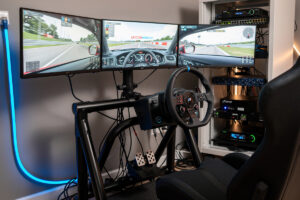
Most sim-racing network advice starts at the router. It should start one step earlier — with the internet connection itself. iRacing's own support documentation puts average round-trip latency at about 60ms for its US-based customers and around 150ms for customers in much of Europe (source), and both ranges race daily. That fact matters more than it looks: it means the ISP and physical link you choose sets the floor for what any amount of router tuning can achieve. No QoS rule fixes a connection that is slow or unstable at the source.
This guide covers the choice that actually moves the needle before you ever touch a firewall rule — the best internet for sim racing: which ISP technology gets you there (fiber vs cable vs 5G fixed wireless vs satellite), how to route-shop between competing ISPs before you commit to a contract, and the physical link at home (Cat6, MoCA, or Wi-Fi) that connects your rig to whatever connection you land on. Once that foundation is right, router-side QoS and Wi-Fi tuning is a short follow-on step, covered in full in the companion low-latency network tuning guide.
Why Bandwidth Isn't the Number That Matters
Sim-racing traffic is genuinely small — a few hundred kilobits to low single-digit megabits per second, nothing like a video stream. Round-trip time is fundamentally a function of physical path and propagation delay to the server, not bandwidth (round-trip delay reference), which is why doubling your download speed rarely moves your ping at all. What actually determines whether a connection races well is latency (the round-trip time itself), consistency (how much that number bounces around under load), and packet loss — and all three are decided far more by which ISP and which physical link you choose than by the plan's advertised Mbps number.
This is the mistake almost every sim racer makes once, usually right before renewing a contract: paying for a bigger download tier expecting it to fix warping, when the actual bottleneck was route quality or an oversubscribed upload tier the whole time. A gigabit plan on a badly-peered ISP will still lose to a modest connection on a well-peered one, every time, because peering and physical distance to the server farm are what set the floor — no amount of extra bandwidth buys back a bad route.
ISP Plan Selection: Fiber vs Cable vs 5G Fixed Wireless vs Satellite
Advertised download speed is nearly irrelevant here — 50 Mbps down is already more than sim racing will ever ask for. What separates a good sim-racing connection from a bad one is latency, and how stable that latency stays once the link is under load:
- Symmetric fiber — the best option available. Upload never gets cramped by race-server packets, and fiber's point-to-point physical layer doesn't carry the shared-segment contention that older cable plants do.
- Cable (DOCSIS) — works fine for sim racing if the upload tier is comfortably above what you need, and modern cable plants are better than their reputation. CableLabs' Low Latency DOCSIS spec, part of the DOCSIS 3.1 suite since 2019, targets sub-5ms added round-trip latency at the 99th percentile for latency-sensitive traffic like game packets (CableLabs, Low Latency DOCSIS) — worth asking your ISP whether it's enabled on your modem and node.
- 5G fixed wireless (T-Mobile Home Internet, Verizon 5G Home) — usable, but variable. Verizon's own published network-performance data puts round-trip latency at roughly 35-70ms depending on plan and radio band (Verizon, Network Performance) — the low end of that range races fine, the high end is a noticeable step down from wired.
- Starlink — SpaceX's own published data puts median US latency at around 33ms during peak evening hours, with a stated goal of 20ms and worst-case (p99) latency under 65ms (Starlink, Improving Starlink's Latency) — genuinely raceable for casual and mid-tier leagues, with occasional handoff-related spikes a wired line doesn't have.
- Legacy geostationary satellite (HughesNet, Viasat) — not viable. The physical distance to a geostationary satellite alone imposes a minimum round-trip latency around 480ms, which is exactly why iRacing's own support documentation says satellite connections aren't supported at all (iRacing, Why Satellite Connections Are Not Supported).
The shorthand: fiber first, a well-configured cable plan second, 5G fixed wireless third if that's genuinely the best option available at your address, Starlink fourth as a rural fallback, legacy GEO satellite never.
Route Shopping: Testing ISPs Before You Commit
Two ISPs at the same price often have different upstream peering, which means different latency to the iRacing US-East server farm or whatever your league uses. Test before you commit — the label on the plan (fiber, cable, 5G) tells you the technology, not the actual route.
The shopping workflow:
- Get a 30-day trial, a neighbor's connection for an hour, or a mobile hotspot on the competing carrier as a stand-in
- Run
mtr(or WinMTR on Windows) to the sim server's IP for 5 minutes during the hours you actually race - Note hop count and per-hop p99 (worst-case) latency, not just the average
- Compare against your current ISP — fewer hops and lower p99 latency wins, even if the advertised speed is lower
Sometimes a cheaper "lesser" plan on a better-peered ISP races faster than a premium plan on a worse-peered one. The speed-test number on the sales page never tells this story — only a real trace does.
Physical Link at Home: Cat6, MoCA, or Wi-Fi
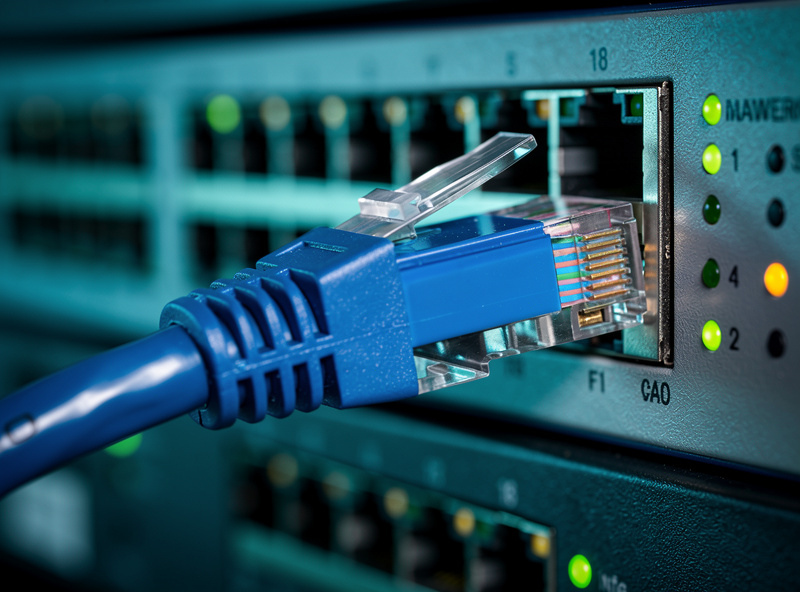
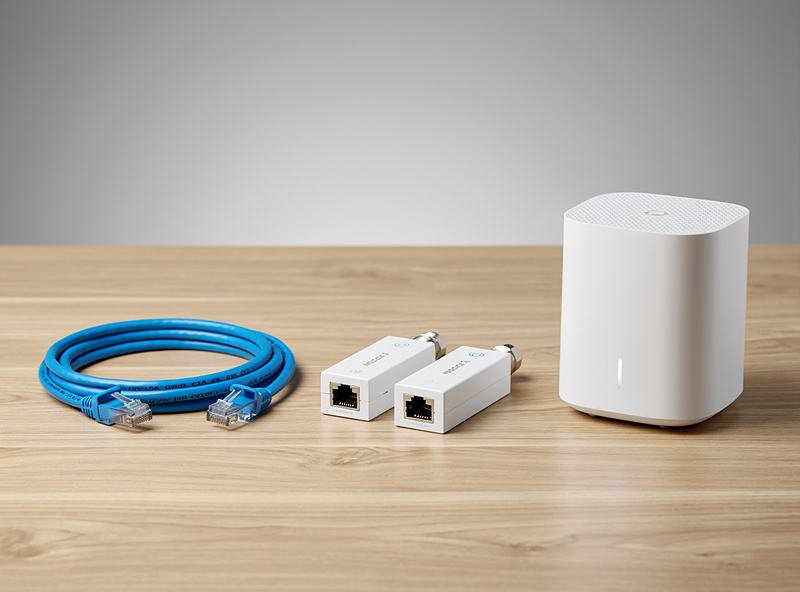
Once the ISP is chosen, the last stretch — router to rig — still matters. Cat6 Ethernet is the answer whenever it's physically possible: no contention, no retransmits, effectively flat latency. If running cable through walls isn't an option, a MoCA 2.5 adapter pair over existing coaxial wiring is the strong second choice, delivering up to 2.5 Gbps with low added latency and no new cabling required (MoCA Alliance, MoCA 2.5 spec). Wi-Fi 6/6E comes third — usable if configured deliberately, but it's always the least consistent of the three. Powerline (HomePlug AV2 and similar) is a last resort only, since it's sensitive to noise from anything else sharing the same electrical circuit.
The shorthand: Cat6 first, MoCA second, a properly tuned Wi-Fi 6E setup third, powerline only if nothing else is possible. The router-side Wi-Fi configuration details — channel width, band steering, OFDMA versus MU-MIMO — are covered in full in the low-latency network tuning companion guide, since that tuning applies the same way regardless of which ISP you land on.
Once You Have the Right Connection, Tune Your Network
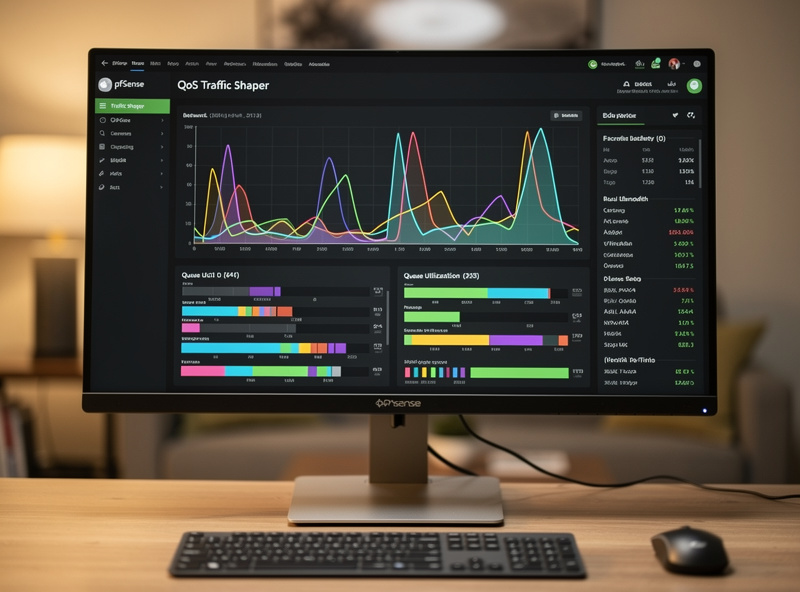
ISP and physical link set the floor; router-side tuning is what protects that floor when the rest of the house is streaming or downloading during your race. In short: enable Cake or fq_codel queue discipline to fight bufferbloat, tag the sim rig's traffic to a high-priority queue by IP (ports vary by title and change between patches, so source-IP rules are more reliable than port-based ones), and set bandwidth caps a little below your real link speed so the queue discipline has room to work. The full pfSense/OPNsense configuration walkthrough, DSCP tagging, and Wi-Fi 6E tuning settings live in the companion low-latency networking for sim racing guide — that's the deeper reference once your ISP and physical link are sorted.
What to Do on the Rig Side
Once the upstream is clean, three rig-side settings still matter:
- Disable Windows Game Mode if it interferes with NIC scheduling — controversial, test both ways
- Set the NIC to 1 Gbps full-duplex explicitly — auto-negotiate sometimes settles on 100 Mbps after a switch reboot
- Update NIC drivers and firmware — some Realtek 2.5GbE drivers have had latency regressions in specific releases, and early Intel I225-V hardware steppings had a documented bufferbloat-adjacent issue tied to inter-packet gap handling that Intel's own firmware updates address; check your NIC vendor's current driver/firmware release notes rather than assuming a fixed version number, since these get patched over time
None of these rig-side tweaks matter as much as the ISP and physical-link decisions above — they’re the last 5% once the first 95% is already right. Chase them after the connection is sorted, not instead of sorting it.
For the deeper rig hardware that wraps around all this — UPS, NIC selection, cable runs — pair with the best DIY router hardware guide.
When the Network Is Already Good Enough
A useful sanity check before any tuning: run a 30-minute online race and watch the in-game latency display. If your number sits near or below iRacing's own published customer averages — about 60ms in the US, about 150ms in much of Europe — and it stays stable without spikes, the network is already good enough. Tuning further has diminishing returns and won't measurably change race outcomes. Spend the time on car setups instead.
Tune when the display shows sustained jitter or spikes during contested bandwidth — someone streaming, someone downloading — rather than chasing a lower average number. A stable higher ping races better than a lower average that periodically spikes, which is the same reason iRacing's own Connection Black Flag system targets fluctuating connections rather than a fixed high-ping value.
Frequently Asked Questions
Do data caps affect online sim racing?
Rarely, directly. Sim racing itself uses only a few hundred megabytes per hour of actual race time, nowhere near a typical data cap. The real risk is indirect: households on capped plans sometimes get throttled after the cap is hit, and throttled connections often reintroduce the jitter and packet loss that actually hurts racing. Check whether your plan throttles speed or simply bills overages once you’re over.
Is fiber really better than cable for sim racing latency?
Usually, but the gap is often smaller than marketing suggests. Fiber’s point-to-point physical layer avoids the shared-segment contention that older cable plants have, and modern cable networks running CableLabs’ Low Latency DOCSIS spec close much of that gap for latency-sensitive traffic. In practice, a well-configured cable plan with Low Latency DOCSIS enabled can beat a poorly-peered fiber ISP, and route-shopping tells you more than the technology label does.
Is Starlink good enough for competitive sim racing?
For casual and mid-tier league racing, yes. SpaceX’s own published data shows median US latency around 33 milliseconds during peak hours, well within a raceable range. For top-split, tight-pack competitive racing, the occasional handoff-related latency spike, a structural property of a satellite constellation rather than a bug, is enough of a disadvantage that a wired or fiber connection doesn’t have to deal with.
Is 5G fixed wireless internet viable for sim racing?
It depends heavily on plan and radio band. Verizon’s own published network-performance data shows 5G Home Internet round-trip latency ranging from roughly 35 to 70 milliseconds depending on plan and band. The low end races fine, the high end is a real step down from wired or fiber. Test the actual connection before signing a contract.
How do I test an ISP’s latency before switching?
Get temporary access to the competing connection, a 30-day trial, a neighbor’s Wi-Fi, or a mobile hotspot on the same network, and run mtr or WinMTR to your sim server’s IP for several minutes during the hours you actually race. Compare hop count and p99 (worst-case) latency against your current ISP, not just the average. A cheaper plan on a better-peered network often beats a premium plan on a worse-peered one.
Does upload speed matter more than download speed for sim racing?
Somewhat, but neither matters much in absolute terms since sim racing uses only a few hundred kilobits to a few megabits per second in each direction. What upload speed does affect is how badly your connection degrades when someone else in the house uploads a large file or backs up photos. A thin upload tier saturates fast and drags your race traffic’s latency up with it.
Related Articles
- Low-Latency Networking for Sim Racing — QoS, Wi-Fi 6E, and Router Tuning
- pfSense Configuration Guide
- OPNsense Setup Guide
- Best DIY Router Hardware
- Sim Racing Internet Setup and ISP Latency (SimRacerCentral)