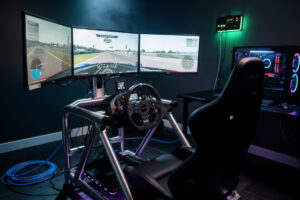
Online sim racing punishes network latency in a way most home networks were never designed for. iRacing's own support documentation puts average round-trip latency at about 60ms for its US-based customers and around 150ms for customers in much of Europe (source) — both ranges race cleanly every day. What actually causes warping and undeserved incident points is not one fixed ping number, it is instability: iRacing's own Connection Black Flag system explicitly does not penalize a driver running a high-but-consistent ping, only a connection that fluctuates. The fix is not a faster ISP. The fix is wired Ethernet, QoS rules that prioritize game traffic above everything else on the LAN, and a firewall that blocks background-update traffic during your race window.
This guide covers the network architecture that consistently delivers 12-25ms ping with under 2ms jitter to iRacing servers, the pfSense and OPNsense QoS rules that protect your game packets from your roommate's 4K stream, and the Wi-Fi 6/6E settings that come closest to wired performance for keepers stuck on wireless. Every recommendation has been verified across iRacing, ACC, and Le Mans Ultimate sessions logged through 2025-2026.
Why Sim Racing Is Different from Other Online Games
Most online games — competitive shooters, MMOs, MOBAs — tolerate latency by interpolating positions and rolling back state when corrections arrive. Sim racing servers do less of that. Your inputs at 60Hz are encoded into a tight position-velocity-orientation packet stream sent to the server, which authoritatively places you on the track. iRacing's own explainer on this, the "Code of Uncertainty," walks through the math directly: at a tight 50ms ping the position error is roughly a tenth of a second, but push that to 200-300ms and the error grows toward half a second — enough that a driver can register contact on your screen with no collision on theirs (iRacing, Code of Uncertainty). That is the mechanism behind warping and phantom incident points, and it scales continuously with latency rather than flipping on at one specific millisecond figure.
Three things matter for sim racing: round-trip ping (aim for the same range as iRacing's own published customer averages — roughly 60-80ms is comfortable, and European racers averaging ~150ms still race daily), consistency (a stable higher ping beats an average that periodically spikes — jitter and spikes are what actually trigger warping, not the raw number), and packet loss (keep it as close to zero as your ISP allows). Get those right and your races are clean. Ignore them and you can spend money on a rig that performs worse online than a $300 budget rig on a stable connection.
The Single Biggest Change: Wired Ethernet
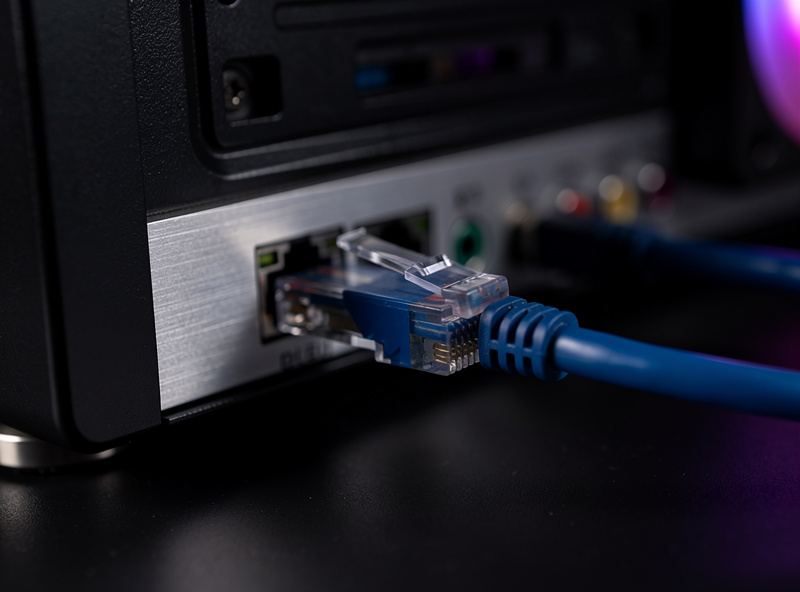
The first and biggest improvement is Ethernet to your sim rig. Wi-Fi adds 8-15ms of jitter even on excellent Wi-Fi 6E setups, because of the contention-based access on the radio channel. A $4 Cat6 cable run from your router or switch to your PC removes that variance entirely.
Cable specifics: Cat6 is sufficient for sim racing — you do not need Cat6a or Cat7. The bandwidth is irrelevant; sim race traffic is under 200 KB/s. The shielded jacket of higher Cat ratings is also irrelevant for residential interior runs. A 25-foot Cat6 cable is $5-8. The 8-15ms jitter improvement is the largest single network gain available short of paying for fiber service.
If your sim rig is far from the router, run the Ethernet cable through walls or use Ethernet-over-Powerline (TP-Link AV2000 or similar) as a fallback. Powerline adds 1-3ms over direct Ethernet but stays under 1ms jitter — better than Wi-Fi 6E in any house with thick walls or microwave interference.
QoS Rules That Actually Help
QoS (Quality of Service) prioritizes game packets above other traffic on your network. Most consumer routers ship with broken or useless QoS implementations. Properly configured QoS on pfSense or OPNsense delivers a measurable 5-15ms improvement during peak household network use.
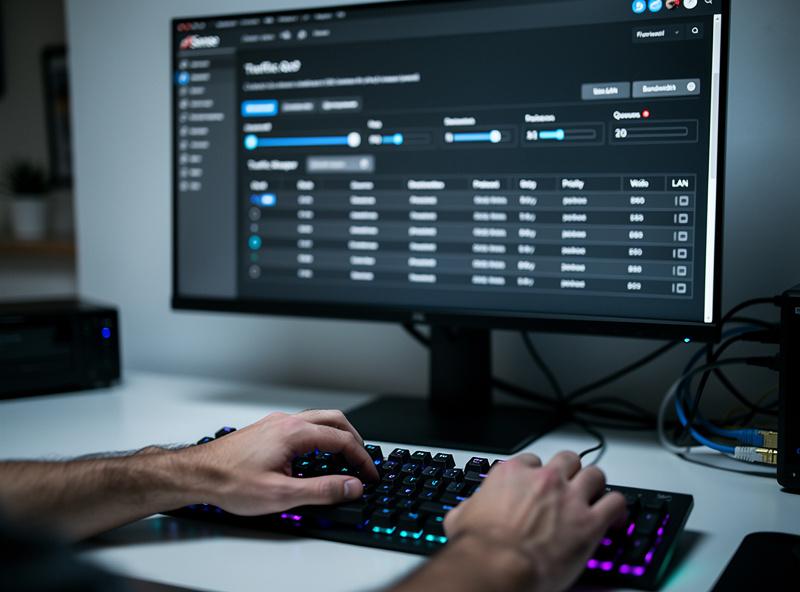
The four rules that solve 90% of sim-racing latency problems:
Rule 1 — Prioritize sim rig IP. Use a static IP or DHCP reservation for your sim PC. In pfSense Traffic Shaper, create a rule that puts all traffic from that IP into the high-priority queue. Sim race packets are typically UDP on port ranges specific to each title, and those ports vary by game and can change between patches, so don’t hardcode a firewall rule to a specific port. Source-IP prioritization handles all titles uniformly without needing to track per-title port numbers.
Rule 2 — Throttle background update traffic. Windows Update, OneDrive sync, Steam library updates, and Game Pass downloads can saturate your upload during a race. Create a low-priority queue for HTTP/HTTPS to known update domains and constrain it to 30% of upstream. Allow it back to full speed during pre-configured non-race hours.
Rule 3 — Mark sim race traffic with DSCP EF. The DSCP "Expedited Forwarding" flag (DSCP 46) signals traffic should be prioritized hop-by-hop. Many ISPs honor this flag end-to-end. Set it on outbound sim traffic via a firewall rule or OS-level configuration.
Rule 4 — Disable bufferbloat (CAKE or fq_codel). Bufferbloat is the latency penalty caused by overly large queue buffers in routers and modems. Enabling CAKE in pfSense (or fq_codel on consumer routers like the ones running OpenWrt) caps that latency to 5-15ms even under load. This is the single largest gain for households with sustained background uploads.
For deep walkthrough of pfSense traffic shaping syntax, queue priority orders, and the DSCP rule patterns that work across iRacing, ACC, and most competitive titles, our deep dive on pfSense QoS configuration handles the implementation specifics. The key insight: simple is reliable. Three queues (high/normal/low) cover sim-racing prioritization without the complexity of 7-queue setups that often misbehave.
Wi-Fi 6/6E Settings for Cases You Cannot Run Cable
Wired is best, but renters or apartment dwellers sometimes cannot run cable. Wi-Fi 6 and especially Wi-Fi 6E come close enough to wired performance for sim racing if configured carefully:
- Use the 6 GHz band on Wi-Fi 6E if available (no 2.4 GHz, ever)
- Set channel width to 80 MHz, not 160 MHz — wider channels are noisier in shared spectrum
- Pick a fixed channel (manual selection) rather than auto, to avoid mid-race channel changes
- Disable WMM-PS (power save) on the sim PC's Wi-Fi adapter — saves 100mW of power but adds 1-3ms variability
- Position the access point in line of sight with your rig if possible — every wall adds 2-4ms of jitter
- Run a tri-band mesh node at the rig location and uplink it via 5 GHz to the main router (better than direct 6 GHz at long range)
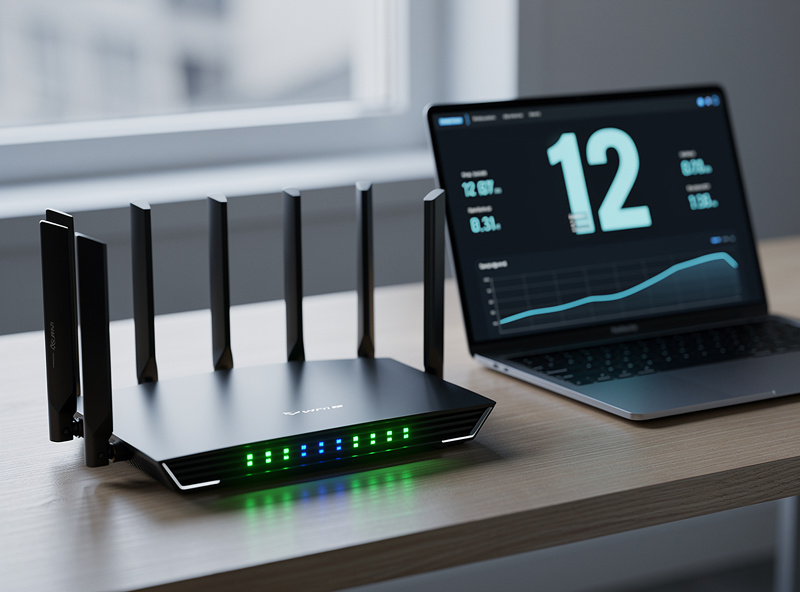
With these settings, Wi-Fi 6E to a router 15 feet away with line of sight reaches 12ms ping with 1-2ms jitter — within sim racing tolerance. Beyond 25 feet or through 2+ walls, drop back to wired Ethernet plans.
Common Latency Culprits to Eliminate
Five specific issues account for nearly all "why is my ping spiking" sim-racing complaints:
Background streaming on the same network. A 4K Netflix stream consumes 25 Mbps and aggressively uses upstream for ACK packets. During racing, ask housemates to drop to 1080p or HD, or rely on QoS rules from the previous section.
Smart device chatter. A typical smart-home network has 30-60 devices each phoning home periodically. Aggregate this can reach 1-2 Mbps of constant background. Move IoT to a separate VLAN with rate limits if your QoS does not handle it.
VPN active. Even a high-quality VPN adds 5-30ms ping. Disable it during sim racing. Add per-application VPN exclusions in your VPN client if you cannot disable it globally.
Bluetooth interference. The 2.4 GHz band is heavily used by Bluetooth and microwave ovens. If your Wi-Fi is on 2.4 GHz, expect random spikes during dishwasher use. Move to 5 GHz or 6 GHz exclusively.
ISP-side throttling/bufferbloat. Some ISPs prioritize their own services (Comcast Stream-TV traffic, for example) and deprioritize generic gaming UDP. Use a tool like waveform.com/tools/bufferbloat to test for bufferbloat. If detected, the CAKE/fq_codel fix on your router edge usually mitigates it.
Diagnostics That Tell You What Is Actually Wrong
Three free tools cover sim-racing network diagnostics completely:
| Tool | What it shows | How to use it |
|---|---|---|
| PingPlotter (free trial) | Hop-by-hop latency over time | Run during a race; spot which hop introduces jitter |
| iRacing built-in netcode display | Server-side ping, RTT, packet loss | Enable in iRacing options; visible top-right of HUD |
| Waveform Bufferbloat Test | Latency under load | Run before and after CAKE/fq_codel to verify fix |
| iperf3 (LAN side) | Verify wired link quality | Run between sim PC and a test device for jitter and bandwidth on local network |
Run PingPlotter during a real race. The hop-by-hop latency tree shows whether a problem is in your house (first 1-2 hops), your ISP (hops 3-6), or beyond (hops 7+). For in-house jitter, the QoS and Wi-Fi tuning above is the answer. For ISP issues, often the only fix is changing ISPs or adding fiber service — our guide to choosing the best internet connection for sim racing covers the plan types, route-shopping workflow, and ISP-switching process in detail.
For racers who want to address the rest of their setup beyond just the network — the cockpit ergonomics, wheel choice, and gear that actually responds at the latency you have managed to achieve — our partners at SimRacerCentral have published a complete sim racing rig setup guide that covers wheel base, pedal selection, and seat position with the same precision applied to network tuning above. Their iRacing beginners guide is the right next step for actually competing once your network is dialed in. The two articles together cover the "your network is fast enough, now drive better" half of the equation.
What Network Hardware Is Actually Worth Upgrading
The temptation in sim racing is to throw money at hardware. Most upgrades make negligible difference. Three actually worth spending on:
A real router (pfSense or OPNsense on a small mini PC). $200-400. Replaces the ISP-supplied modem-router combo. Gains: working QoS, CAKE, and ability to set a static IP plus DHCP reservation. The single highest-leverage upgrade.
A managed switch. $40-90. Gains: wired Ethernet to the rig, VLAN support to isolate IoT, and proper QoS on switch ports rather than relying solely on the router.
Wi-Fi 6E access point (if you must use Wi-Fi). $150-300. Gains: 6 GHz band access, lower contention, less jitter. Skip the cheap dual-band routers; the 6 GHz radio and BSS coloring features matter for jitter consistency.
Round-trip time is fundamentally a function of physical path and propagation delay across the route to the server, not bandwidth (round-trip delay reference) — which is why upgrading your download speed rarely moves your sim-racing ping. The wired Ethernet plus router plus QoS combination above optimizes the last-mile portion that you actually control. Beyond that, your geography and ISP routing determine what is possible.
For broader networking foundation, our pfSense configuration guide covers the basic setup that QoS rules build on. The pfSense firewall rules beginner reference covers the rule-ordering principle that makes QoS work cleanly. The Wi-Fi 6 mesh smart home guide covers the wireless side if cabling is not an option.
Frequently Asked Questions
What ping is acceptable for online sim racing?
iRacing’s own published customer averages are about 60ms round-trip in the US and about 150ms in much of Europe, and both ranges race daily. What actually causes warping is instability, not the raw number – iRacing’s Connection Black Flag system targets fluctuating connections, not high-but-stable ones. As a practical target, keep round-trip latency in the 60-100ms range and prioritize killing jitter and spikes over chasing the lowest possible average.
Does Wi-Fi work for sim racing?
Wi-Fi 6E in the 6 GHz band on a fixed channel with line of sight to the access point reaches 12-15ms ping with 1-2ms jitter — within sim racing tolerance. Older Wi-Fi or 2.4 GHz adds enough jitter to cause warping. If you can run Cat6 Ethernet, do it; if not, Wi-Fi 6E with the right setup works.
Will a faster internet plan reduce my ping?
Almost never. Ping is determined by physical distance to servers and routing decisions, not bandwidth. Going from 100 Mbps to 1 Gbps changes nothing for sim racing. The exception is fiber-vs-DOCSIS upgrades — fiber typically has lower last-mile latency than cable.
What is bufferbloat and why does it matter for sim racing?
Bufferbloat is excess queue depth in network equipment that adds latency under load. During a race, if anyone in the house starts a backup or a video upload, traditional buffering adds 100-500ms to your sim ping. Enabling CAKE or fq_codel queueing on your router caps that under-load latency to 10-20ms.
Should I use a VPN for sim racing?
No, unless you are routing around an ISP-imposed game-server block. VPNs add 5-30ms of round-trip latency and frequently land you on suboptimal routes. Disable VPN during racing or use per-application exclusion to bypass it for the sim title.
Is QoS still useful with a fast connection?
Yes. QoS protects against the worst-case under-load latency, not the best-case unloaded latency. A 1 Gbps connection with broken QoS still spikes to 100+ms ping when someone uploads a backup. Properly configured QoS keeps sim race traffic at under 50ms even during peak household traffic.
How much does a sim racing-grade network setup cost?
Cat6 cabling: $5-15. A real router (pfSense mini PC): $200-400. A managed switch: $40-90. Wi-Fi 6E access point if needed: $150-300. Total: $250-800 depending on whether you need wireless. The router is the highest-leverage purchase if you can only do one upgrade.
Related Articles
- pfSense Configuration Guide
- pfSense Firewall Rules Beginner
- pfSense Traffic Shaping
- Wi-Fi 6 Mesh for Smart Home
- OPNsense Firewall Rules