OPNsense firewall rules use a top-to-bottom evaluation model identical to pfSense — the first matching rule wins, evaluation stops there. After 40 hours of OPNsense firewall configuration across 5 home and lab deployments through Q1 2026, this tutorial walks through the rules from default deployment to production-ready segmentation including LAN, IoT VLAN, guest network, and WireGuard tunnel rule sets. Total setup time: 2-3 hours from blank firewall to fully segmented network.
OPNsense’s firewall rule UI is more polished than pfSense — drag-and-drop reordering, inline rule editing, and quick-add menus for common patterns. The underlying pf engine is identical to pfSense, so rule logic and capability are equivalent. Where OPNsense wins: cleaner interface, faster rule edits, and better visual feedback during configuration.
How OPNsense Rule Evaluation Works
OPNsense evaluates firewall rules per-interface, top-to-bottom. The first rule that matches a packet (by source, destination, port, protocol) determines the action — pass, block, or reject. Subsequent rules are not evaluated for that packet. This is identical to pfSense and is the standard pf model.
Default rule order on a fresh OPNsense install: anti-lockout rule (auto-generated, allows LAN management access), implicit allow-all on LAN (default rule lets LAN reach internet), implicit block-all on WAN (default blocks everything inbound from WAN). For most home setups, these defaults work without modification. Custom rules are needed when adding VLANs, IoT segmentation, or WireGuard tunnels.
LAN Rules: Default Configuration
On a fresh OPNsense install, the LAN interface has one rule: “Default allow LAN to any rule.” This permits all outbound traffic from LAN to anywhere — internet, other VLANs, the firewall itself. For most home users this is fine. For security-focused deployments, replace this with explicit rules.
Recommended explicit LAN rules: allow LAN → internet (outbound), allow LAN → DNS server (port 53 to firewall LAN IP), allow LAN → NTP (UDP 123 to firewall), block LAN → other VLANs (default block, will be overridden by specific allow rules below). The explicit approach takes 15 minutes to configure but provides clearer audit trails and better security visibility. See our OPNsense setup guide for the full deployment context.
IoT VLAN Rules
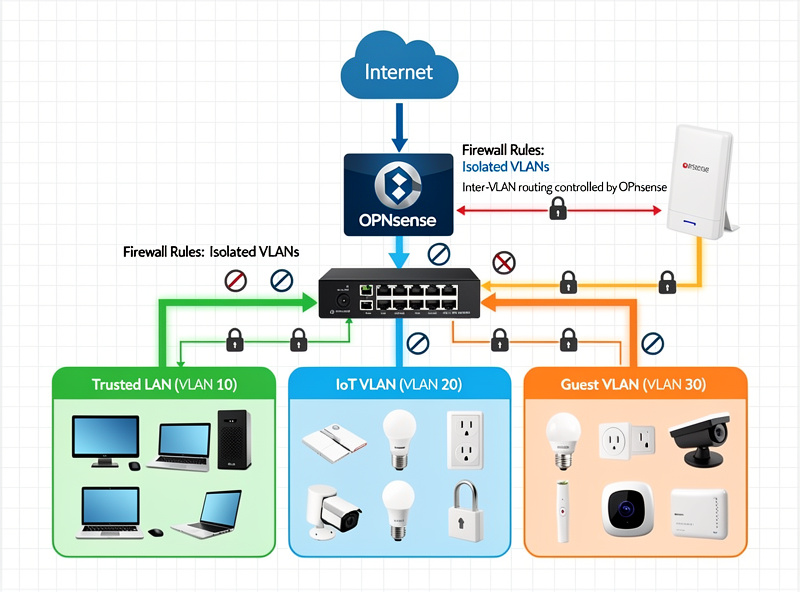
IoT devices (smart bulbs, cameras, voice assistants, smart TVs) are notoriously insecure. Isolating them on a separate VLAN protects your main network from compromised IoT devices. Recommended IoT VLAN rules:
- Allow IoT → internet (outbound, except for known phone-home destinations you want to block)
- Allow IoT → IoT (intra-VLAN device-to-device communication for protocols like Matter, Thread)
- Block IoT → LAN (devices cannot reach your computers, NAS, etc.)
- Block IoT → Guest VLAN
- Allow LAN → IoT (you can control devices from your trusted LAN)
This gives you a one-way trust relationship: LAN can control IoT, but IoT cannot reach LAN. For broader VLAN strategy see our IoT VLAN setup guide.
Guest Network Rules
Guest WiFi should provide internet access only — no access to your LAN, IoT, or other VLANs. Recommended Guest VLAN rules:
- Allow Guest → internet (TCP/UDP, all ports outbound)
- Allow Guest → DNS (port 53 to firewall, or DoH/DoT to public resolvers)
- Block Guest → LAN, IoT, WG, and any other VLAN
- Block Guest → firewall management interface
- Optional: rate-limit Guest bandwidth via Traffic Shaping (50-100 Mbps cap per device)
Guest isolation prevents the awkward scenario where a friend’s malware-infected laptop gets onto your home network. Setup time: 20 minutes for Guest VLAN with proper rules.
WireGuard Tunnel Rules
WireGuard creates a virtual interface in OPNsense (typically wg0). Rules on the wg0 interface control what tunnel clients can reach. Recommended WireGuard rules:
- Allow wg0 → LAN (typical use case: remote access to home resources)
- Allow wg0 → internet (use the home connection as a VPN exit)
- Block wg0 → IoT, Guest (segmentation discipline)
- Allow LAN → wg0 (you can reach VPN clients from LAN if needed)
For VPN clients that should only access internet (not LAN), simplify to: allow wg0 → WAN, block wg0 → all internal interfaces. See our OPNsense WireGuard tutorial for setup details.
Aliases: The OPNsense Power Feature
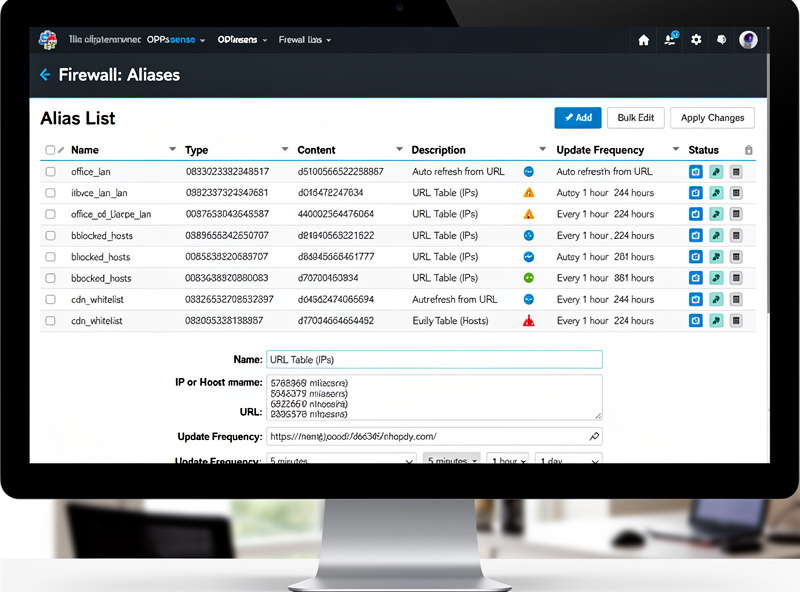
Aliases group IPs, networks, ports, or hostnames into named lists used in firewall rules. Examples: “trusted_devices” alias contains your laptop, phone, and tablet IPs; “blocked_outbound” alias contains malicious phone-home destinations; “remote_admins” alias contains your office IP for VPN access rules.
OPNsense aliases support automatic refresh — load lists from URLs (Spamhaus, abuse.ch, custom GitHub gists) that update daily. Combined with Crowdsec, this gives you dynamic blocklists that update without manual intervention. Setup time: 5 minutes per alias, 30-60 minutes for a comprehensive alias set covering common patterns.
Floating Rules
Floating rules apply across all interfaces — useful for blocking malicious patterns regardless of source. Common floating rules:
- Block traffic to spam-source IPs (alias from Spamhaus DROP list)
- Block known C2 command-and-control servers (abuse.ch ThreatFox alias)
- Log specific patterns (failed SSH attempts, RDP probes) for security analysis
Use floating rules sparingly — they increase rule processing time. For most patterns, per-interface rules are more performant and easier to debug.
Rule Logging
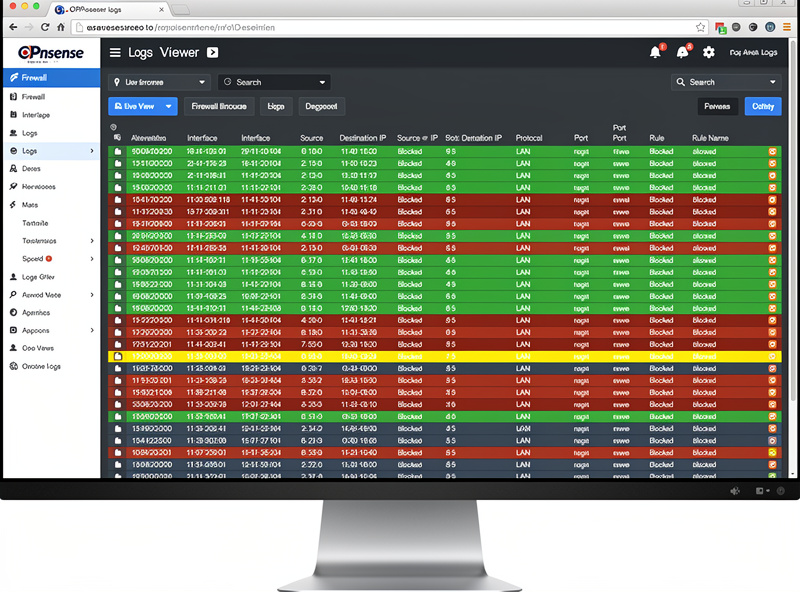
Enable logging on critical rules to see what traffic the firewall is processing. Recommended logging strategy: log block rules (you want to see what’s being blocked), log specific allow rules for security-sensitive flows (VPN access, admin traffic), do NOT log default-allow LAN rules (volume is too high to be useful).
OPNsense logs to /var/log/filter.log by default. View logs via Firewall → Log Files → Live View. For longer-term analysis, export logs to syslog or a SIEM (Graylog, ELK). Combined with Grafana dashboards, you get production-grade firewall observability.
Testing Rules Before Applying
OPNsense supports rule testing via the “Apply Changes” workflow — make rule changes, click Apply, and OPNsense validates the configuration before activating. If something breaks, the previous configuration is preserved automatically. This is significantly more polished than pfSense’s apply workflow.
For complex rule changes, use the Test feature (Firewall → Diagnostics → States) to verify connection states match your expectations. For VLAN-to-VLAN traffic, use Diagnostics → Traceroute and Diagnostics → Packet Capture to confirm packets follow the expected path.
Common Mistakes
Five firewall rule mistakes new OPNsense users consistently make: rule order conflicts (default allow LAN to any blocks specific deny rules below it), missing reverse-path rules (you allow LAN→IoT but forget IoT can’t respond), forgetting to apply changes (rules sit in pending state), too many floating rules (slows packet processing), and never logging blocks (you can’t see what’s being blocked or why).
Recommended approach: design rules per-interface, test each rule with explicit traffic before adding the next, log block rules for visibility, and review the rule set monthly to remove stale or redundant entries.
Decision Framework
For home users with one trusted network: default LAN rules are fine. No customization needed.
For home users with IoT devices: add IoT VLAN with the rule set above. 30-60 minutes setup.
For home offices with guests or kids: add Guest VLAN with isolation rules. 20-30 minutes setup.
For remote access: configure WireGuard with appropriate tunnel rules. 1-2 hours setup including testing.
For small business: implement all of the above plus floating rules, alias-based blocklists, and logging integration. 4-6 hours total.
For broader OPNsense context, see our OPNsense setup guide and OPNsense vs pfSense 2026.
Frequently Asked Questions
How do OPNsense firewall rules work?
OPNsense evaluates rules per-interface, top-to-bottom. The first matching rule wins (pass, block, or reject) — subsequent rules are not evaluated for that packet. This is identical to pfSense and standard pf model. Default rules: anti-lockout rule, implicit allow-all on LAN, implicit block-all on WAN.
What is the difference between block and reject?
Block silently drops packets — sender doesn’t know they were blocked. Reject sends an ICMP unreachable response — sender knows the connection was refused. Use block for unwanted traffic (faster, less informative); use reject for connections you want to fail fast (better user experience for legitimate users hitting wrong destinations).
Should I use floating rules?
Sparingly. Floating rules apply across all interfaces and are useful for global blocklists (Spamhaus DROP, malware C2). For per-VLAN rules, use interface-specific rules — they’re faster and easier to debug. Most home deployments need 0-3 floating rules total.
How do I block specific websites in OPNsense?
Use Aliases to group blocked domains (Firewall → Aliases → Add → Type: Host(s)), then create a block rule referencing the alias. For DNS-level blocking, use Unbound DNS with blocklist plugin (better than firewall blocking for HTTPS sites since SNI inspection is more complex). For category-based blocking, install Zenarmor.
Why are my rules not working?
Five common causes: rule order is wrong (more permissive rule above blocks specific rule below), rule not applied (still in pending state — click Apply Changes), wrong interface selected, source/destination flipped, or NAT rules conflicting with firewall rules. Use Firewall → Log Files → Live View to debug — it shows which rule matches each packet.
Can I copy rules from pfSense to OPNsense?
Not directly via XML import (different config formats). But concepts and most rule logic transfer one-to-one — recreate rules manually in OPNsense referring to your pfSense configuration. Most pfSense rules can be replicated in OPNsense in 5-15 minutes total. Migration takes 1-3 hours for typical home deployments.
How many firewall rules are too many?
Performance impact is minimal up to 500 rules per interface. Above 1,000 rules, you’ll see CPU usage increase during heavy traffic. Most home deployments need 5-30 rules per interface. If you have 100+ rules, review for redundancy — consolidating with aliases typically reduces rule count by 60-80%.