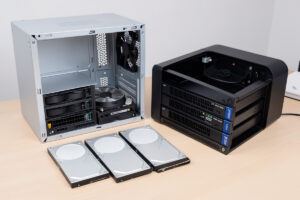
The drives are where a NAS lives or dies, and the rule is simpler than the marketing makes it sound: use NAS-rated CMR drives built for 24/7 multi-bay operation, buy them as a matched set, and never put SMR drives in a ZFS pool. Get that right and the rest of the build forgives a lot of small mistakes; get it wrong and you’ll meet a resilver that never finishes or an array that drops a healthy disk over a recoverable error.
I run big CMR NAS disks for the bulk pool and SSDs for cache and VM storage, and I’ve learned the drive lessons the way you’d expect — by buying the wrong thing once. This is the buying guide under the home NAS guide: what NAS-rated actually buys you, the CMR-vs-SMR trap, where SSDs belong, and how many drives to buy for the RAID level you’ve chosen.
What “NAS-Rated” Actually Buys You
NAS-rated drives are built for the conditions a multi-bay always-on enclosure creates: continuous operation, the vibration of several drives spinning side by side, and firmware that behaves correctly inside a redundant array. The headline firmware feature is time-limited error recovery (TLER/ERC), and it’s the reason these drives belong in a NAS and desktop drives don’t.
Here’s why that firmware matters. When a desktop drive hits a marginal sector, it can retry the read for a long time — sometimes long enough that the RAID controller decides the whole drive is dead and drops it from the array, turning a recoverable hiccup into a degraded array and a needless rebuild. A NAS drive’s time-limited error recovery gives up quickly and reports the error, letting the array’s redundancy handle the bad block while keeping the drive in service. On top of that, NAS drives are rated for 24/7 duty cycles and for the rotational vibration of a populated chassis, where desktop drives are specced for a few hours a day in a quiet tower. Pay the modest premium for NAS-rated; it’s the cheapest reliability you’ll buy. A matched batch of NAS-rated CMR hard drives is the foundation of any pool worth building.
CMR vs SMR: The Trap to Avoid
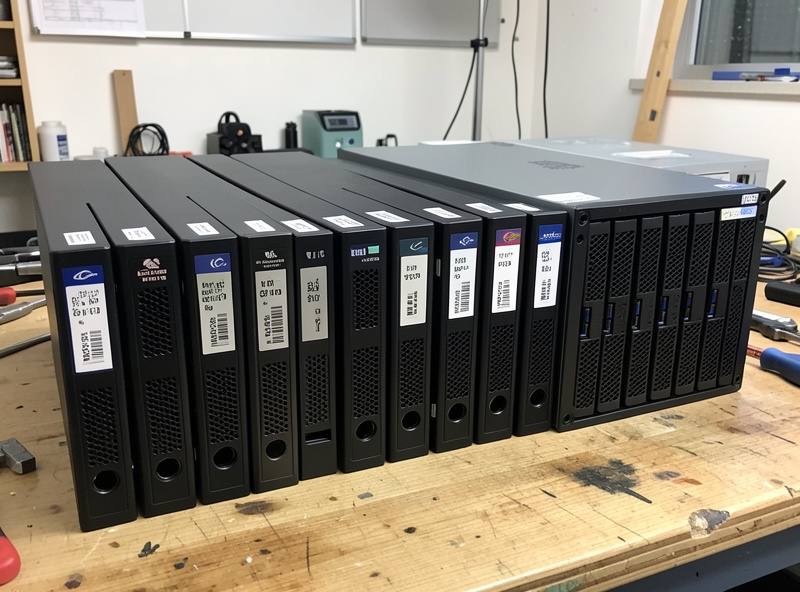
Use CMR (conventional magnetic recording) drives in a NAS, and avoid SMR (shingled magnetic recording) entirely in a ZFS pool. SMR drives overlap their data tracks to pack in more capacity cheaply, but that overlap makes sustained random writes crawl — which is exactly what a ZFS resilver demands, so an SMR drive can turn a routine rebuild into one that takes days or stalls.
This is the single most expensive mistake a NAS buyer can make, and it’s deliberately easy to make because manufacturers have quietly shipped SMR drives without flagging them. The drive looks fine in normal use — it caches writes and flushes them later — but the moment you stress it with the long sustained write of a resilver (rebuilding a failed drive’s data), the shingled design chokes. People have watched RAIDZ resilvers that should take a day stretch into a week, or fail outright, because one SMR drive couldn’t keep up. The rule is absolute for me: CMR only in the pool. Check the model’s recording technology before you buy, because the cheap “surveillance” or bare desktop drives are the ones most likely to be SMR. NAS-rated lines are almost always CMR, which is another reason to buy the proper drives.
| Attribute | CMR (use these) | SMR (avoid in ZFS) |
|---|---|---|
| Track layout | Non-overlapping | Overlapping (shingled) |
| Sustained writes | Consistent | Slows badly when cache fills |
| ZFS resilver | Normal speed | Can crawl or stall |
| Cost per TB | Slightly higher | Lower (the bait) |
| Where it belongs | NAS pool | Cold single-drive archive at most |
Capacity: How Big to Go
For a home NAS, drives in the 4–20 TB range cover essentially every use, and the right capacity is a balance between fewer-larger drives (simpler, cheaper per terabyte, but longer rebuilds) and more-smaller drives (faster rebuilds, more redundancy options, more bays used). I lean toward larger drives for a media pool and slightly smaller for anything I rebuild often.
The trade-off is real and worth thinking through. Larger drives give you more capacity in fewer bays and usually the best price per terabyte, but each one takes longer to rebuild when it fails, which (as the RAID guide explains) is the dangerous window. Smaller drives rebuild faster and let you spread redundancy across more spindles, but you fill bays quicker and pay more per terabyte. My approach: size the drives so the pool gives you the capacity you’ll need in two years without a single drive being so enormous that a resilver becomes a multi-day ordeal — and pair big drives with double parity (RAIDZ2) so the long rebuild has a safety net. Buy a little more capacity than you need today, because a NAS only ever fills up.
Where SSDs Fit
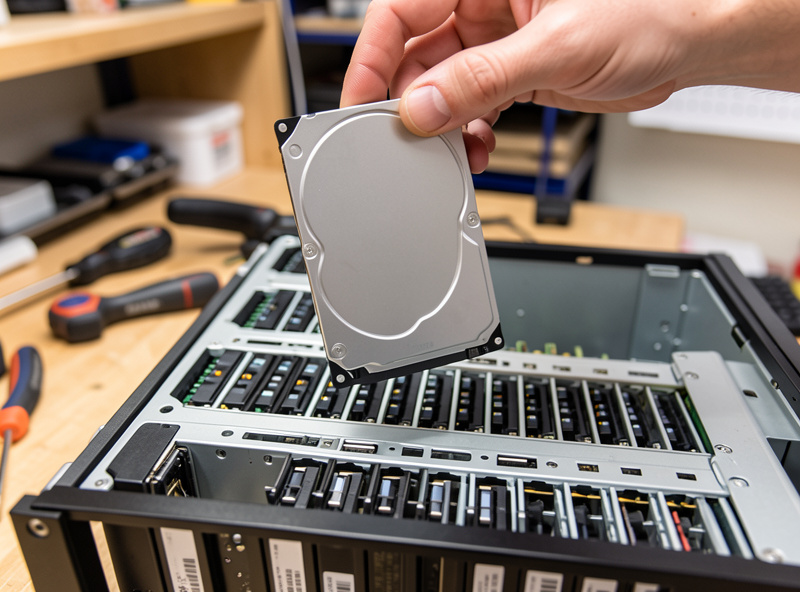
SSDs earn their place in a NAS as cache or as a separate fast pool for VMs and containers — not usually as bulk capacity, where their cost per terabyte still loses to spinning drives at home scale. A small SSD or two transforms how a NAS feels for active workloads without you paying flash prices for your media library.
On my box, the spinning CMR pool holds the bulk data and a small mirrored SSD pool runs the VMs and fast scratch space, because those workloads want IOPS and low latency more than terabytes. ZFS can also use an SSD as a cache device in specific scenarios, though for most home setups the bigger win is simply giving ZFS plenty of RAM for its ARC and reserving SSDs for a dedicated fast pool. If you run containers or a few VMs off the NAS, a pair of decent NAS SSDs in a mirror is the upgrade that makes the box feel quick. Keep the roles separate — flash for fast, spinning for bulk — and each drive does what it’s good at.
One caution on SSDs specifically: if you do use a separate SSD pool for VMs, lean toward drives with decent endurance and, for the fast pool, ones with power-loss protection rather than the cheapest consumer flash. VM and database workloads write constantly, and a budget SSD with no power-loss protection both wears faster and risks losing in-flight writes on a power blip — which is why the UPS on the rack matters as much for the SSD pool as for the spinning one. For pure read-cache duty the bar is lower, but for a pool that hosts live VMs I treat the SSD choice with the same care as the spinning drives: match them, mirror them, and don’t cheap out on the one job that punishes cheap flash.
How Many Drives to Buy
The drive count follows your RAID level and target capacity: a mirror needs two, a RAIDZ2 vdev wants at least four (and is most efficient at six to eight), and you should always buy at least one extra as a cold spare. Buy them matched in size and class, but ideally not all from the same batch.
Match your purchase to the layout you picked: mirrors in pairs, RAIDZ2 at six to eight drives for the best capacity-to-redundancy ratio, and add a spare on the shelf so the day a drive dies isn’t the day you discover the model is out of stock and the array runs degraded while a replacement ships. The one habit that has saved me grief: don’t buy every drive in a single order from a single retailer, because drives from one manufacturing batch can share a defect and fail near each other in time — the exact clustered-failure scenario your redundancy is supposed to survive. I stagger purchases or mix sources so the pool’s drives don’t all age out together. Match the spec, vary the batch, keep a spare — that’s the whole drive-buying discipline.
Frequently Asked Questions
Do I need special hard drives for a NAS?
Yes, use NAS-rated CMR drives. They are built for 24/7 operation and the vibration of a multi-bay chassis, and their time-limited error recovery firmware stops a redundant array from dropping a disk over a recoverable read, which desktop drives can trigger.
Why should I avoid SMR drives in a NAS?
SMR drives overlap their data tracks to add cheap capacity, but that makes sustained random writes very slow. A ZFS resilver is exactly that kind of write, so an SMR drive can turn a routine rebuild into one that takes days or stalls. Use CMR drives in any ZFS pool.
How big should NAS drives be?
For a home NAS, 4 to 20 TB covers nearly every use. Larger drives are cheaper per terabyte and use fewer bays but rebuild slower; smaller drives rebuild faster. Size for the capacity you will need in about two years and pair large drives with double parity.
Do I need SSDs in my NAS?
Not for bulk storage, where spinning drives still win on cost per terabyte. SSDs are worth adding as a separate fast pool for VMs and containers, where their low latency and IOPS matter. Keep flash for fast workloads and hard drives for bulk capacity.
How many hard drives should I buy for a NAS?
Match the count to your RAID level: two for a mirror, at least four for RAIDZ2 and ideally six to eight for the best efficiency, plus one cold spare. Buy them matched in size and class, but try not to buy them all from the same manufacturing batch.
Related Guides
Disclosure: some links on this page are Amazon affiliate links. If you buy through them I may earn a small commission at no extra cost to you — it never changes what I recommend.