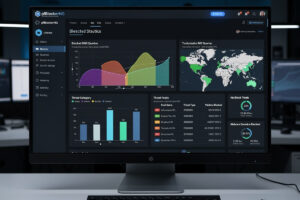
pfBlockerNG turns pfSense into a network-wide ad blocker plus threat-IP filter — the equivalent of Pi-hole built into your router. In ~40 words: install via Package Manager, enable DNSBL (DNS-based ad blocking) with curated feeds, optionally enable IPv4 threat feeds and GeoIP country blocking, save and apply. Setup time: 30-60 minutes including initial feed downloads. Result: ad-free browsing across every device on your network.
This guide walks through pfBlockerNG configuration from package install to production deployment. The application combines DNS-based ad blocking, IP-based threat feeds, and geographic IP filtering into one pfSense package. Compared to Pi-hole or AdGuard Home running as separate services, pfBlockerNG keeps everything inside pfSense and integrates with the firewall rule system.
What pfBlockerNG Does
pfBlockerNG combines three filtering systems: DNSBL blocks DNS queries to known ad and tracking domains, IPv4 feeds block traffic to known malicious IPs, and GeoIP blocks traffic from specific countries entirely. Each system runs independently; you can enable any combination.
The most-used component is DNSBL — DNS blackhole list. When a device on your network requests an ad domain (e.g., an ad network’s tracker URL), pfSense’s DNS resolver returns “blocked” instead of the real IP. The browser sees no response and skips the ad. The same approach works for trackers, telemetry, and known-malicious domains.
For broader pfSense context, see our complete pfSense configuration guide.
Installing pfBlockerNG
System → Package Manager → Available Packages → search “pfBlockerNG-devel” → install. Use the -devel version (currently 3.x) rather than the original pfBlockerNG which is no longer maintained. Installation takes 2-5 minutes.
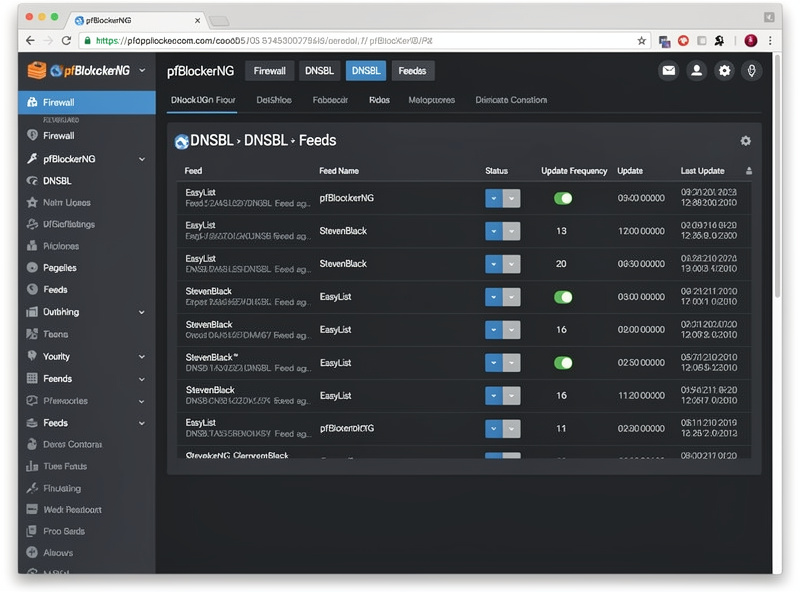
After install, navigate to Firewall → pfBlockerNG. Run the initial setup wizard which configures interfaces, default feeds, and update schedule. Most defaults work for typical home networks; advanced users can customize during the wizard or after.
Critical setup choice: enable DNSBL but configure DNS resolver to forward all DNS through pfBlockerNG. Services → DNS Resolver → enable “Custom options” → add the pfBlockerNG DNSBL include directive. Without this, DNSBL doesn’t actually block anything because devices bypass pfSense’s DNS resolver.
DNSBL Feed Configuration
DNSBL feeds are curated lists of domains to block. Different feeds target different threat types.
EasyList: The standard ad-blocking list, covering major ad networks. Updated frequently. Essential for any ad-blocking deployment.
EasyPrivacy: Privacy and tracker blocking — analytics, tracking pixels, and similar. Pairs with EasyList for comprehensive coverage.
StevenBlack Unified Hosts: Combined hosts file blocking ads, trackers, and malicious domains. One of the largest single-source feeds.
OISD (One Stop Domains): Curated by Pi-hole community. Lower false-positive rate than aggressive blocklists.
For a typical home setup: EasyList + EasyPrivacy + OISD provides comprehensive ad blocking with minimal false positives. Adding StevenBlack increases blocking aggressiveness — useful but more likely to break legitimate sites.
Configure feeds: Firewall → pfBlockerNG → DNSBL → DNSBL Feeds tab. Enable feed sources and assign categories. The Update tab forces immediate feed download; first download takes 5-10 minutes depending on feed sizes.
IP Threat Feeds
IP feeds block traffic to/from known-malicious IP addresses. Different from DNSBL — this filters by IP, not domain. Configure: Firewall → pfBlockerNG → IPv4 → Add custom IP feed sources.
Common IP feeds: Spamhaus DROP (compromised/hijacked networks — EDROP was folded into the same list in 2024), Emerging Threats compromised IPs, OpenPhish (phishing infrastructure). These feeds are smaller than DNSBL feeds (typically 10,000-50,000 IPs) and require less CPU to enforce.
For most home networks, IP feeds add useful protection beyond DNSBL. The combined effect: DNSBL blocks DNS-based requests to bad domains, IP feeds block direct-IP connections that bypass DNS. Together they catch threats that either alone misses.
GeoIP Country Blocking
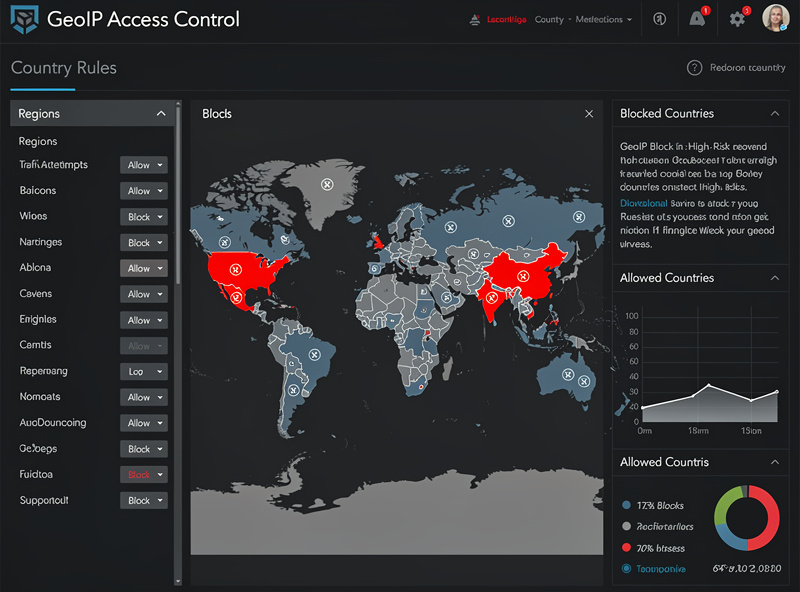
GeoIP blocks all traffic from specified countries. Common production use: blocking countries you have no business with, dramatically reducing automated attack volume in firewall logs.
Configure: Firewall → pfBlockerNG → GeoIP. Requires a free MaxMind GeoLite2 database license (5-minute signup). After license configuration, select countries to block.
For most US/EU home users, blocking Russia, China, North Korea, and Iran reduces inbound attack volume significantly without affecting legitimate traffic. Block list can grow based on your specific log analysis — countries showing up in firewall logs as attackers but never as legitimate sources are good block candidates.
Trade-off: GeoIP databases aren’t perfect. Legitimate users in blocked countries (visiting relatives, business partners) lose access. For most home networks this isn’t an issue; for businesses with international clients, GeoIP needs more careful tuning.
Testing the Setup
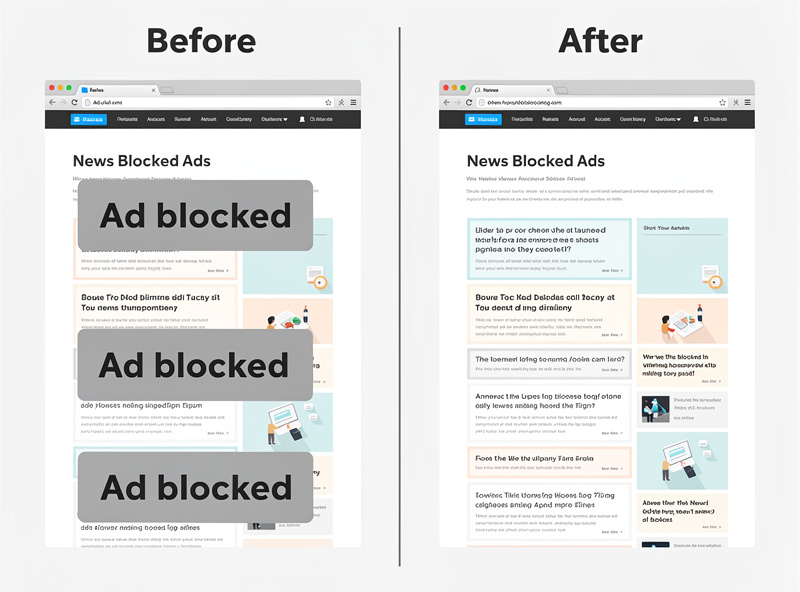
Test ad blocking: visit a site with ads (news sites, YouTube). Many ad placements should be empty or replaced with blank space. Some YouTube ads still show — pfBlockerNG can’t block ads from YouTube’s CDN because they’re served from same domain as content.
Test threat blocking: navigate to a known-bad URL (use a test site like phishtank.com test entries). The connection should fail or show a “blocked” page from pfSense.
Test GeoIP: try to ping a known IP in a blocked country. The ping should fail. Verify legitimate traffic still works (your normal websites should load fine).
If ad blocking isn’t working, the most common cause is that DNS isn’t being forwarded through pfBlockerNG. Verify DNS Resolver is configured correctly and devices on your network use pfSense as their DNS server (DHCP should set this automatically).
Performance Impact
pfBlockerNG adds modest CPU overhead. DNSBL adds <1ms latency to DNS queries — imperceptible to users. IP feeds add minimal firewall processing overhead. GeoIP requires database lookups but is highly optimized.
On a Topton N100 mini PC: pfBlockerNG with full DNSBL + IP feeds + GeoIP runs at <5% CPU on idle and <10% during active browsing. Hardware impact is negligible compared to Suricata.
The main resource consumer is DNS resolver memory — caching all blocked domains requires RAM. 4GB RAM is comfortable for typical feeds; 2GB hardware can struggle with very large blocklists. See our DIY router hardware guide for hardware sizing.
Frequently Asked Questions
Is pfBlockerNG better than Pi-hole?
Roughly equivalent on DNSBL functionality. pfBlockerNG integrates with pfSense’s firewall and adds IP feeds and GeoIP. Pi-hole is a dedicated DNS server that runs separately, simpler interface, but no firewall integration. For pfSense users, pfBlockerNG is the natural choice; for users without pfSense, Pi-hole is simpler.
Why is YouTube still showing ads after enabling pfBlockerNG?
YouTube serves ads from the same CDN as video content (googlevideo.com). Blocking that domain breaks YouTube entirely. Browser-level ad blockers (uBlock Origin) can selectively block YouTube ads because they parse the page; DNS-level blocking cannot. Use uBlock Origin in browsers PLUS pfBlockerNG for network-wide blocking.
Can pfBlockerNG block phishing sites?
Yes via OpenPhish and similar threat feeds. The feeds list known phishing domains; pfBlockerNG blocks DNS queries to those domains. Phishing sites move quickly so feed update frequency matters — daily updates catch most active phishing campaigns within hours of launch.
How much RAM does pfBlockerNG need?
4GB minimum for full feed sets. 2GB works with smaller feed selections. The DNS resolver caches all blocked domains in memory; large feeds (StevenBlack Unified, all OISD lists) consume 200-500 MB of resolver memory. Plan accordingly when sizing pfSense hardware.
Will pfBlockerNG break websites?
Sometimes. Aggressive blocklists (StevenBlack, large unified feeds) occasionally block tracking pixels that legitimate sites depend on for functionality. The fix: whitelist specific domains via Firewall → pfBlockerNG → DNSBL → Custom Domain Whitelist. Add domains case-by-case as you encounter broken sites.
How often should feeds update?
Daily is the standard. Most feeds update once per day. Configuring feed update to once-daily catches most updates without unnecessary load. For threat feeds (phishing, malware C2), 12-hour updates catch new threats faster — worth enabling for security-focused deployments.
Can I use pfBlockerNG with Pi-hole?
Yes — pfBlockerNG can forward unblocked queries to Pi-hole for additional filtering. Or run them as parallel layers (devices use Pi-hole, Pi-hole uses pfSense as upstream). The double-DNSBL approach catches threats that one alone misses but adds complexity. Most users pick one or the other.
Related Articles
- Complete pfSense Configuration Guide
- pfSense Firewall Rules Tutorial
- pfSense Suricata Tutorial
- VPN, DNS, and Privacy Guide
- Home Network Security Hardening