
Suricata is the open-source IDS/IPS that turns pfSense from a router into an active threat-detection system. In ~40 words: install via Package Manager, configure interfaces to monitor (typically WAN), enable rule sources (Emerging Threats Open is free), choose between IDS-only (alert-mode) and IPS (block-mode), and run. Total setup time: 30-45 minutes including initial rule download.
This guide walks through Suricata setup on pfSense from package install through tuned production deployment. Suricata generates significant alert volume initially — most beginners install Suricata, see hundreds of daily alerts, and disable it within a week. The tuning steps below avoid that fate.
IDS vs IPS Mode
Suricata operates in two modes: IDS (Intrusion Detection System — alerts only) or IPS (Intrusion Prevention System — alerts plus blocks). The choice affects how aggressive Suricata is and how impactful false positives become.
IDS mode: Suricata logs suspicious traffic but doesn’t drop packets. False positives produce log entries; legitimate traffic continues working. The right starting mode for new deployments.
IPS mode: Suricata logs AND drops suspicious traffic. False positives break legitimate connections. Use only after thorough tuning has reduced false positives to near-zero.
For most home networks, IDS mode is sufficient. The alerts let you see attempted attacks; running IPS adds risk of breaking legitimate traffic that matches a rule. For broader pfSense context, see our complete pfSense configuration guide.
Installing Suricata
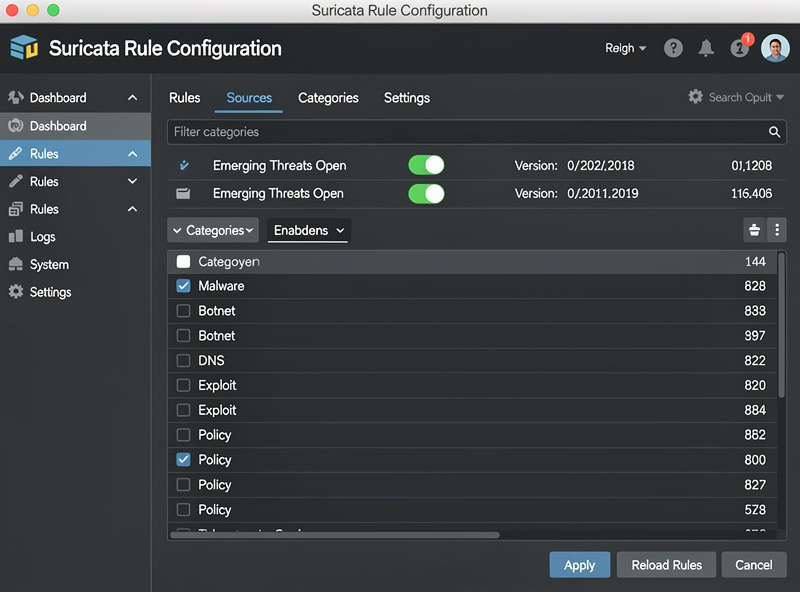
System → Package Manager → Available Packages → search “suricata” → install. Installation takes 2-5 minutes. After install, navigate to Services → Suricata.
The Suricata configuration uses tabs: Interfaces (which network interfaces Suricata monitors), Global Settings (rule update schedule, signature options), Updates (rule source configuration), and Alerts (live alert view).
For most home networks: enable Suricata on WAN only. Monitoring LAN traffic doubles CPU load without significantly improving threat detection — most attacks come from WAN. Add LAN monitoring only if you suspect compromised internal devices.
Configuring Rule Sources
Suricata uses signature-based detection — rules describe known attack patterns. Without rules, Suricata does nothing. Multiple rule sources are available; choose based on your needs.
Emerging Threats Open (ET Open): Free, comprehensive, updated daily. The right default for home networks — tens of thousands of signatures covering most known threats.
Snort VRT (Snort Subscriber Rules): Free with registration (Snort Community Rules) or paid via an inexpensive personal subscriber license for the full Talos-maintained feed. The free Community version is older but useful as supplement to ET Open.
OPNSense Rules: Same project as Suricata, separate rule sources. Less comprehensive than ET Open.
For a home network, enable ET Open and let it download. Initial rule download takes 5-10 minutes. After download, configure category filtering — disable rule categories you don’t need (e.g., disable rules for protocols you don’t use) to reduce alert volume.
Interface Configuration
Per interface, configure monitor options. Services → Suricata → click the WAN interface → settings.
Block offenders: enabled = IPS mode (drops bad traffic), disabled = IDS mode (alerts only). Start with disabled (IDS) until you’ve tuned the rules.
Send alerts to system log: enable. This lets you correlate Suricata alerts with other pfSense events.
Enable EVE JSON log: enable. The EVE format is structured JSON that’s machine-readable for SIEM integration.
Save and Start the interface. Suricata begins monitoring traffic. Within minutes you’ll see initial alerts in Services → Suricata → Alerts tab.
Tuning False Positives
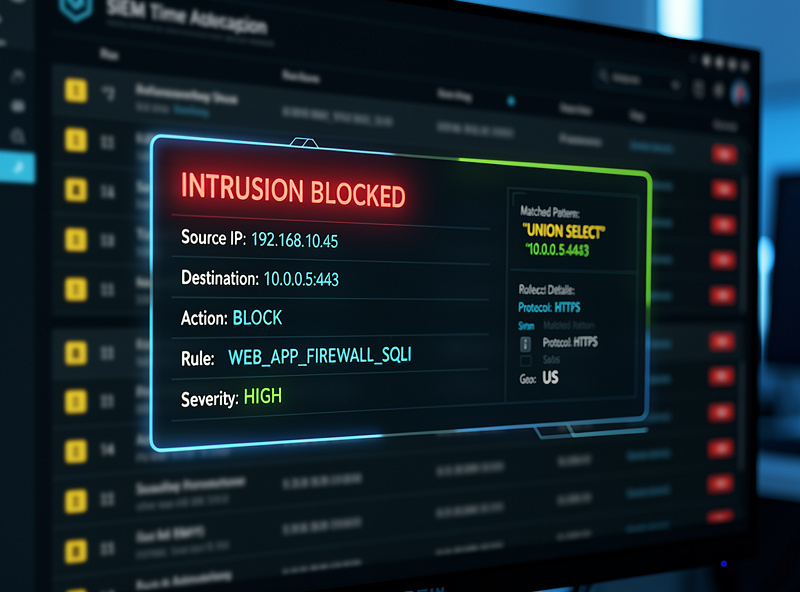
The first 24 hours of Suricata typically generate hundreds to thousands of alerts. Most are false positives — legitimate traffic that matches an overly-broad rule. Tuning reduces this to actionable alerts only.
Common false positive sources: Pi-hole or other DNS servers (rules flag DNS query patterns), torrent users (P2P rules fire on legitimate uses), gaming traffic (rules confuse game servers with command-and-control servers), home IoT devices (rules flag legitimate but unusual protocols).
Tuning approach: review alerts daily for the first week. For each repeated alert that’s clearly false positive, suppress the specific rule via the rule’s “Suppress” action. After a week, you’ll have eliminated 80%+ of noise alerts.
Don’t blanket-disable rule categories without verifying. A “false positive” might actually be an attack you don’t recognize. Check each rule by reading the description and verifying the source IP isn’t malicious.
Hardware Impact and Performance
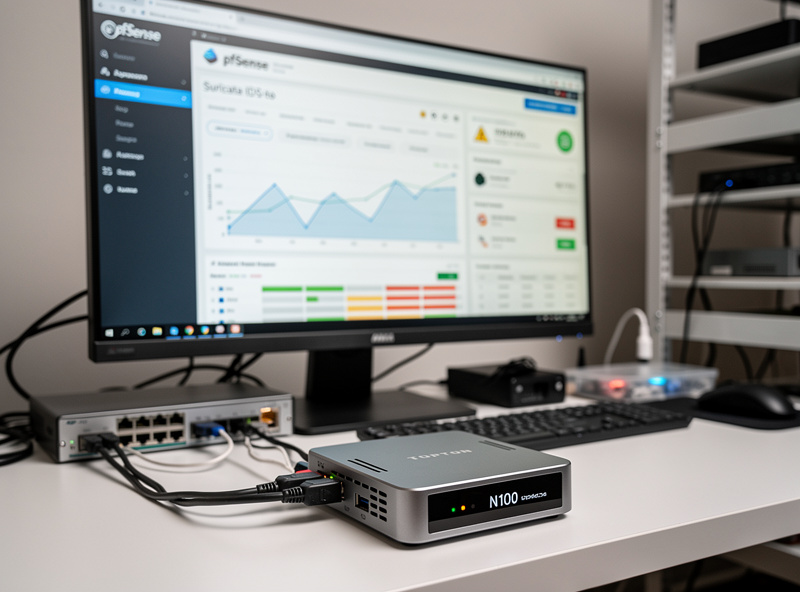
Suricata generates significant CPU load. Approximate hardware sizing for gigabit WAN with full ET Open ruleset:
Protectli FW2B (dual-core Celeron J3060): Suricata limits throughput to ~300-400 Mbps. CPU pegged. Acceptable for slower internet (under 500 Mbps).
Protectli FW4B (quad-core Celeron J3160): Suricata handles ~500-700 Mbps with significant CPU load. (Protectli’s own hardware overview confirms the FW2B/FW4B/FW4C chip lineup.)
Topton N100 mini PC: Suricata handles full gigabit WAN with 30-60% CPU usage. Comfortable for gigabit fiber.
Topton N305 / higher: Suricata handles 2.5G+ WAN with headroom.
For users on slower internet (under 500 Mbps), nearly any pfSense hardware runs Suricata fine. For gigabit fiber, choose Topton N100 minimum. See our DIY router hardware guide for hardware selection details.
Daily Alert Review Workflow
Once tuned, Suricata generates 5-50 alerts per day on a typical home network. Reviewing them takes 5-10 minutes.
Daily workflow: Services → Suricata → Alerts tab → review the last 24 hours. For each alert: verify the source IP isn’t a known service you use, check the destination port for legitimate purpose, decide if the alert is actionable (suspicious activity to investigate) or noise.
For repeated alerts from specific source IPs, consider blocking those IPs at the firewall (Firewall → Aliases → IP → add the IP, then a firewall rule blocking that alias). pfBlockerNG can automate this for known threat IP feeds.
The deterrent value of Suricata is also real even when alerts are mostly low-severity. Knowing your network logs attempts is itself valuable — and the rule patterns Suricata enforces actively interrupt many automated attack tools.
Frequently Asked Questions
Should I run Suricata in IDS or IPS mode?
IDS mode (alert-only) for new deployments. After 2-4 weeks of tuning false positives, switch to IPS mode if you want active blocking. IPS in untuned state will break legitimate traffic; the tuning period is essential before enabling blocks.
Does Suricata slow down my internet?
Yes, with large impact on small hardware. On a Protectli FW2B (dual-core Celeron J3060), Suricata limits gigabit fiber to 300-400 Mbps. On a Topton N100, gigabit fiber works fine with Suricata enabled. Match hardware to your internet speed before enabling Suricata.
What’s the difference between Snort and Suricata?
Both are signature-based IDS/IPS. Suricata is multithreaded (uses multiple CPU cores), modern, and actively developed. Snort is single-threaded by default and has smaller community in 2026. For new deployments, choose Suricata. For existing Snort deployments, migrating to Suricata is straightforward.
How often should rules update?
Daily is the standard. ET Open rules update multiple times per day; checking once per 24 hours catches most updates. Configure: Services → Suricata → Updates → set to Auto-update Daily. Don’t disable updates — outdated rules miss new threats.
Why am I getting hundreds of false positive alerts?
Suricata generates significant noise from default rule sets. Reduce by: disabling rule categories you don’t need, suppressing specific rules for legitimate traffic that triggers them, and excluding internal IPs from monitoring on certain rule categories. Tuning reduces alerts to 5-50 per day from initial 200-500.
Can Suricata block CryptoLocker / ransomware?
Partially. Rules detect known ransomware command-and-control communication patterns and block them in IPS mode. They cannot block files transferred over HTTPS (which most ransomware uses). Suricata is one layer of defense, not a complete ransomware solution. Combine with endpoint protection and backups.
Should I run Suricata on LAN or WAN?
WAN only for most home networks. Adding LAN monitoring doubles CPU load without significantly improving detection — most attacks come from WAN. Enable LAN monitoring only if you suspect internal compromise or want visibility into IoT device behavior. Performance impact is significant.
Related Articles
- Complete pfSense Configuration Guide
- pfSense Firewall Rules Tutorial
- pfSense WireGuard Setup
- Home Network Security Hardening
- DIY Router Hardware Guide