Putting each Wi-Fi network on its own VLAN comes down to one wireless-side action: in your AP controller, create one SSID per trust zone and assign each to a VLAN ID, then make sure the AP’s uplink port is a trunk carrying those tagged VLANs. The AP tags client frames as they hit the wire; the switch and firewall do the actual isolating. That’s the whole mechanism, and it’s what turns three or four broadcast names into genuinely separate networks.
This guide is the wireless half of segmentation — how SSIDs map to VLANs on the access point. The VLAN architecture itself (subnets, inter-VLAN firewall rules, why you segment at all) lives in the home network VLAN guide; here I’m assuming you already have VLANs defined and just need your Wi-Fi to ride them correctly. It slots into the wireless layout from the home Wi-Fi setup guide.
How SSID-to-VLAN Tagging Works
On a controller-managed AP, each SSID has a VLAN setting. When a client connects to that SSID, the AP attaches the matching 802.1Q VLAN tag to the client’s traffic before sending it up the uplink cable. The switch sees a tagged frame and keeps it on that VLAN all the way to the firewall.
The key idea is that the radio doesn’t enforce anything — it labels. A device on the “IoT” SSID and a device on the “Main” SSID share the same airwaves and the same physical AP, but their traffic carries different VLAN tags the moment it hits the wire, so the network treats them as if they were plugged into entirely separate switches. The enforcement — what can talk to what — happens downstream in firewall rules, not on the AP. That separation of duties is why this is purely a wireless-side mapping job: you’re telling the AP which tag to stamp on which SSID, and trusting the segmentation you already built to do the rest, as detailed in network segmentation.
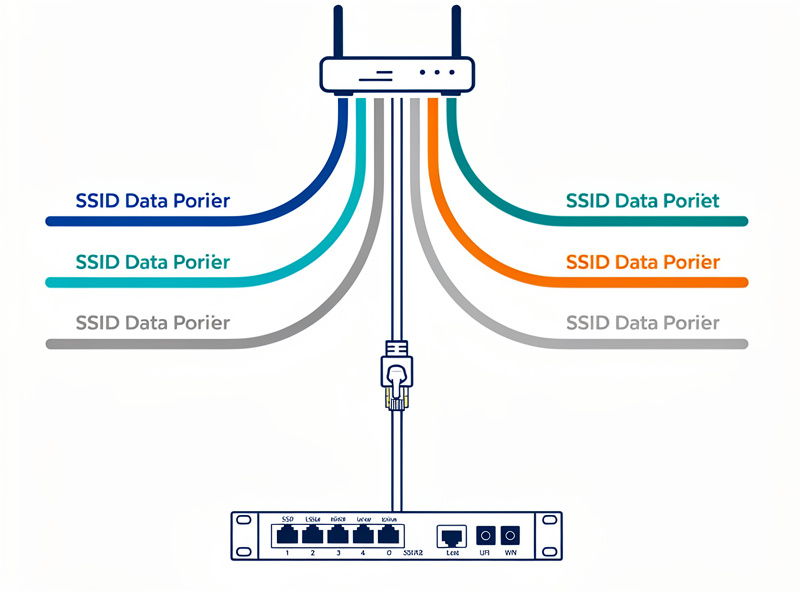
The AP Uplink Must Be a Trunk
For multiple VLAN-tagged SSIDs to work, the switch port the AP plugs into must be a trunk that carries every VLAN your SSIDs use, tagged, plus your management VLAN as the untagged/native VLAN. If a VLAN isn’t allowed on that port, the SSID mapped to it simply won’t pass traffic.
This is the single most common failure when people set up multi-SSID Wi-Fi: the AP is configured perfectly, the SSIDs broadcast, devices connect — and then can’t reach anything, because the switch port is still an access port on one VLAN. The AP needs a trunk. I set the AP’s port to trunk, tag every VLAN whose SSID the AP broadcasts, and leave the management VLAN untagged so the controller can still reach the AP for adoption and config. The switch-side trunk setup is covered step by step in managed switch setup, and the same trunking discipline applies whether the downstream device is an AP or another switch.
Which SSIDs to Create
For a home, four SSIDs cover almost every case: a main network for trusted devices, an IoT network for smart-home gear, a guest network that’s isolated from everything, and optionally a kids network. Each maps to the VLAN that already has the firewall rules you want for that zone.
Resist the urge to make a dozen SSIDs — each one adds management-frame overhead on the air, so more SSIDs literally costs you a little airtime. I run main, IoT, guest, and kids, mapped to their respective VLANs. The IoT SSID is where the segmentation earns its keep: those devices go onto a VLAN with no internet egress except whitelisted endpoints, so a compromised smart plug can’t phone home or scan the rest of my network. The guest SSID maps to a fully isolated VLAN — visitors get internet and nothing else, the recipe for which is in guest network isolation. The firewall rules that make these zones mean something are in VLAN firewall rules, and the indoor-IoT caging specifics are in VLAN for IoT.
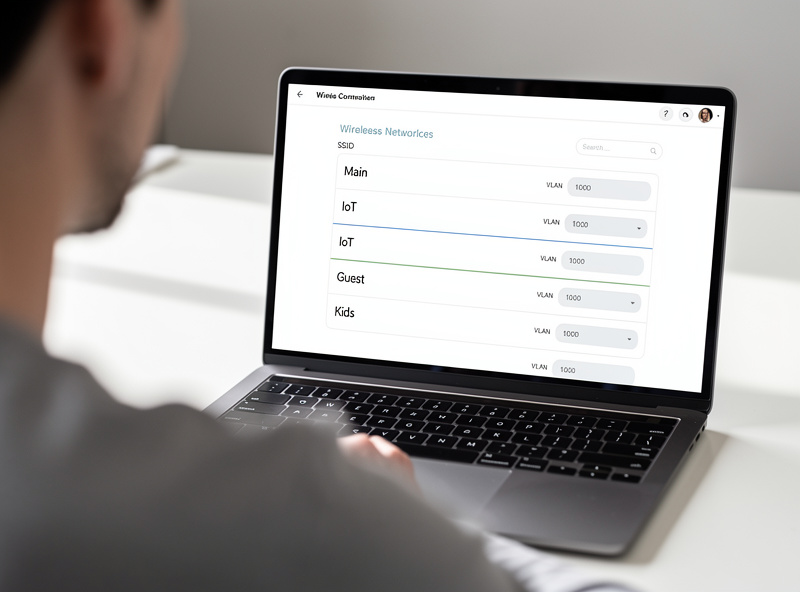
Verify Each SSID Lands on the Right VLAN
After mapping SSIDs to VLANs, confirm each one actually works by connecting a device to each SSID and checking the IP address it receives. A device on the IoT SSID should pull an address from the IoT VLAN’s DHCP scope, a guest device from the guest scope, and so on — if they all get addresses from the same subnet, the tagging isn’t taking effect.
This thirty-second check catches the most frustrating misconfiguration: an SSID that connects fine but quietly drops the client onto the wrong VLAN because the tag didn’t apply or the trunk doesn’t allow that VLAN. I connect a phone to each SSID in turn and look at the assigned IP and gateway — the subnet tells me immediately which VLAN the AP put me on. If a guest device comes back with a main-network address, I know the VLAN tag isn’t reaching the firewall, and the fix is almost always the trunk port allow-list on the switch, not the AP. Once every SSID hands out addresses from its intended scope, the wireless segmentation is genuinely in place and the firewall rules from the VLAN cluster take over. It’s worth re-running this check any time you add an AP, because a new AP on a misconfigured port reintroduces exactly this problem. The broader troubleshooting flow for when wireless clients misbehave is in troubleshooting your home network.
Bands, Roaming, and Per-SSID Settings
Map SSIDs thoughtfully to bands: put IoT on a dedicated 2.4 GHz-only SSID since most smart-home gear is 2.4 GHz, and let the main SSID span 5 and 6 GHz for your capable devices. This keeps the congested 2.4 GHz band for the devices that need it and frees the clean bands for everything else.
A few per-SSID details matter. Many cheap IoT devices refuse to join a combined SSID that also broadcasts 5 GHz, or they roam badly with fast-transition enabled — so a 2.4 GHz-only IoT SSID with fast roaming off solves a whole class of “my smart plug won’t connect” problems. For the main and kids SSIDs I leave 802.11k/v/r on so phones and laptops roam between APs cleanly. This is the band discipline I apply across the layout, and it pairs with the power and channel tuning in UniFi access point setup. The result is a wireless network that mirrors my wired trust zones exactly — same VLANs, same firewall rules, just reached over the air.
The only gear this needs beyond the APs is a managed switch capable of 802.1Q trunking — something like an 8-port managed PoE switch handles a typical home’s APs and tagging in one box.
Frequently Asked Questions
How do I put each SSID on its own VLAN?
In your AP controller, set a VLAN ID on each SSID, then make the AP’s switch port a trunk carrying those VLANs tagged. The AP stamps the matching 802.1Q tag on each client’s traffic, and the switch and firewall enforce separation downstream.
Why do my VLAN SSIDs connect but have no internet?
Almost always the AP’s switch port is still an access port on one VLAN. It must be a trunk that allows every VLAN your SSIDs use, tagged, with the management VLAN untagged. A VLAN not allowed on the port cannot pass its SSID’s traffic.
How many SSIDs should a home network have?
Usually four: main, IoT, guest, and optionally kids. Each maps to a VLAN with its own firewall rules. Avoid making many SSIDs — every additional one consumes airtime with management frames and gives little benefit.
Should IoT devices be on their own SSID?
Yes. Put IoT gear on a dedicated 2.4 GHz SSID mapped to a VLAN with no internet egress except whitelisted endpoints. This contains a compromised device and avoids the connection problems cheap IoT gear has with combined-band SSIDs.