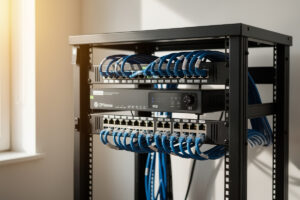
A home Wi-Fi setup that actually holds up under a houseful of devices is built on wired-back access points, not a daisy-chained mesh or a single all-in-one router parked in the living room. In my house every AP hangs off a PoE switch on its own cable run, broadcasts SSIDs that map straight to VLANs, and hands clients off as I walk between rooms. That layout is the difference between “Wi-Fi that works near the router” and Wi-Fi that works everywhere, and it costs less than the consumer mesh kit it replaces.
This is the guide I wish I’d had when I tore out the ISP router. I run OPNsense on dedicated hardware with a managed switch on the trunk and Wi-Fi 6/6E APs cabled back over PoE — and over the years I’ve swapped in just about every topology, from a single fat router to a three-pack mesh to the wired multi-AP layout I run now. Below is what each approach actually does, where it falls down, and how to build the version that doesn’t make you walk to the router to reset it.
Router vs Mesh vs Access Points: What You Actually Need
Most home Wi-Fi falls into three layouts: a single wireless router, a wireless mesh kit, or wired access points fed from a central switch. For anything bigger than a small apartment, wired APs win on throughput, latency, and stability — mesh is a coverage tool for places you genuinely cannot run a cable, not a default.
The all-in-one wireless router is fine until walls and distance get involved. A single radio in one corner of the house can’t cover the far bedrooms, so you start buying extenders, and every extender halves throughput because it talks to clients and backhaul on the same radio. A wireless mesh kit cleans that up with dedicated backhaul and seamless roaming, but the backhaul is still over the air — it competes with your neighbors’ Wi-Fi and degrades with every wall. Wired access points solve the backhaul problem by removing it from the air entirely: each AP gets a full-rate Ethernet run, so all the spectrum is spent on clients. I cover the full head-to-head in wired access points vs mesh, and if your goal is purely smart-home coverage the Wi-Fi 6 mesh for smart homes breakdown is the companion piece.
| Layout | Backhaul | Best for | Roaming | Real-world ceiling |
|---|---|---|---|---|
| Single wireless router | N/A | Studio / 1-bed apartment | N/A (one radio) | ~1 room of strong signal |
| Router + extenders | Wireless (shared radio) | Patching one dead spot, cheaply | Poor (separate SSIDs) | Throughput halves per hop |
| Wireless mesh kit | Wireless (often dedicated band) | Homes you can’t cable | Good (vendor handoff) | Backhaul degrades with walls |
| Wired access points | Ethernet / PoE | Any home you can cable | Excellent (802.11k/v/r) | Full per-AP rate, every AP |
The decision tree I give people is short: can you run at least one Ethernet cable to a central spot? Then wire your APs. Can you run a cable to every AP location? Even better — that’s the layout I run. Only when cabling is genuinely impossible (rental, plaster, listed building) does mesh become the right answer, and even then I’d run one wired AP and mesh the rest off it rather than going fully wireless.
Choosing Access Points for a Home Network
For a wired home layout, pick PoE-powered ceiling or wall APs from an ecosystem with a controller — UniFi, TP-Link Omada, or MikroTik — so you manage every AP from one place and they roam clients as a group. Standalone consumer APs work, but you lose the unified roaming and per-SSID VLAN control that makes the wired layout worth building.
The two numbers that matter for a home are client count per AP and which bands it runs, not the inflated “AX6000” marketing figure on the box (that number sums radios you’ll never use simultaneously). A single modern Wi-Fi 6 AP comfortably handles a busy room of phones, laptops, and IoT; you add APs for coverage and roaming, not because one ran out of bandwidth. I run UniFi-class APs because the controller integration with my VLANs is clean, and I detail the actual provisioning in UniFi access point setup. If you’re picking hardware, a solid mid-range PoE AP like the UniFi U6 series access points is the one I’d start a home deployment with.
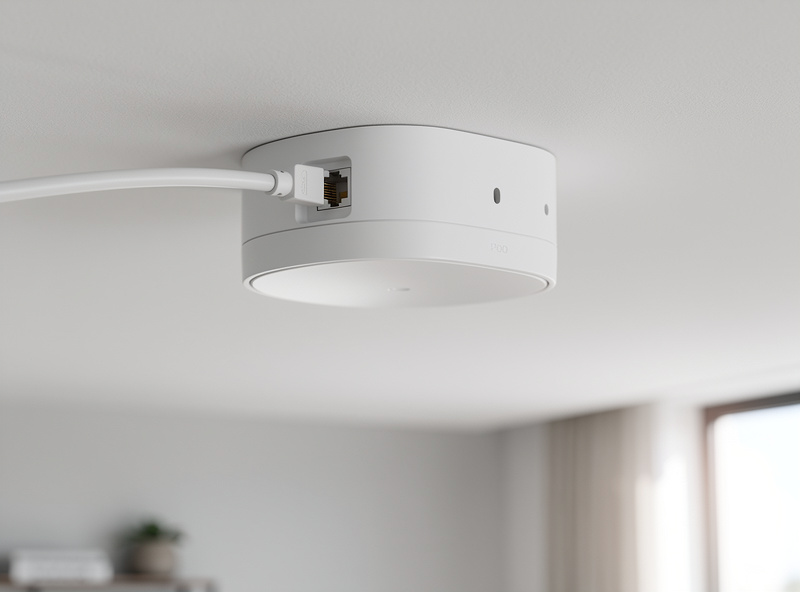
Whatever you buy, get it powered over PoE. A ceiling AP that needs a wall-wart nearby is an AP you’ll never mount where it belongs. Feed it from a PoE switch or a single gigabit PoE injector and the cable carries both data and power on one run — which is the whole point of the wired layout. I walk through power budgets and standards in PoE for access points.
Wi-Fi 6E vs Wi-Fi 7: How Much Standard Do You Need?
Wi-Fi 6E adds a clean 6 GHz band that’s free of legacy congestion, which is the single biggest real-world upgrade for a busy home. Wi-Fi 7 layers on wider 320 MHz channels and Multi-Link Operation, but most homes see the bigger jump going to 6E, because the win is uncongested spectrum, not raw peak rate.
The honest take: unless you already have Wi-Fi 7 clients (and a 2.5G/10G wired backbone to feed them), the 6 GHz band that both 6E and 7 expose is where the actual improvement lives. It’s empty, it’s wide, and your neighbors aren’t on it yet. I’d buy a 6E or 7 AP today for futureproofing, but I wouldn’t expect a Wi-Fi 6 phone to feel different on a Wi-Fi 7 AP — the client has to support the new standard for any of it to matter. The full comparison, including why MLO is the genuinely new idea in Wi-Fi 7, is in Wi-Fi 6E vs Wi-Fi 7.
Placement and Coverage
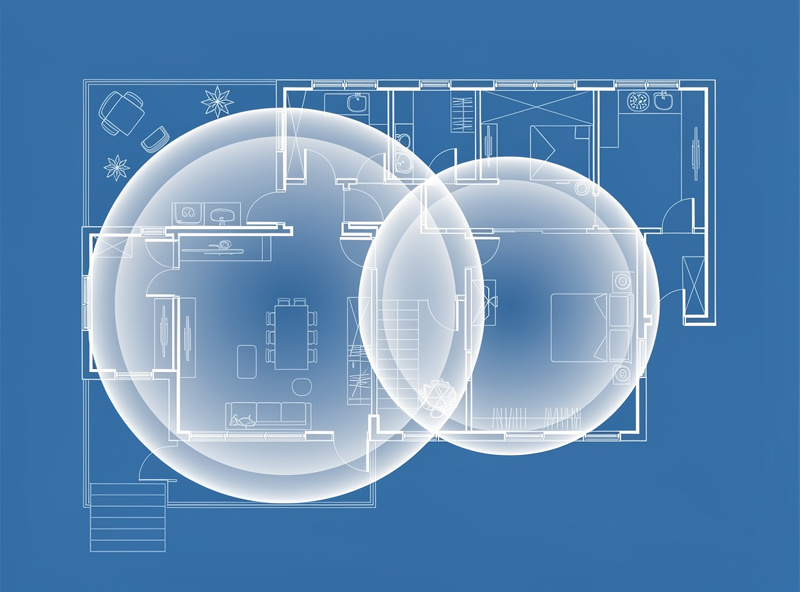
Access points belong on the ceiling, centered in the area they serve, with fewer APs running at lower power rather than more APs blasting at max. Two well-placed ceiling APs cover a typical home better than four wall-stuck ones fighting each other, because overlapping high-power cells cause clients to cling to a distant AP instead of roaming.
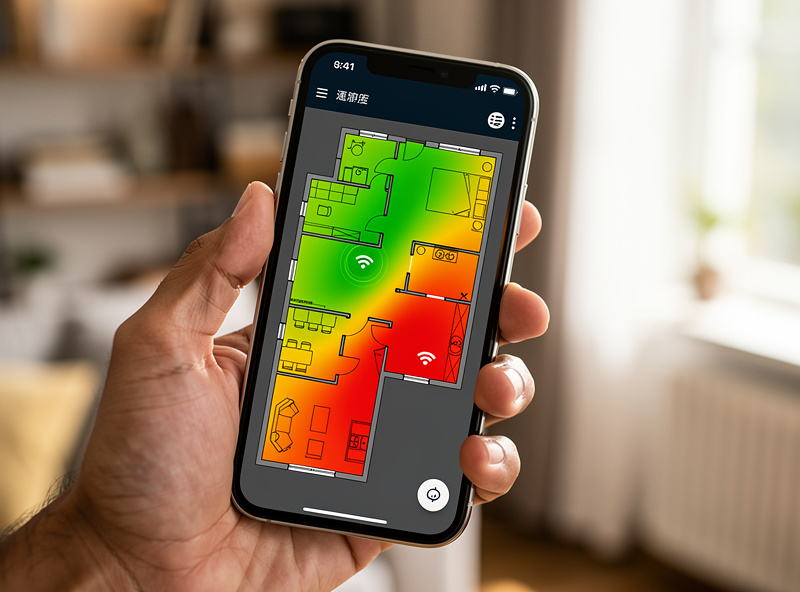
The mistake almost everyone makes is turning every radio to maximum transmit power, thinking it extends range. It does the opposite: the AP shouts loudly enough for a phone to hear it across the house, but the phone’s smaller antenna can’t shout back, so you get a connection that shows full bars and barely passes traffic. Dial power down so cells overlap by roughly 15–20% and clients hand off cleanly. I lay out the floor-plan logic and a cheap heatmap workflow in access point placement, and if you’ve already got dead spots, fixing Wi-Fi dead zones is the troubleshooting path. Wet or outdoor areas are their own problem — I handle the sauna and cold-plunge case in Wi-Fi in a wet room.
SSIDs, VLANs, and Guest Isolation
Each SSID on a wired AP should map to its own VLAN, so the wireless network inherits the same trust zones as the wired one. In my setup the main, IoT, guest, and kids SSIDs are four separate VLANs tagged on the AP’s uplink port — the AP broadcasts the names, the switch and firewall enforce the separation.
This is where the wired-AP layout pays off in security, not just coverage. A consumer mesh gives you one “guest network” toggle and calls it a day; a controller-managed AP lets you publish as many SSIDs as you need and tag each to a VLAN that the firewall already has rules for. My IoT SSID drops devices onto a segment with no internet egress except whitelisted endpoints; the guest SSID is fully isolated from everything. The wireless side of this is just SSID-to-VLAN mapping on the AP — the actual segmentation lives on the switch and firewall, which I cover in the home network VLAN guide. The wireless-specific mechanics are in multiple SSIDs with VLAN tagging. For the isolation rules themselves, see guest network isolation and VLAN firewall rules.
Roaming and Band Steering
Seamless roaming between APs needs the same SSID on every AP plus the 802.11k/v/r fast-transition standards enabled in the controller. Without them, a phone clings to the first AP it joined until the signal collapses, then drops the connection before grabbing the next — the “I walked to the kitchen and my call dropped” problem.
Controller-managed APs handle this as a group: 802.11k tells the client which neighboring APs exist, 802.11v nudges a client toward a better AP, and 802.11r makes the handoff fast enough that a video call doesn’t notice. Band steering is the related trick that pushes a capable client onto 5 GHz or 6 GHz instead of letting it camp on congested 2.4 GHz. Both are toggles in a UniFi/Omada controller; both are why the wired multi-AP layout feels like one seamless network instead of a row of separate hotspots. The catch is that a few stubborn IoT devices roam badly — I park those on a dedicated 2.4 GHz SSID and stop fighting them.
One detail that trips people up: roaming is a client decision, not something the AP can force. The 802.11k/v/r standards only help the client make a better choice faster — a phone with a lazy Wi-Fi driver will still cling longer than you’d like. That’s why the power and placement discipline from earlier matters more than any roaming toggle: if cells overlap correctly, even a stubborn client eventually hits a signal floor that pushes it to hand off. I tune for the laptops and phones that roam well, accept that a couple of smart plugs will sit on whichever AP they joined at boot, and segment those onto a VLAN where it doesn’t matter. Chasing perfect roaming on a $15 IoT device is wasted effort.
Powering and Switching the Wireless Layer
The wired AP layout needs a PoE switch with enough power budget for every AP plus headroom, on a trunk that carries all your VLANs tagged. A small 8-port PoE switch covers a typical 2–3 AP home; size the wattage to the sum of your APs’ PoE class, not the port count.
This is the piece consumer mesh hides from you, and it’s genuinely the foundation of the whole setup. Each AP’s uplink port is a trunk carrying every SSID’s VLAN; the switch powers the AP over the same cable; the firewall routes between VLANs with default-deny rules. A managed switch is non-negotiable here because you need 802.1Q tagging — I cover choosing and configuring one in managed switch setup and the broader segmentation strategy in network segmentation. If you’re buying, a managed PoE switch like a 8-port managed PoE switch is the right anchor for a home wireless layer. For the gear behind the router itself, the best DIY router hardware guide and the best mini PC for pfSense roundup cover the box that ties it all together.
Cabling the Wired Backhaul
Every wired AP needs one Ethernet run from the AP location back to the PoE switch, and for a home that means Cat6 (or Cat5e if it’s already in the walls) terminated to a keystone or punched into a patch panel. Cat6 carries gigabit comfortably over any run you’ll have in a house, and multi-gig over the shorter ones, so it’s the cable I pull by default unless I’m wiring a 10G backbone.
The part people underestimate is where the cable terminates at the AP end. A ceiling AP wants a flush keystone in the ceiling or a short patch up from an attic run, not a cable dangling out of a hole — partly for looks, mostly because a clean termination is one you can test and re-seat when an AP misbehaves. At the switch end, land every run on a patch panel so the rack stays sane as you add APs; chasing an unlabeled cable behind a switch at 11pm is its own special misery. If you can only run one cable to a central spot, mount your strongest AP there and treat that as the anchor; if you can run cable to each AP location, do it, because a fully wired layout is the one that never surprises you. I keep a short structured-wiring discipline: label both ends, test continuity before mounting the AP, and leave a service loop so you can pull the AP down to reset it without restraining the cable.
PoE matters here too, because it’s what lets a single cable do everything. A ceiling AP fed by PoE has no wall-wart, no second cable, and no power brick to hide — the switch energizes the line and the AP boots. That’s why I treat the PoE switch, not the APs, as the heart of the wireless layer: get the powered, VLAN-tagged trunk right and the APs are almost interchangeable. The standards and budgeting detail lives in PoE for access points.
Common Wi-Fi Mistakes Worth Avoiding
The most common home Wi-Fi mistakes are cranking transmit power to maximum, leaving every device on one flat network, and trusting an extender to fix a coverage gap. Each one feels like it should help and each one quietly makes the network worse.
Maximum transmit power is the classic. The AP gets loud enough that a phone hears it across the house and shows full bars, but the phone can’t talk back at that distance, so you get a confident-looking connection that barely moves data — and worse, the phone refuses to roam to a closer AP because the distant one still looks “strong.” Turn power down, let cells overlap modestly, and roaming starts working. The second mistake is leaving everything on one SSID and one subnet: a single compromised IoT gadget then sees every device in the house. Mapping SSIDs to VLANs — main, IoT, guest, kids — is the fix, and it’s the whole reason I run controller-managed APs instead of a mesh with one guest toggle. The third is the extender: it rebroadcasts on the same radio it receives on, so throughput halves and you end up with two SSIDs your phone bounces between. If you genuinely can’t run a cable, a proper mesh node with dedicated backhaul beats an extender every time; if you can run a cable, a wired AP beats both. I see these three on nearly every “my Wi-Fi is bad” network I’m asked to look at, and fixing them usually matters more than buying newer hardware. When in doubt, the diagnostic order is in troubleshooting your home network.
Putting It Together
A complete home Wi-Fi build is: a capable router/firewall, a managed PoE switch on the trunk, and one or more wired ceiling APs broadcasting VLAN-mapped SSIDs with fast roaming on. That’s the layout I run, and it’s the one that stops you ever walking to the router again.
Start with the router and switch, get one AP cabled and provisioned, confirm a single SSID roams and tags correctly, then replicate. The beauty of the wired approach is that it scales linearly — adding coverage is “run a cable, mount an AP, adopt it in the controller,” not “rebuy the whole mesh kit.” If you’re starting from a single ISP router, the beginner’s guide to home routing is the on-ramp, and troubleshooting your home network is the page to bookmark for when something inevitably acts up.
Frequently Asked Questions
Are wired access points better than a mesh system?
For any home you can cable, yes. Wired APs put all the spectrum toward clients instead of spending it on wireless backhaul, so they deliver full per-AP throughput and more stable roaming. Mesh is the right call only where running Ethernet is impossible.
How many access points does a home need?
Most homes need one AP per floor or roughly one per 1,500 square feet of usable space, placed centrally on the ceiling. Two well-placed APs at moderate power outperform four at maximum power, which cause clients to cling instead of roam.
Do I need Wi-Fi 7 or is Wi-Fi 6E enough?
Wi-Fi 6E is enough for most homes — its 6 GHz band is the real upgrade because it is uncongested. Wi-Fi 7 adds wider channels and Multi-Link Operation, but you only benefit if you own Wi-Fi 7 clients and a multi-gig wired backbone.
Can each Wi-Fi network be on its own VLAN?
Yes. On a controller-managed AP, each SSID maps to a VLAN tagged on the AP’s uplink port. The AP broadcasts the names while the switch and firewall enforce separation, letting you isolate IoT, guest, and main traffic with one wired layout.
What do I need to power ceiling access points?
Power them over PoE from a managed PoE switch or a single PoE injector, so one Ethernet run carries both data and power. Size the switch’s total power budget to the sum of your APs’ PoE class, with headroom for future units.