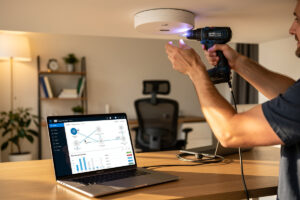
Setting up a UniFi access point comes down to four steps: cable it to a PoE source, adopt it in the controller, map your SSIDs to VLANs, and tune transmit power for clean roaming. The hardware is genuinely plug-and-play; the part worth getting right is the SSID-to-VLAN mapping and the power settings, because that’s what turns a UniFi AP from “a nicer router” into a properly segmented wireless layer.
This is the process I run when I rack a new AP. I’ll assume you already have a controller — whether that’s a Cloud Key, a UDM, or the self-hosted controller running in a container — and a managed switch carrying your VLANs. If you don’t yet, the home Wi-Fi setup guide covers the full layout this fits into.
Cable It and Power It Over PoE
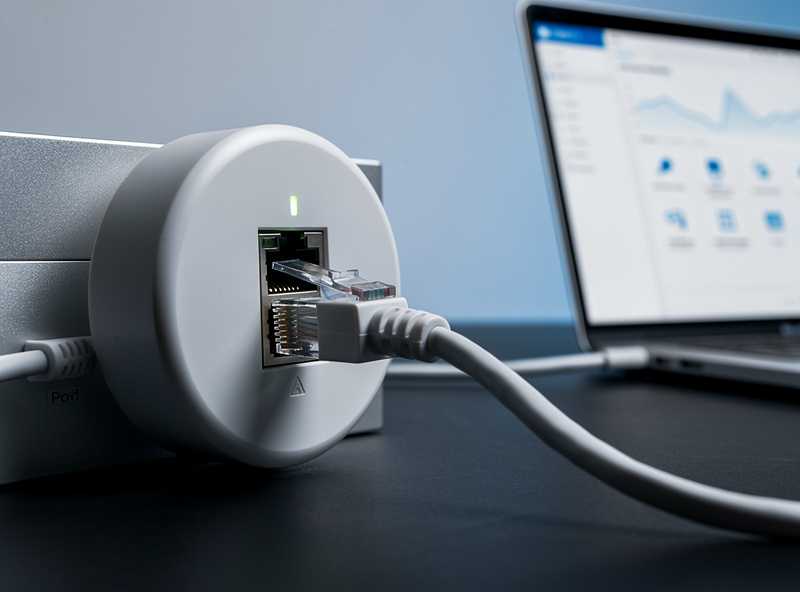
A UniFi AP takes power and data over a single Ethernet run, so plug it into a PoE switch port or a PoE injector and it boots — no separate power brick. UniFi APs use standard 802.3af or 802.3at PoE depending on the model, so any PoE switch that meets the AP’s class will run it.
The cable from the AP lands on a switch port that needs to be configured as a trunk carrying every VLAN whose SSID you want this AP to broadcast — with your management VLAN as the untagged/native VLAN so the controller can reach the AP. That last detail trips people up: if the AP’s management traffic isn’t on a VLAN the controller can see, the AP shows up as “disconnected” even though it has power. I set the port’s native VLAN to my management network and tag the rest. If you’re powering it from an injector instead of a PoE switch, the data side still has to reach that trunk port. The PoE standards and budgeting are covered in PoE for access points, and the switch-side trunk config in managed switch setup.
Adopt the AP in the Controller
Once powered and on the management VLAN, the AP appears in the controller’s device list as “pending adoption.” Click adopt, wait for it to provision and pull firmware, and it goes “connected.” This is the moment the AP joins your managed group and inherits your network settings.
Adoption can stall for exactly one reason ninety percent of the time: Layer 2 reachability between the AP and the controller. If the AP never appears, it’s almost always the native VLAN on its switch port — the AP is broadcasting its presence on a VLAN the controller isn’t listening on. The other failure is a brand-new AP on old firmware that needs to update before it’ll adopt cleanly; let it finish. Once adopted, I name the AP by location (not model) so the topology map actually means something when I’m troubleshooting at midnight. After adoption the AP will apply whatever WLANs and settings the controller holds, which is why I configure the SSIDs before mounting APs across the house.
Map SSIDs to VLANs
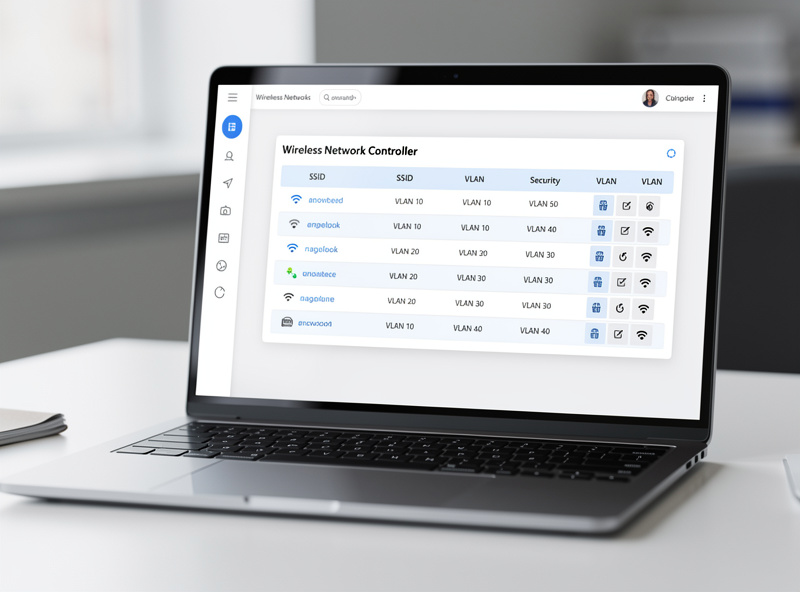
In the controller, each WLAN (SSID) has a network/VLAN setting. Create one WLAN per trust zone — main, IoT, guest, kids — and assign each to its VLAN ID. The AP then tags client traffic onto the right VLAN as it hits the wired uplink, and the firewall enforces separation from there.
This is the whole reason to run UniFi over a consumer mesh. Instead of one “guest network” toggle, I publish four SSIDs, each landing on a VLAN that already has firewall rules. My IoT SSID drops devices onto a segment with no internet egress except whitelisted endpoints; the guest SSID is isolated from every internal network; the main and kids SSIDs each get their own scope. The wireless side is purely the mapping — the AP tags the frames — while the actual enforcement lives on the switch and firewall, exactly as laid out in the home network VLAN guide and detailed for the wireless case in multiple SSIDs with VLAN tagging. For the isolation rules themselves, guest network isolation is the recipe.
Tune Transmit Power and Channels
Set transmit power to medium or low rather than auto-high, and let the controller manage channels — or pin non-overlapping ones manually in a dense area. Lower power with overlapping cells gives cleaner roaming than maximum power, which makes clients cling to a distant AP.
The default “auto” power setting tends to run hot, which is the opposite of what a multi-AP layout wants. I drop 2.4 GHz power to low (that band travels far and just creates co-channel interference at high power) and 5 GHz to medium, then verify with a quick survey that cells overlap by a sliver rather than blasting over each other. For channels, 2.4 GHz only has three non-overlapping options (1, 6, 11) so in an apartment I pin them by hand; 5 GHz has room, so auto usually behaves. This power discipline is the same principle covered in access point placement — getting it right here is what makes roaming feel seamless instead of sticky.
Enable Fast Roaming
Turn on the fast-roaming and BSS-transition options in the controller’s WLAN advanced settings so the 802.11k/v/r standards are active. With the same SSID on every AP and fast transition enabled, clients hand off between APs without dropping a video call.
Out of the box, multi-AP UniFi will roam clients, but enabling fast roaming makes the handoff quick enough that real-time traffic survives it. One caveat I always flag: a handful of older or cheap IoT devices roam worse with fast transition enabled — they get confused by the handoff and disconnect. If a specific device starts misbehaving after you enable it, park that device on a dedicated 2.4 GHz IoT SSID and leave fast roaming off for that one WLAN. For everything that matters — phones, laptops, tablets — leave it on. If you hit lingering coverage problems after all this, fixing Wi-Fi dead zones is the next stop, and the broader wired access points vs mesh comparison explains why this wired layout roams better than a mesh in the first place.
For hardware, a UniFi U6 access point fed from a UniFi PoE switch is the clean all-in-ecosystem pairing I’d point a first-time UniFi builder at.
Frequently Asked Questions
Do UniFi access points need a controller?
Yes, for full features. A UniFi AP needs a controller — a Cloud Key, a UDM, or self-hosted software — to adopt it, manage SSIDs and VLANs, and tune roaming. The controller can run continuously or be brought up only when you change settings.
Why won’t my UniFi AP adopt?
Almost always a VLAN reachability problem. The AP must reach the controller on its management network, so set the switch port’s native/untagged VLAN to your management VLAN. A brand-new AP may also need a firmware update before it adopts cleanly.
Can a UniFi AP broadcast multiple SSIDs on different VLANs?
Yes. Create one WLAN per trust zone in the controller and assign each to a VLAN ID. The AP tags client traffic onto the correct VLAN at its wired uplink, while the switch and firewall enforce the separation between zones.
What PoE do UniFi access points use?
Most UniFi APs use standard 802.3af or 802.3at PoE, depending on the model. Any PoE switch or injector that meets the AP’s required class will power it over the single Ethernet run that also carries its data.
Should I set UniFi transmit power to high?
No. Set 2.4 GHz to low and 5 GHz to medium so cells overlap modestly. Maximum power makes clients cling to a distant AP instead of roaming to a closer one, which actually degrades real-world performance across a multi-AP home.