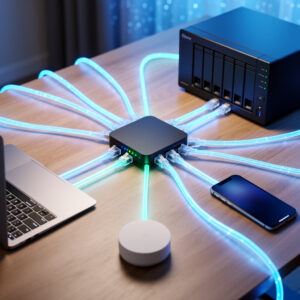
Understanding the Heart of Your Home Network
Every time you stream a movie, video chat with family, or ask your smart speaker for the weather, a remarkable piece of technology makes it all possible. Your router sits quietly in a corner or closet, performing millions of calculations per second to move data between your devices and the vast internet beyond. Yet most people understand their router no better than they understand the engine in their car. They know it is essential, but the inner workings remain a mystery.
This guide pulls back the curtain on routing technology. Whether you are a curious homeowner wanting to understand your network better or an aspiring homelab enthusiast preparing to build your own router, this foundation will serve you well. We will explore what routers actually do, why consumer routers often disappoint power users, and how taking control of your network infrastructure opens a world of possibilities.
What Does a Router Actually Do?
The Traffic Director of Your Digital Life
At its simplest, a router is a traffic director. It receives data packets from one network and forwards them to another. Your home network, with its laptops, phones, tablets, and smart devices, is one network. The internet, with billions of interconnected devices worldwide, is another. The router bridges these two worlds.
Consider an analogy: imagine your home network as a private neighborhood with its own address system. Your router is the gatekeeper at the entrance. When a resident (your laptop) wants to send a letter (data) to someone outside the neighborhood (a website), they give it to the gatekeeper. The gatekeeper puts it in the outgoing mail and ensures replies find their way back to the correct resident.
This process happens through several key functions working together:
Network Address Translation (NAT)
Your Internet Service Provider gives you one public IP address. Yet you have dozens of devices at home that all want internet access. Network Address Translation solves this problem.
NAT allows multiple devices on your private network to share a single public IP address. When your laptop requests a webpage, the router notes which internal device made the request. It replaces your laptop’s private IP (like 192.168.1.50) with your public IP in the outgoing packet. When the response arrives, the router remembers which device requested it and forwards the reply accordingly.
This technology has allowed IPv4, with its limited 4.3 billion addresses, to serve billions of internet users. Without NAT, we would have run out of IP addresses decades ago.
Dynamic Host Configuration Protocol (DHCP)
Every device on your network needs an IP address to communicate. Manually assigning unique addresses to every phone, laptop, and smart bulb would be tedious and error-prone. DHCP automates this process.
When a device connects to your network, it broadcasts a DHCP request. Your router responds with an available IP address, subnet mask, default gateway (the router itself), and DNS server information. The device accepts this configuration and can immediately start communicating.
Most home routers use DHCP to assign addresses from a pool, typically 192.168.1.100 through 192.168.1.200. Addresses are leased for a period (often 24 hours) and renewed automatically. This dynamic assignment makes network administration effortless for most users.
Domain Name System (DNS) Forwarding
Humans remember names better than numbers. You type “google.com” into your browser, not “142.250.80.46”. DNS translates human-friendly domain names into machine-friendly IP addresses.
Your router typically acts as a DNS forwarder. When your laptop asks for the IP address of a website, the query goes to your router. The router forwards this request to an upstream DNS server (usually your ISP’s or a public server like Google’s 8.8.8.8). When the response arrives, the router caches it for future requests and passes the answer back to your device.
This caching dramatically speeds up browsing. Once any device on your network looks up a domain, subsequent lookups happen instantly from the router’s cache.
Firewall and Security
Routers serve as the primary security barrier between your home network and the internet. By default, most routers block unsolicited incoming connections. This means someone on the internet cannot directly connect to your laptop unless your laptop first initiated contact.
This stateful firewall inspection tracks which outgoing connections were established and allows only corresponding return traffic. Malicious port scans and unsolicited connection attempts hit the router and are dropped before reaching your devices.
Consumer routers provide basic firewall protection, but advanced users often want more granular control. Custom router solutions offer sophisticated firewall rules that segment your network and protect against advanced threats.
WiFi Access Point (in Consumer Routers)
Most consumer “routers” are actually combination devices serving multiple functions. They contain a router (traffic director), a switch (wired connections), and a wireless access point (WiFi).
The routing function handles traffic between your home network and the internet. The built-in switch provides Ethernet ports for wired devices. The wireless access point broadcasts WiFi signals using radio frequencies, allowing wireless devices to connect to your network.
In professional environments and advanced homelabs, these functions are often separated. Dedicated wireless access points provide better coverage and performance than the all-in-one units found in consumer routers.
Why Consumer Routers Often Disappoint
Limited Processing Power
Consumer routers typically use underpowered processors to keep costs down. A router performing NAT, firewall inspection, and VPN encryption for multiple devices requires significant processing power. When overloaded, consumer routers exhibit symptoms like:
- Slow internet speeds that do not match your ISP’s advertised rates
- Connection drops requiring reboots
- High latency during gaming or video calls
- Failed VPN connections or abysmal VPN performance
- Inability to handle many simultaneous connections (common with smart homes)
Modern homes with 50+ connected devices overwhelm many consumer routers designed for 5-10 devices. Smart bulbs, security cameras, thermostats, and voice assistants all maintain constant connections, consuming router resources.
Infrequent Security Updates
Router security vulnerabilities emerge constantly. Consumer router manufacturers often abandon models after 1-2 years, ceasing security updates. Your router, the gatekeeper protecting all your devices, runs outdated software vulnerable to known exploits.
Major security incidents like the VPNFilter malware, which Cisco Talos found had infected at least 500,000 routers across dozens of consumer models in 54 countries, show the pattern. Many remained unpatched months after the vulnerability was disclosed because manufacturers no longer supported the hardware.
Limited Features and Customization
Consumer router firmware offers basic features designed for average users. Advanced capabilities like:
- Detailed firewall rule configuration
- Network segmentation via VLANs
- Advanced QoS for traffic prioritization
- VPN server hosting
- Intrusion detection systems
- Custom DNS and ad blocking
- Detailed traffic monitoring and logging
These features, standard in enterprise networking, are typically absent or severely limited in consumer equipment.
Closed Systems and Vendor Lock-in
Most consumer routers run proprietary firmware. You cannot inspect the code, verify its security, or modify its behavior. You are entirely dependent on the manufacturer for features, updates, and support. When they abandon the product, you abandon hope of improvements.
The Homelab Mindset: Why Build Your Own
Learning and Skill Development
Building and configuring your own router teaches invaluable networking skills. You gain deep understanding of how networks function, how traffic flows, and how security works at the packet level. These skills transfer directly to professional IT environments and can advance your career.
Even if you work in unrelated fields, understanding your home network makes you a more informed digital citizen. You can troubleshoot problems yourself, evaluate service providers knowledgeably, and make informed decisions about connected devices.
Performance That Matches Your Connection
Gigabit fiber internet is increasingly available, yet many consumer routers cannot route at full gigabit speeds with all features enabled. A DIY router built from a modern mini PC or repurposed computer can easily handle gigabit+ connections with VPN encryption, advanced firewall rules, and traffic shaping simultaneously.
Future-proofing matters too. As internet speeds increase and home networks grow more complex, a powerful DIY router adapts. You can upgrade components, add memory, or install faster network cards rather than replacing the entire device.
Complete Control and Transparency
Open-source router operating systems like pfSense, OPNsense, and OpenWrt put you in control. You decide what features to enable, how traffic is handled, and what gets logged. You can inspect the source code, understand exactly what the software does, and trust that no hidden backdoors or data collection exists.
This transparency is impossible with closed consumer firmware. You simply must trust the manufacturer, often a company with profit motives that may not align with your privacy interests.
Advanced Features for Modern Homes
Smart homes present unique networking challenges. Dozens of IoT devices from various manufacturers connect to your network, each with varying security postures. A DIY router with VLAN support can isolate IoT devices onto separate network segments, preventing compromised smart bulbs from accessing your banking laptop.
Advanced DNS filtering blocks ads and malware at the network level, protecting all devices without individual configuration. VPN servers allow secure remote access to your home network when traveling. Intrusion detection systems monitor for suspicious activity and alert you to potential breaches.
Progressive homelab builds start with a basic router and expand to full network stacks with these advanced capabilities.
Key Networking Concepts Every Router Builder Should Know
IP Addresses and Subnets
IP addresses identify devices on networks. IPv4 addresses, still dominant in home networking, consist of four numbers (0-255) separated by dots, like 192.168.1.50.
Subnet masks define which portion of an IP address identifies the network and which identifies the specific device. A common home subnet mask is 255.255.255.0, meaning the first three numbers (192.168.1) identify your network, and the last number (50) identifies your specific device.
Private IP ranges reserved for internal networks (defined by RFC 1918) include:
- 192.168.0.0 through 192.168.255.255
- 10.0.0.0 through 10.255.255.255
- 172.16.0.0 through 172.31.255.255
Your router typically uses one of these ranges for your home network.
Ports and Protocols
Network services use specific ports to communicate. HTTP (web browsing) uses port 80. HTTPS (secure web) uses port 443. SSH (secure remote access) uses port 22. Email uses ports 25, 587, and 993.
When you forward a port on your router, you instruct it to send incoming traffic on that specific port to a particular internal device. This enables hosting services like game servers or web servers from home.
Understanding ports is essential for configuring firewalls and troubleshooting connectivity issues.
MAC Addresses
Every network interface has a unique Media Access Control (MAC) address burned into the hardware. Unlike IP addresses which can change, MAC addresses identify the physical device.
Routers use MAC addresses to track which device sent which packet. When DHCP assigns an IP address, it records which MAC address received it. Some advanced features like MAC address filtering allow or deny network access based on these hardware identifiers.
Latency, Bandwidth, and Throughput
These terms describe different aspects of network performance:
Bandwidth is the maximum data capacity of your connection, like a highway’s number of lanes. A gigabit connection has high bandwidth.
Throughput is the actual data rate achieved, like the number of cars actually moving on that highway. Throughput is always less than theoretical bandwidth due to overhead, congestion, and protocol inefficiencies.
Latency is the time delay between sending data and receiving a response, like the time for a car to travel from point A to point B. Gamers and video call users care deeply about latency. High latency causes lag, regardless of bandwidth.
A good router optimizes all three, ensuring your gigabit connection actually delivers gigabit throughput with minimal latency.
From Consumer to Custom: The Transition Path
Phase 1: Understanding Your Current Setup
Before building a DIY router, audit your current network. Document:
- What devices connect to your network (wired and wireless)
- Your internet speed and whether your current router delivers it
- What features you actually use (guest networks, parental controls, etc.)
- What pain points you experience (drops, slowdowns, coverage gaps)
This baseline helps you define requirements for your custom solution.
Phase 2: Hardware Selection
Building a DIY router starts with choosing appropriate hardware. Options range from repurposed old computers to dedicated mini PCs designed for network appliances. Hardware selection depends on your specific needs, budget, and desired capabilities.
Key considerations include processor power for your internet speed, number of network ports, power consumption, and noise levels. A gigabit connection with VPN requires more horsepower than a 100 Mbps connection without encryption.
Phase 3: Software Selection
Several open-source router operating systems compete for your attention:
- pfSense: Enterprise-grade features, large community, extensive packages
- OPNsense: Security-focused fork of pfSense with modern interface
- OpenWrt: Lightweight, runs on many consumer routers, highly customizable
Each has strengths and ideal use cases. Your choice depends on your technical comfort level, hardware, and desired features.
Phase 4: Installation and Configuration
Installing router software involves writing the OS image to storage (SSD, SD card, or USB drive), configuring network interfaces, and setting up basic connectivity. Step-by-step guides walk you through the entire process, from first boot to fully functional network.
Initial configuration includes WAN interface setup (connecting to your ISP), LAN interface configuration (your internal network), DHCP server setup, and basic firewall rules. Once complete, your custom router replaces the consumer device entirely.
Phase 5: Advanced Features and Hardening
With basic routing functional, you can explore advanced capabilities:
- Network segmentation with VLANs
- VPN server for remote access
- Ad and malware blocking at the DNS level
- Intrusion detection and prevention
- Traffic monitoring and Quality of Service
- Multi-WAN for failover or load balancing
Advanced services transform a basic router into a comprehensive network platform. And when issues arise, you have the tools and knowledge to diagnose and resolve them.
Conclusion
Your router is the unsung hero of your digital life, working tirelessly to connect you with the world. Understanding what it does and why consumer solutions often fall short empowers you to take control of your network infrastructure.
The journey from consumer router to custom solution opens doors to better performance, enhanced security, and deeper technical knowledge. You gain not just a faster network, but the skills to troubleshoot problems, evaluate technologies, and adapt to future requirements.
Building your own router is not just about the destination. The learning process itself provides value that extends far beyond your home network. Whether you pursue IT professionally or simply want to understand the technology you rely on daily, the knowledge gained serves you well.
Start your journey today. Select your hardware, choose your software, and join the growing community of homelab enthusiasts who refuse to accept mediocre networking. Your devices, your data, and your peace of mind deserve better than an abandoned consumer router running outdated firmware.
The foundation you build here supports everything else in your digital life. Make it solid, make it secure, and make it yours.
Continue Your Home Networking Journey
Ready to build your own router? Start with How to Choose Hardware for a DIY Home Router for a comparison of mini PCs, old PCs, and single-board computers.