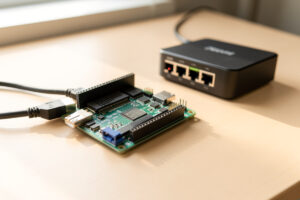
Pi-hole is a filtering DNS resolver: it answers your network’s DNS queries, refuses to resolve ad and tracker domains from its blocklists, and forwards the rest upstream. Point your whole network at it through one DHCP setting and every device — phones, smart TVs, IoT gear — gets ad blocking with no client software. In my setup it runs in an LXC container, not on the router.
This is the most documented way to stand up the filtering job in the home DNS layer, which is why I send most people here first. I will walk the install I actually run, the one DHCP gotcha that defeats half of first setups, how to pick blocklists without breaking the web, and how to wire Pi-hole to a recursive resolver so you stop forwarding your query log to a third party.
What Pi-hole is, and where to run it
Pi-hole gets its name from the Raspberry Pi it was first built for, but the hardware is the least interesting decision. It is a lightweight stack — a DNS server (dnsmasq, in the form of its FTL fork) plus a web dashboard — and it will run happily on a Pi, an old laptop, a NAS, or a container. Home query volume is tiny, so CPU is never the constraint; reliability of the box is.
That is why mine runs as an LXC container on the Proxmox host rather than on a standalone Pi. The container gets snapshots and lives on redundant storage, so a botched update is a rollback instead of a re-flash. If you do run it on a Pi, do one thing: boot from an SSD, not a microSD card, because the card is the part that dies and takes your whole network’s DNS with it. Whatever the box, give it a static IP — the entire network is about to depend on finding it at a fixed address.
Installing Pi-hole
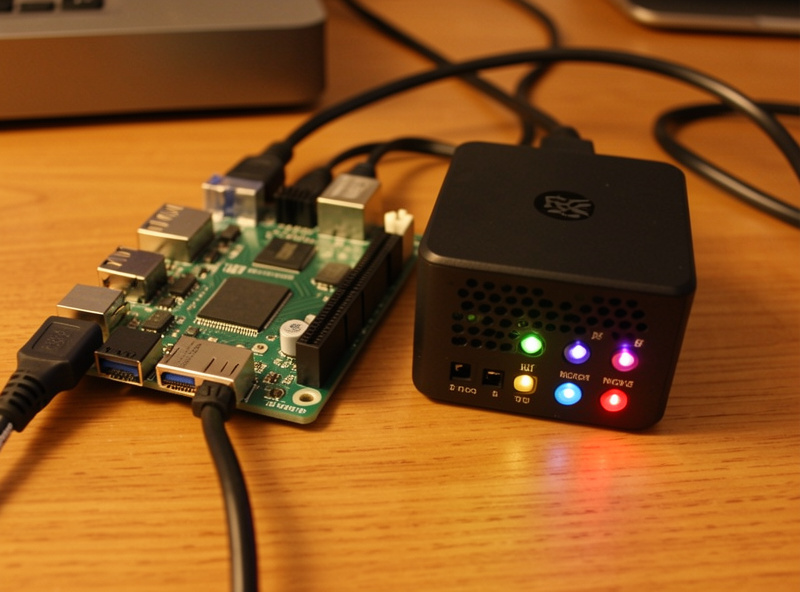
On a Debian or Ubuntu base — which is what I run in the container — the official one-line installer does the heavy lifting: it pulls the packages, sets up the FTL service, and walks an ncurses wizard. The wizard asks for an upstream DNS provider, a blocklist, and which interface to listen on. Pick any upstream for now (you will replace it with your own resolver shortly), accept the default blocklist, and let it finish. At the end it prints an admin password — save it; that is your dashboard login.
Two settings I always change immediately after install. First, under DNS settings, enable “Never forward non-FQDN” and “Never forward reverse lookups for private ranges” so internal queries do not leak out to the internet. Second, set the listening behavior to “Allow only local subnets” unless you are deliberately serving DNS to other VLANs through firewall rules — an open resolver reachable from the internet is a genuine security problem, not a convenience.
Pointing your network at it — the one gotcha
Here is where most first setups quietly fail. There are two ways to make devices use Pi-hole, and mixing them up is the classic mistake. The right way for a home network is to hand out Pi-hole’s IP as the DNS server in your router’s DHCP scope, so every device that gets a lease is told to use it. The wrong way is typing Pi-hole into a single device and assuming the network is covered — it is not; only that one device is filtered.
The catch: your router has to let you override the DNS server it advertises. Some ISP routers do not, and they force their own DNS on every lease. If yours is one of those, you have two options — let Pi-hole itself be the DHCP server (it can, and it is good at it), or move DHCP to a real firewall. This is one more reason the ISP router runs out of room fast, and why I run DHCP on OPNsense the way I describe in the home network VLAN guide. After you change the scope, devices only pick up the new DNS server when their lease renews — reboot a test device or release/renew to confirm before assuming it took.
Choosing blocklists without breaking the web
The temptation, once the dashboard is up, is to paste in every blocklist you can find and watch the “blocked” counter soar. Resist it. The default list Pi-hole ships with — a well-maintained aggregate — already covers the vast majority of ad and tracker domains, often tens of thousands of them. Each extra list you add raises the odds that some domain a real site needs gets caught, and that is exactly how you end up with a payment page that will not load.
My rule is to start with the default, run it for a week, and only add a curated list (a reputable tracker or malware feed) if I have a specific reason. More is not better here; precise is better. When something does break, the fix is whitelisting the one offending domain, which you find in the query log — not tearing the whole setup down. That diagnosis loop is its own troubleshooting spoke because it comes up for everyone eventually.
Upstream: stop forwarding to Google
Out of the box, Pi-hole forwards everything it does not block to whatever upstream you picked in the wizard — Google, Cloudflare, Quad9. That works, but it means one company sees your entire (filtered) query stream. The cleaner build points Pi-hole at your own recursive resolver instead, so you talk straight to the authoritative servers and no third party gets the aggregate picture. That is the job of Unbound, which I run in the same or an adjacent container and set as Pi-hole’s sole upstream.
If you would rather keep forwarding but hide it from your ISP, the other option is encrypting the upstream with DNS over HTTPS or TLS — covered in the DoH and DoT guide. The two approaches solve different problems: recursion removes the third party, encryption hides the path. I run recursion as the default and reach for encryption only where it earns its keep.
Pi-hole, AdGuard Home, or pfBlockerNG?
Pi-hole is not the only filter, and it helps to know where it sits before you commit. Here is the short version of how I choose between the three I have run.
| Tool | Best when | Runs on | Built-in encryption |
|---|---|---|---|
| Pi-hole | You want the most documented path and a clean dashboard | Pi, container, NAS | No (pair with Unbound or cloudflared) |
| AdGuard Home | You want filtering and DoH/DoT in one binary | Pi, container, NAS | Yes |
| pfBlockerNG | You already run pfSense and want it on the firewall | pfSense only | Inherits firewall |
If you are torn between the first two, the AdGuard Home vs Pi-hole spoke is the full head-to-head. If you already live in pfSense, my pfBlockerNG tutorial keeps the filter on the firewall instead. None of them is universally best — they fit different setups.
Hardware and keeping it alive
You do not need much. A Raspberry Pi 5 with an SSD is plenty, and a small fanless mini PC is the silent, slightly more durable alternative if you would rather not babysit a Pi. As an Amazon Associate I earn from qualifying purchases.
Maintenance is light but not zero. Pi-hole updates its blocklists on a schedule and the software itself a few times a year; both are one-command jobs. The thing that actually matters for a network everyone in the house depends on is redundancy — a single Pi-hole is a single point of failure, and the day you reboot it to update is the day nobody can load anything. Running a second resolver so DNS survives that reboot is important enough that it is its own failover and redundancy spoke. Build the first one here, then go add the second.
Frequently Asked Questions
Do I set Pi-hole on each device or on the router?
On the router, in the DHCP scope, so every device that gets a lease is told to use Pi-hole. Setting it on one device only filters that device. If your ISP router will not let you change the advertised DNS server, run DHCP on Pi-hole or a real firewall instead.
What hardware do I need to run Pi-hole?
Very little. A Raspberry Pi with an SSD, an old laptop, a NAS, or a small container all work, because home DNS query volume is tiny. The one thing to avoid is running it long-term from a microSD card, which wears out and takes your network DNS with it.
How many blocklists should I add to Pi-hole?
Start with just the default list and add more only for a specific reason. The default already covers tens of thousands of ad and tracker domains. Every extra list raises the chance a domain a real site needs gets blocked, which is the usual cause of pages that will not load.
Does Pi-hole encrypt my DNS queries?
Not by itself. Pi-hole filters and forwards in plaintext on port 53 unless you point it at a recursive resolver like Unbound or add a DNS over HTTPS proxy. Filtering and encryption are separate jobs, and you add encryption upstream if you want to hide queries from your ISP.
Will Pi-hole block ads inside apps and on smart TVs?
Often yes, because it works at the network level rather than in a browser. Any ad or tracker served from a domain on the blocklist gets stopped on every device. It cannot block ads served from the same domain as the content, such as YouTube ads from Google hostnames.
What happens if my Pi-hole goes down?
If it is the only DNS server your network knows, the whole network loses name resolution and the internet appears down even though the link is fine. That is why you hand out a second resolver as a backup. Redundancy is the single most overlooked part of a home DNS setup.
Related Guides
- Home DNS and network-wide ad blocking — the full layer this fits into
- AdGuard Home vs Pi-hole — the other filter, compared
- Unbound recursive DNS — Pi-hole’s ideal upstream
- DNS failover and redundancy — add the second resolver
- DNS ad-blocking troubleshooting — when a page will not load