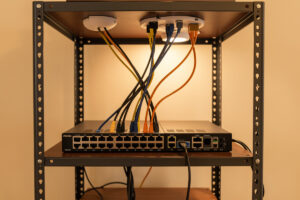
Short version: for a typical home Wi-Fi 7 access point you need one 2.5GbE port per AP and PoE+ (802.3at) power, but you almost certainly do not need to re-pull cable. A 2.5G link runs fine on the Cat5e and Cat6 already in most walls. The upgrade that matters is the switch, not the wire behind it. Below is exactly what to check before you spend anything.
I run OPNsense on a fanless x86 box, a Proxmox host as the spine, and managed switches trunking 802.1Q VLANs out to APs wired back on PoE. When I moved from Wi-Fi 6 to Wi-Fi 7 hardware, the questions that actually decided the bill were narrow: does the switch feed each AP at 2.5G or better, does it have the PoE budget, and will the existing run carry 2.5G. Nothing else was load-bearing.
Why a gigabit port throttles a Wi-Fi 7 AP
A Wi-Fi 7 AP can move well past a gigabit of aggregate throughput over the air on the 6 GHz band with wide 320 MHz channels. If you hang that AP off a plain gigabit switch port, the wired uplink caps the whole thing at 1 Gbps regardless of how fast the radios are. You paid for a fast AP and then bottlenecked it at the one link every client’s traffic has to cross.
That is why Wi-Fi 7 APs ship with a 2.5GbE (multi-gig) uplink port. To use it, the switch port it plugs into also has to be 2.5G. So the practical requirement is a managed switch with a 2.5G (or faster) port for every AP, not a gigabit switch with one fast port bolted on. Managed matters here for a separate reason: you want per-port VLAN tagging so each SSID maps cleanly to a VLAN, and PoE control per port.
There is a design decision hiding in that requirement. A single Wi-Fi 7 AP is unlikely to sustain 2.5 Gbps of real traffic to the internet, because most home uplinks are slower than that. But the AP-to-switch link is not really about internet speed. It is about the moments when multiple fast clients hit the AP at once, or when traffic moves between devices on your own LAN — a laptop pulling a large file off a NAS, a Proxmox host serving a VM image, a backup running to local storage. That intra-LAN traffic all crosses the AP uplink, and gigabit is where it collides. A 2.5G uplink gives the AP room to breathe under exactly the bursty, many-client load that Wi-Fi 7 was built to handle.
When you shop for the switch, count ports honestly. You want one multi-gig port per current AP, plus at least one more for the next AP and one for the uplink to your router or core. A four-AP house is not a four-port switch; it is realistically an eight-port multi-gig switch once you include headroom and the trunk back to the firewall. Buying one size up is cheaper than buying twice.
PoE: most Wi-Fi 7 APs want PoE+, not basic PoE
Power is where a lot of “why won’t this AP come up” tickets start. There are three tiers worth knowing:
- 802.3af (PoE) delivers roughly 15.4 W at the switch (PSE), leaving about 12.95 W at the device after cable loss. That was fine for a lot of Wi-Fi 5 and lighter Wi-Fi 6 gear.
- 802.3at (PoE+) delivers about 25.5 W at the switch, roughly 25 W usable at the device. Most mainstream tri-band Wi-Fi 7 APs land here.
- 802.3bt (PoE++, Type 3/4) pushes 60 W and up. Some high-end tri-radio or 6 GHz-heavy units ask for this, especially ones that also drive a second Ethernet port or extra features.
The failure mode is subtle: an AP on underpowered PoE may boot but then throttle its radios or reboot under load, so it looks like a Wi-Fi problem when it is a power problem. Do not guess. Read the AP’s datasheet for its rated draw and required standard, then confirm your switch supplies that standard and has enough total PoE budget across all ports. A switch rated for PoE+ per port can still run out of headroom if you fill every port; the number that matters is the total PoE power budget, not just the per-port class.
Work an example. Say each of four APs draws up to 20 W and the switch advertises a 60 W total PoE budget. Per port it is fine — 20 W is inside PoE+ — but four APs want up to 80 W and the switch can only deliver 60 W. Under peak load some ports will be starved. The fix is not a bigger cable; it is a switch with a larger power budget, or splitting the APs across two switches. Always add up the draw of everything you intend to power at once, including any PoE cameras or phones sharing the switch, and compare that sum to the switch’s rated budget with margin to spare.
One more nuance: PoE power is specified at the switch, and some of it is lost as heat in the cable before it reaches the AP. That loss grows with run length and with thinner conductors. On a long run to an attic AP, a device that is “just barely” powered on the bench can dip below its threshold in the wall. It is another reason to design with headroom rather than to the exact rated figure.
If you are buying, a compact 2.5G PoE managed switch covers both the multi-gig uplink and the power in one box, which is the cleanest path for a home deployment.
Cabling: what your existing runs can actually carry
This is the part people over-worry. The multi-gig BASE-T standards were designed specifically so that 2.5G would run on the enormous installed base of Cat5e and Cat6. In practice, 2.5GBASE-T (IEEE 802.3bz) is reliable on Cat5e and Cat6 over normal in-home distances, and the standard was engineered to reach the full 100 m channel on those cable types. For a run from a switch to a ceiling AP, you are typically well under that.
The higher speeds get fussier:
| Cable | 2.5GBASE-T | 5GBASE-T | 10GBASE-T |
|---|---|---|---|
| Cat5e | Up to ~100 m | Distance/quality sensitive | Not supported |
| Cat6 | Up to ~100 m | Up to ~100 m (quality dependent) | ~37–55 m |
| Cat6a | Up to ~100 m | Up to ~100 m | Up to ~100 m |
Two things to be honest about. First, Cat5e does not do 10GBASE-T; anyone telling you otherwise is confusing 2.5G with 10G. Second, 5GBASE-T sits in an awkward middle: it can work on Cat5e but is more sensitive to run length, cable quality, and noise than 2.5G is, so treat a clean 5G link on old Cat5e as “test it, do not assume it.” For a 2.5G Wi-Fi 7 uplink specifically, the existing cable is very rarely the problem.
How to test before you buy cable
The cheapest test is the real one: plug the AP into the 2.5G switch port and check what the link negotiates. If both ends show a 2.5 Gbps link and it stays up under a sustained transfer, the run is good and you are done. Switch port statistics will also show you error counters; a run that negotiates 2.5G but throws CRC errors under load is a run with a marginal termination or a damaged pair.
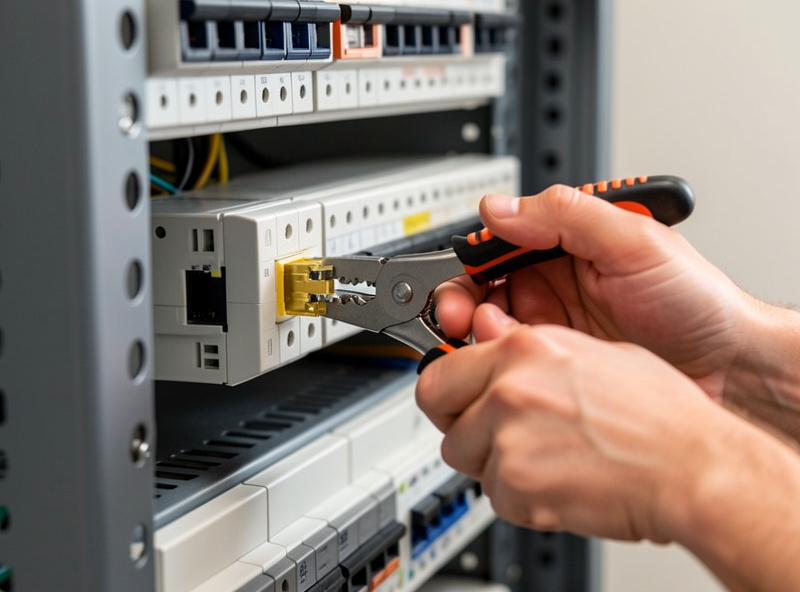
If it will not hold 2.5G, work in order of cost. Re-seat and re-terminate the jacks first, because a sloppy punch-down is the single most common cause of a run that “should” work and does not. A network cable tester quickly separates a wiring fault from a distance or category limit. Only after you have ruled out terminations should you consider pulling new cable.
As an Amazon Associate I earn from qualifying purchases.
When re-pulling cable is actually justified
There are real cases for new wire. Pull new cable when:
- You want a 10G uplink now or soon (10GBASE-T wants Cat6a, particularly near the full 100 m). If you are running conduit anyway, Cat6a is cheap insurance.
- The run is long, old, or physically damaged — kinked, crushed by a staple, or terminated years ago to a lower standard.
- You are in an electrically noisy environment (runs parallel to mains, near motors or fluorescent ballasts) where shielded cable earns its keep.
- The existing run is unlabeled and untested and you are opening the wall anyway for another reason — do it once, do it right.
Outside those cases, re-pulling cable to enable a 2.5G Wi-Fi 7 AP is usually wasted effort and disruption. If you do buy, get a known category and length rather than a mystery reel; a labeled spool of Cat6 ethernet cable covers 2.5G with margin and gives you 10G headroom on shorter runs.
Putting it together
The order of operations that saves money: confirm the switch can feed each AP at 2.5G and power it at the right PoE standard, then test the existing run at 2.5G, then re-terminate if it fails, and only then consider new cable. In almost every home I have wired, the switch was the real purchase and the cable in the walls was already good enough. Spend on the multi-gig managed switch with an adequate PoE budget; leave the cable alone unless a test tells you otherwise.
Pre-flight checklist
- ☐ One 2.5G (or faster) switch port available per Wi-Fi 7 AP.
- ☐ Switch supplies the AP’s required PoE standard (check the datasheet — usually 802.3at PoE+, sometimes 802.3bt).
- ☐ Total PoE budget covers every powered port at once, not just one.
- ☐ Managed switch with 802.1Q VLAN tagging so each SSID maps to a VLAN.
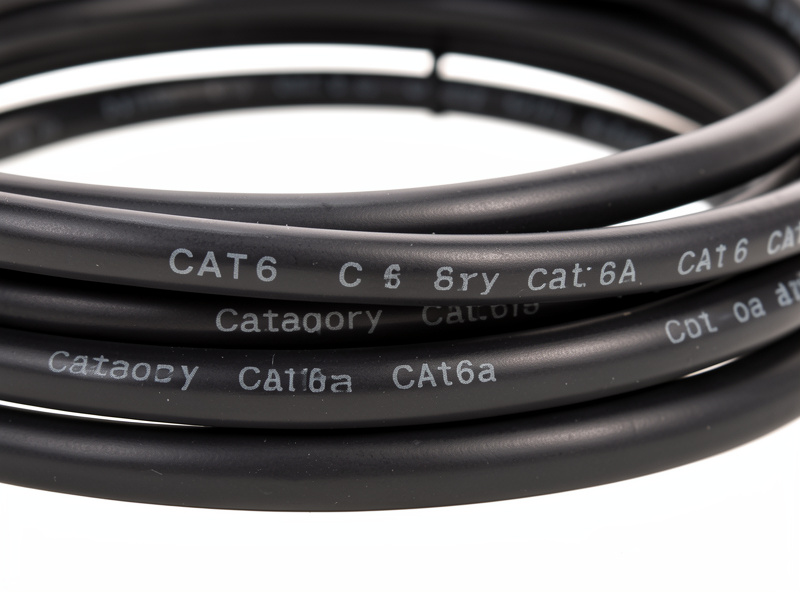
- ☐ Existing run’s cable category read off the jacket (Cat5e/Cat6/Cat6a).
- ☐ AP link negotiates and holds 2.5 Gbps with no CRC errors under load.
- ☐ Terminations re-seated/re-punched before any decision to re-pull.
- ☐ New cable only for 10G plans, damaged/long runs, or noisy environments.