Wi-Fi 7 is worth wiring into a home lab for exactly one reason: it finally lets a wireless client saturate a 2.5G port. On the 6 GHz band, with 320 MHz channels and Multi-Link Operation, a good access point will push real-world throughput past a gigabit — but only if the wire behind it, the switch, and the client all keep up. Get one of those wrong and you have paid Wi-Fi 7 money for Wi-Fi 6E speed.
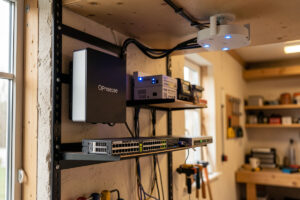
I run a segmented network at home in Sweden: OPNsense on a fanless x86 box, a Proxmox host as the spine, managed switches trunking 802.1Q VLANs out to every room, and Wi-Fi access points wired back on PoE with each SSID mapped to its own VLAN. The hydro lab, the workshop sensors, the kids’ consoles, and the lab subnet are four different trust zones on the same rack. So when I look at a new wireless standard, I am not asking “is it faster on a speed test.” I am asking whether it changes the throughput ceiling on a wired-AP layout, whether it needs a new switch, and whether any of my clients can even use it. This guide is the answer to all three, and it links out to the eight deeper pieces where I take each question apart.
The honest verdict: what Wi-Fi 7 actually changes
Wi-Fi 7 (802.11be, which the Wi-Fi Alliance certifies as Wi-Fi CERTIFIED 7) is not a revolution over Wi-Fi 6E — it reuses the same 6 GHz spectrum 6E opened up. What it adds is three headline features: 320 MHz channels (double the widest 6E channel), Multi-Link Operation (MLO, using two bands at once), and 4096-QAM (packing more bits per symbol). Together, on paper, they roughly double the peak single-client rate. In practice, in a house, the gain you actually keep is far smaller than the marketing number, and it lands almost entirely on the 6 GHz band a few feet from the AP.
For a home lab, the useful framing is this: Wi-Fi 6E already delivered clean 6 GHz spectrum and gigabit-class throughput. Wi-Fi 7’s contribution is raising the ceiling so a nearby laptop or phone can push 1.5–2 Gbps of real TCP throughput, and lowering latency jitter via MLO for anything that hates a stalled link. If your uplinks and switch ports are still gigabit, you will never see that ceiling. This is why I treat Wi-Fi 7 as a wired-backbone upgrade first and a wireless upgrade second. I unpack the standard-versus-standard question in my Wi-Fi 6E vs Wi-Fi 7 comparison, and the buy-or-wait decision in Is Wi-Fi 7 Worth It?
The three features that matter, in one pass
Every Wi-Fi 7 spec sheet leads with the same three acronyms, so it is worth knowing which ones move the needle in a real house and which are showroom numbers. Short version: MLO is the feature I actually care about, 320 MHz is situational, and 4K-QAM is a close-range bonus you rarely hold onto.
320 MHz channels double the widest 6E channel width, and bandwidth scales with channel width, so this is where the big headline rates come from. The catch is that a 320 MHz channel is enormous — the entire 6 GHz band only fits three of them — and wide channels trade range for speed. Move two rooms away and your client falls back to 160 or 80 MHz anyway. I dig into that tradeoff in the 320 MHz and 6 GHz band guide.
Multi-Link Operation (MLO) lets a client use two bands simultaneously — say 5 GHz and 6 GHz — either aggregating them for throughput or using one as a hot standby to kill latency spikes. For anything real-time this is the genuinely new trick, and it is the one feature I would not have gotten from 6E — it is one of the headline additions in the IEEE 802.11be standard. I separate the hype from the measured gains in MLO Explained.
4096-QAM encodes 12 bits per symbol instead of 6E’s 10, a roughly 20% raw-rate bump — but only when the signal-to-noise ratio is pristine, meaning close to the AP with little interference. It is real, and it is the first thing you lose as you walk away.
Where Wi-Fi 7 helps in a segmented network
In my setup every SSID is a VLAN. The trust LAN, the WORK segment, KIDS, an isolated GUEST network, and an IoT VLAN with no internet egress except a whitelist all ride the same access points as tagged SSID-to-VLAN mappings. Wi-Fi 7 does nothing new for segmentation itself — that is still 802.1Q trunking and firewall rules on OPNsense, exactly as I describe in my home network VLAN guide and multiple SSIDs with VLAN tagging write-up. What Wi-Fi 7 changes is the ceiling on the one or two SSIDs where throughput actually matters: the trusted LAN where a laptop copies to the NAS, and the WORK VLAN where big transfers happen.
The IoT VLAN does not care about Wi-Fi 7. A smart plug negotiates at 2.4 GHz, a handful of megabits, and will for the next decade. So the practical move is not “replace every AP.” It is “put a Wi-Fi 7 AP where the fast clients live, keep the wired-AP discipline, and let the slow VLANs ride whatever radio they already use.” That is the same instinct I apply to caging IoT devices on their own VLAN — segment by need, not by fashion.
Wi-Fi 6 vs 6E vs 7: the spec table that matters
Here is the comparison I keep coming back to when someone asks whether the jump is worth it. The numbers that change a buying decision are the band, the max channel width, and MLO — not the theoretical maximum rate, which no home client will ever hit.
| Feature | Wi-Fi 6 (ax) | Wi-Fi 6E (ax) | Wi-Fi 7 (be) |
|---|---|---|---|
| Bands | 2.4 / 5 GHz | 2.4 / 5 / 6 GHz | 2.4 / 5 / 6 GHz |
| Max channel width | 160 MHz | 160 MHz | 320 MHz |
| Modulation | 1024-QAM | 1024-QAM | 4096-QAM |
| Multi-Link Operation | No | No | Yes |
| Realistic close-range throughput | ~700–900 Mbps | ~1.2 Gbps | ~1.5–2 Gbps |
| Uplink you should feed it | 1G is fine | 2.5G preferred | 2.5G minimum |
| Best use in a home lab | IoT / general | Fast clients now | Fast clients, future-proofing |
Read across the “uplink you should feed it” row and you see the whole argument: Wi-Fi 7 without a 2.5G wire behind it is a Wi-Fi 6E network wearing a be badge. That single row is why the rest of this guide spends more time on switches and cabling than on radios.
The wired backbone Wi-Fi 7 demands
This is the part the launch videos skip. A Wi-Fi 7 access point that can push ~2 Gbps of wireless throughput and hangs off a gigabit switch port is capped at gigabit. The wire is now the bottleneck, not the air. So a real Wi-Fi 7 deployment starts at the switch: you want a managed switch with at least one 2.5G port per Wi-Fi 7 AP, and enough PoE budget to power them.
Most current Wi-Fi 7 APs draw more than a Wi-Fi 6 unit — plan for PoE+ (802.3at, ~25.5W) rather than assuming basic PoE will carry them, which is exactly the power-budget math I walk through in PoE for access points. On the switch side, a 2.5G-capable managed switch with a couple of PoE+ ports is the sweet spot; I keep a running shortlist in my home lab switch guide, and the multi-gig-versus-gigabit decision gets its own treatment in Wi-Fi 7 vs 2.5G Ethernet. Cabling matters too: Cat6 will happily carry 2.5G on the short in-house runs almost every home has, so you rarely need to re-pull, a point I cover in the home network cabling guide and in the dedicated switch and cabling requirements spoke.
Access points: what I would actually wire in
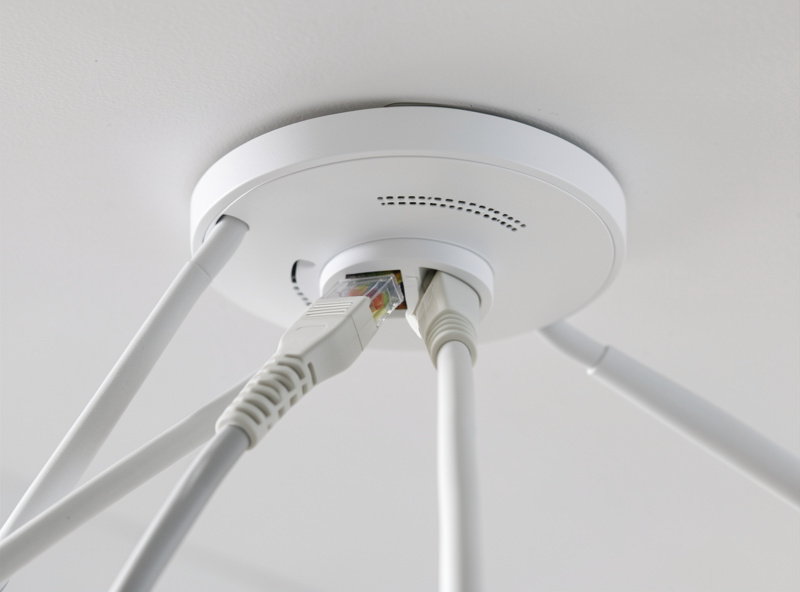
The AP is where the money goes, and where it is easiest to overpay for numbers you cannot use. My rule: buy the AP with the multi-gig uplink port and MLO support, wire it back on PoE+, and ignore the tri-band tri-radio units unless you genuinely have a dense-client problem. A single well-placed wired Wi-Fi 7 AP per floor beats a mesh of three every time on both throughput and predictability — the same argument I have made for years about wired APs versus mesh. Placement still follows the old rules from my AP placement guide: ceiling-centered, away from metal, one per coverage zone.
I break down specific models, ports, and MLO behavior in Best Wi-Fi 7 Access Points for a Wired Home Network. If you want to browse current units, a Wi-Fi 7 PoE access point search on Amazon is a reasonable starting point — just confirm the uplink is 2.5G, not gigabit, before you buy. As an Amazon Associate I earn from qualifying purchases.
If you already run UniFi, the adoption and VLAN-tagging workflow does not change with Wi-Fi 7 — it is the same process I document in UniFi access point setup. The radio is new; the controller discipline is identical.
MLO, 320 MHz and 4K-QAM: hype versus what you keep
If you take one thing from this guide, take this: the marketing throughput number and the number you keep in a real house are different by roughly half. A 320 MHz channel plus 4K-QAM plus a two-stream client gives you a beautiful figure standing next to the AP. Walk to the next room and the channel narrows, the QAM drops, and you settle around gigabit — which is still excellent, and still needs a 2.5G wire to deliver.
MLO is the exception because it is not purely a peak-rate feature. Using it in latency mode — 5 GHz and 6 GHz bonded, the radio picking the cleaner link packet by packet — smooths out the microstalls that make a video call hitch or a game rubber-band. That is a felt improvement, not a benchmark one. I put real measured numbers against the marketing in MLO Explained and against channel width in the 320 MHz guide.
Clients: who can actually use Wi-Fi 7 today
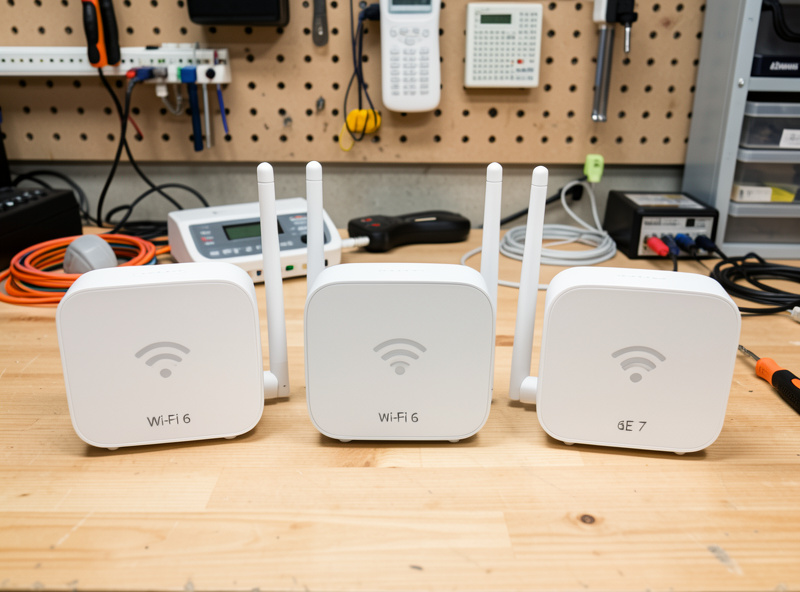
An access point is only half a link. Wi-Fi 7 does nothing for a device that does not have a Wi-Fi 7 radio, and as of now that is a short list: recent flagship phones, a handful of laptops with the newest Intel/Qualcomm cards, and a small but growing set of tablets. Everything else in the house — the older laptop, the TV, every IoT device — connects at whatever it already spoke. So the honest question before you spend is not “is the AP good” but “do I own even one client that benefits.” I inventory exactly which devices support it, and how to check, in Wi-Fi 7 Client Support. If the answer is “none yet,” a Wi-Fi 6E AP saves you money today and loses you almost nothing.
Mesh or wired backhaul for a Wi-Fi 7 layout?
Wi-Fi 7 makes wireless backhaul look tempting again, because a dedicated 6 GHz 320 MHz link between nodes has real headroom. It is still a compromise. Wireless backhaul shares airtime, adds a hop of latency, and its throughput sags exactly when the house is busy. A wired backhaul — an ethernet run to each AP — gives every node the full pipe and keeps mesh as what it should be: a coverage tool, never a security boundary. I lay out the honest comparison, including when a Wi-Fi 7 mesh genuinely earns its place, in Wi-Fi 7 Mesh vs Wired Backhaul. For dead-spot problems specifically, start with a survey first, the order I walk through in fixing Wi-Fi dead zones, before you assume you need more radios.
So who should upgrade?
Upgrade if you own a Wi-Fi 7 client you use heavily, already run (or will run) 2.5G to your APs, and copy large files or do latency-sensitive work over wireless. Wait if your clients are all Wi-Fi 6/6E, your switch is gigabit, and your bottleneck is your internet plan rather than your LAN — in that case Wi-Fi 7 changes a number you never actually hit. The full decision tree, with the cost breakdown, lives in Is Wi-Fi 7 Worth It? For the broader “how do I even lay out wired APs” question, my home Wi-Fi setup guide is the place to start.
The order I would upgrade in
If you have decided Wi-Fi 7 earns a place in your lab, the sequence matters as much as the shopping list. Spend in the wrong order and you either bottleneck the new AP behind an old switch or pay for radios no client can use. This is the staged path I would follow, and it is deliberately back-to-front from how most people buy.
First, the switch and PoE. Get a managed switch with 2.5G ports and a PoE+ budget in place before the AP arrives. This is the least glamorous purchase and the one that unlocks everything downstream. It also earns its keep immediately on wired clients — a NAS or a Proxmox host on a 2.5G link benefits the day you plug it in, long before a wireless device does. The switch-selection logic is the same one I use in my managed switch setup guide, just with multi-gig ports on the shortlist.
Second, the wire. Verify your runs actually carry 2.5G. Most in-house Cat6 and short Cat5e will, but a long, kinked, or badly terminated run is where multi-gig quietly falls back to gigabit. Test the run before you blame the AP — the same structured-wiring discipline I lay out in structured home network wiring applies. Re-terminate a suspect keystone before you re-pull a wall.
Third, one access point where the fast clients live. Not the whole house — one AP, wired back on PoE+, in the room where a Wi-Fi 7 laptop or phone actually spends time. Map its SSID to the right VLAN, keep your older APs on coverage and IoT duty, and measure the difference before buying a second unit. In a segmented network you are upgrading a capability on one or two VLANs, not rebuilding the whole radio layer.
Fourth, and only if the survey demands it, more APs. Coverage gaps get solved by placement and a wired backhaul, not by throwing radios at the problem. Run the dead-zone survey first, add the second wired AP where the map says, and leave mesh backhaul as the last resort it should be.
Frequently Asked Questions
Do I need new cabling for Wi-Fi 7?
Usually no. Cat6, and even Cat5e on short runs, carries 2.5G Ethernet reliably over the distances found in a typical home, and 2.5G is the uplink most Wi-Fi 7 access points actually need. You only re-pull cable if you are chasing 10G uplinks or your existing runs are long or damaged.
Will Wi-Fi 7 speed up my internet?
Only if your internet plan is faster than your old Wi-Fi could carry. Wi-Fi 7 raises the ceiling on your local wireless link. If your broadband is 500 Mbps, a Wi-Fi 6 access point already delivered that, and Wi-Fi 7 changes nothing you can measure on a speed test to the internet.
Is Multi-Link Operation the main reason to buy Wi-Fi 7?
For latency-sensitive use, yes. MLO lets a client use two bands at once, either for more throughput or to dodge a congested link, which smooths out video calls and gaming. For pure file-transfer speed, 320 MHz channels matter more, but MLO is the feature you cannot get from Wi-Fi 6E.
Can I mix Wi-Fi 7 and older access points on the same network?
Yes. Access points are independent radios sharing the same wired VLANs and SSIDs. I run mixed generations deliberately, putting a Wi-Fi 7 AP where fast clients live and keeping older APs on the IoT and coverage segments. Clients negotiate the best standard both sides support.
Does Wi-Fi 7 need a new switch?
If you want its full speed, yes, in practice. A Wi-Fi 7 access point on a gigabit switch port is capped at gigabit no matter how fast the air is. You want a managed switch with a 2.5G port per Wi-Fi 7 AP and PoE+ to power it.
How much real-world throughput does Wi-Fi 7 deliver at home?
Close to the access point on 6 GHz with a good client, roughly 1.5 to 2 Gbps of real TCP throughput. A room or two away it settles to gigabit-class as the channel narrows and modulation drops. Both figures require a multi-gig wire behind the AP to be reachable.
Related Guides
The eight deep dives in this cluster:
- Best Wi-Fi 7 Access Points for a Wired Home Network
- Multi-Link Operation (MLO) Explained: Hype vs Real-World Gains
- Is Wi-Fi 7 Worth It? Who Should Upgrade and Who Shouldn’t
- 320 MHz Channels and the 6 GHz Band: Bandwidth vs Range
- Wi-Fi 7 vs 2.5G Ethernet: When Wireless Saturates Your Wire
- Do You Need a New Switch and Cabling for Wi-Fi 7 APs?
- Wi-Fi 7 Client Support: Which Devices Can Use It Today
- Wi-Fi 7 Mesh vs Wired Backhaul APs: The Honest Comparison