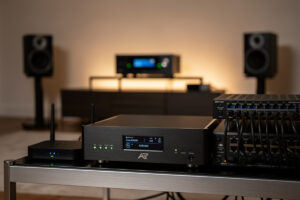
Roon and Tidal both stream lossless 24-bit audio at 192 kHz, which works out to about 9.2 Mbps per stream sustained. That is trivial bandwidth — but a Wi-Fi router that routinely hits 10 ms of jitter, or a switch that buffers TCP retransmits during a Netflix burst, will produce audible dropouts and skips on a high-end audio system. The fix is not faster internet. The fix is a network architecture that prioritizes audio packets, isolates streamers from chatty IoT devices, and keeps end-to-end latency under 5 ms even on a busy home LAN.
This guide walks through the four network layers that determine whether your $4,000 streamer-DAC stack actually delivers what it can do, the QoS and VLAN setup that costs $0 in software but eliminates the most common audio-streaming problems, and the wired-vs-Wi-Fi decision that matters more than any other equipment choice.
Why Audio Streaming Is Network-Sensitive
Music streaming is real-time. Unlike video, where a 2-second buffer hides any momentary network hiccup, audio buffers in most streamers and DACs are tiny — 50-500 ms, sometimes less for low-latency room-correction processing. A 200 ms TCP retransmit because your IoT camera saturated the uplink causes a 50 ms gap in playback, which is audible.
The four network problems that cause audible audio issues:
- Jitter: Variation in packet arrival time. Anything over 5 ms of jitter on a streaming flow causes occasional micro-dropouts that sound like brief silences or compression artifacts.
- Packet loss: Lost packets force TCP retransmits. A loss rate above 0.1% on a streaming flow causes occasional skips and perceptible quality drops.
- DNS latency: Slow DNS at session start causes the streamer to take 5-15 seconds to begin playback. After session start, DNS doesn’t matter for the actual stream.
- Multicast issues: Roon uses multicast (mDNS) for device discovery; misconfigured switches and Wi-Fi APs drop multicast traffic, breaking Roon endpoint discovery.
Wired vs Wi-Fi: This Decision Matters More Than Any Other
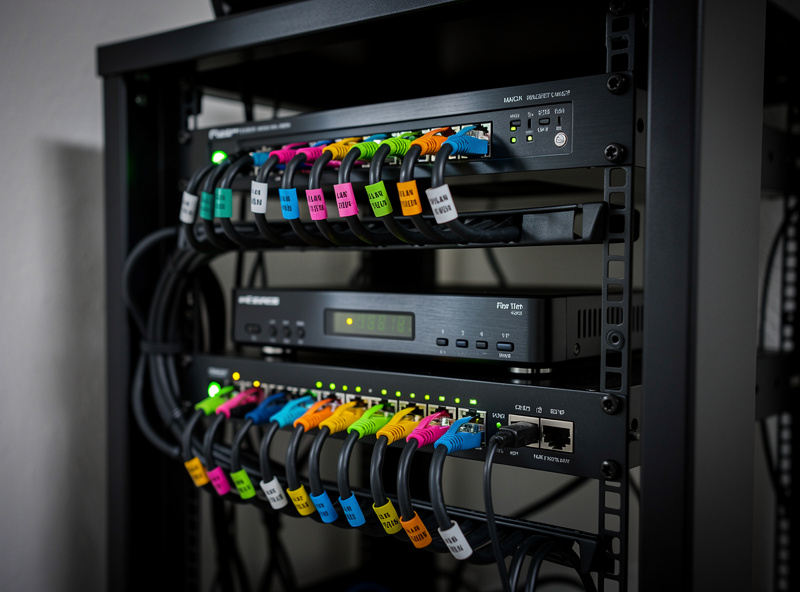
Wired Ethernet to streamers and DACs eliminates 80% of audio-streaming issues. A standard Cat6 run delivers sub-1 ms latency, near-zero jitter, and zero packet loss in a properly terminated setup. Wi-Fi 6/6E/7 can match this on paper but in practice introduces 2-15 ms of jitter from medium contention and retry behavior, plus interference from neighbors’ networks.
For a single streamer-DAC in a fixed listening room, run Cat6. Cost: $30-80 for a 50-foot pre-made cable or $25 in raw components if you crimp your own. Time: 10-20 minutes. The performance improvement is dramatically larger than what an equivalent dollar amount spent on streamer or DAC upgrades produces.
For multi-room audio across mobile or hard-to-wire rooms, Wi-Fi 6E on a dedicated 6 GHz channel performs adequately if you isolate the audio traffic on its own SSID and dedicate enough APs that no AP is more than 25 feet from any streamer.
The Four-VLAN Architecture for Audio
Splitting your home network into VLANs is the single best thing you can do for audio reliability. The recommended split:
- VLAN 10 (Trusted): Computers, phones, NAS — the devices you control directly.
- VLAN 20 (Audio): Streamers, DACs, music servers, control tablets. Allowed to talk to NAS on VLAN 10 (for local music files), and to the internet for Roon/Tidal/Qobuz auth.
- VLAN 30 (IoT): Smart bulbs, cameras, sensors, voice assistants. Isolated from everything except internet.
- VLAN 40 (Guest): Visitors, gaming consoles, anything you don’t want eavesdropping on the rest.
The reason this matters for audio: IoT devices on VLAN 30 are notoriously chatty (cameras uploading constantly, smart bulbs sending status updates every 30 seconds), and putting them on the same broadcast domain as your audio streamers means audio packets compete with hundreds of low-priority IoT packets for switch CPU attention. Isolating audio on its own VLAN eliminates that contention.
Detailed VLAN setup walkthroughs live in our pfSense firewall rules guide and the OPNsense firewall rules guide. Both cover the inter-VLAN allow rules that let audio streamers reach NAS shares without compromising IoT isolation.
QoS Settings That Actually Help Audio
Quality of Service (QoS) on a home network primarily protects latency-sensitive flows from bandwidth-greedy ones. For audio, the right QoS configuration is simple:
- Mark audio streamer traffic with DSCP value EF (Expedited Forwarding, decimal 46). Most streamers don’t set DSCP themselves — your router handles it via firewall rules matching streamer source IPs.
- Configure router QoS to prioritize EF traffic. pfSense Limiters or fq_codel-based shapers (CAKE on OpenWrt) handle this with a single rule.
- Set IoT VLAN traffic to default priority (BE, Best Effort). This is the natural baseline — no marking required.
- Cap upload bandwidth at 90% of your line speed. The single most impactful QoS change. Bufferbloat happens when uploads saturate the modem; capping at 90% leaves headroom for ACKs and prevents the bloat.
For the deeper traffic-shaping setup that the above settings depend on, see the pfSense traffic shaping guide. Most consumer routers have similar QoS toggles labeled “Streaming/Multimedia priority” — those work, just less precisely than firewall-level DSCP marking.
Roon-Specific Network Requirements
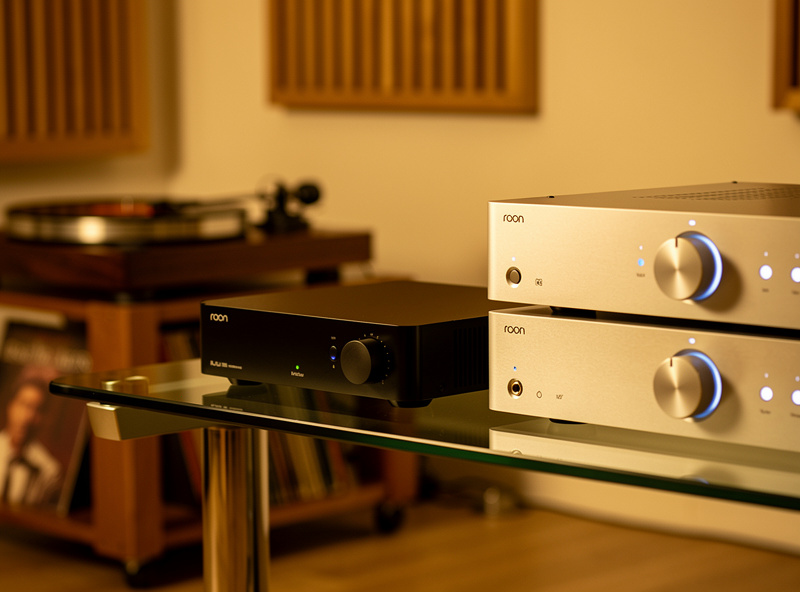
Roon adds three network-level requirements beyond generic streaming:
- mDNS (multicast DNS) must work across all VLANs where Roon Core, Endpoint, and Control devices live. Most consumer routers and APs drop mDNS by default; pfSense and OPNsense need an Avahi mDNS reflector configured. UniFi APs need IGMP snooping enabled and multicast DNS enabled in advanced WLAN settings.
- RAAT (Roon Advanced Audio Transport) requires consistent low latency. Roon’s own diagnostic shows network round-trip-time per endpoint; targets are under 5 ms wired, under 15 ms Wi-Fi. If your network exceeds these, Roon plays anyway but skips occasionally.
- Time synchronization across endpoints. For multi-room synchronized playback, all Roon endpoints need accurate NTP. A local NTP server on your router (built into pfSense and OPNsense) is more accurate than relying on each device’s external NTP.
The same basic principles apply to Tidal Connect, Spotify Connect, and AirPlay 2 — all use mDNS for discovery and benefit from the multi-VLAN audio architecture.
The Streamer-to-DAC Handoff
Network reliability gets you packets to the streamer. The streamer-to-DAC connection (USB, S/PDIF, AES/EBU, or I2S) is a separate problem and a separate failure mode. USB is the most flexible and the least picky; S/PDIF is more sensitive to jitter; AES/EBU is the cleanest professional standard.
For DAC selection that pairs well with networked streamers, our partner site covers the full price-vs-quality landscape in the best USB DACs under $200 guide, which is the relevant tier for most streamer endpoints. The complete hi-fi audio systems guide covers the broader signal chain decisions that determine which streaming endpoint format makes sense.
Comparison: Streaming Network Setups
| Setup | Equipment | Audio reliability | Cost (network side) | Time to set up |
|---|---|---|---|---|
| Stock ISP router + Wi-Fi to streamer | Anything | Poor — frequent dropouts | $0 | 0 min |
| Stock router + wired streamer | Cat6 cable | Good — eliminates Wi-Fi issues | $30 | 20 min |
| Mesh Wi-Fi 6 + dedicated audio SSID | Eero Pro 6E, UniFi U6 | Very good for mobile | $200-400 | 1 hour |
| pfSense + managed switch + 4 VLANs | Protectli + UniFi switch | Excellent — broadcast isolation | $400-700 | 4-6 hours initial |
| OPNsense + 10GbE to NAS + Avahi mDNS | Topton N100 + 10GbE switch | Reference — sub-ms RTT | $600-1100 | 6-10 hours initial |
| UniFi Dream Machine Pro + UniFi switches | UDM Pro + USW-Pro-24-PoE | Excellent + easy GUI | $700-1300 | 3-5 hours |
What to Set Up First This Weekend
- Saturday morning: Run a Cat6 cable to your streamer. This single change eliminates the majority of audio-network problems.
- Saturday afternoon: Set up a separate SSID for IoT devices and migrate smart bulbs, cameras, sensors over to it. Reduces broadcast traffic on the audio segment immediately, even without VLANs.
- Sunday morning: If you have pfSense or OPNsense, configure DSCP marking for streamer source IPs and CAKE/Limiters for QoS.
- Sunday afternoon: Verify with a Roon RAAT diagnostic test — RTT should be under 5 ms wired, packet loss zero.
- Week 2+: Migrate to a full 4-VLAN architecture if your router supports it.
For the broader networking foundation that audio-streaming reliability sits on, see the pfSense configuration guide, the OPNsense setup guide, and the Wi-Fi 6 mesh networking guide. The best mini PC for pfSense roundup covers the hardware side if you don’t have a router yet.
For deeper background on the underlying network protocols, the IETF RFC 4594 on DSCP-based QoS is the canonical reference for the EF/AF/BE traffic class system. The bufferbloat project is the canonical resource for understanding why upload caps matter and how fq_codel and CAKE solve the problem.
Frequently Asked Questions
Does my router really matter for music streaming quality?
For lossless 24-bit streaming, yes — not for bandwidth (it’s only 9 Mbps) but for jitter, packet loss, and multicast handling. A stock ISP router routinely produces 5-15 ms jitter that causes audible dropouts on high-end streamer-DAC stacks. A managed router with QoS enabled eliminates this without changing any audio equipment.
Should I use Wi-Fi or Ethernet for my streamer?
Ethernet, every time, when you can. A wired Cat6 connection delivers sub-1 ms latency and zero jitter; Wi-Fi 6E even on a quiet network adds 2-15 ms jitter and occasional retries. For a fixed listening room, the cost difference is $30 in cable versus hundreds in equipment upgrades that would not match the improvement.
What is mDNS and why does Roon need it?
mDNS (multicast DNS) is how Roon Core, Endpoints, and Control devices discover each other on the network. Most consumer routers drop multicast traffic across VLANs, which breaks Roon endpoint discovery. pfSense and OPNsense need Avahi mDNS reflector configured. UniFi APs need IGMP snooping and multicast DNS enabled in WLAN advanced settings.
Do I need VLANs for streaming audio?
Not strictly required, but recommended. Putting audio streamers on a separate VLAN from chatty IoT devices (cameras, smart bulbs, sensors) eliminates broadcast contention and dramatically improves reliability for multi-room synchronized playback. A single-room single-streamer setup works fine on a flat network with QoS only.
What QoS settings actually help streaming audio?
Mark streamer source IPs with DSCP value EF (46) on your firewall, prioritize EF traffic in your router QoS, and cap upload bandwidth at 90% of your line speed. The upload cap is the single most impactful change because it prevents bufferbloat — the main cause of jitter on home networks during file uploads or video calls.
Can a regular ISP router handle Tidal or Roon?
Yes for casual listening on one room. No for multi-room synchronized Roon, high-resolution multicast streaming, or any network with significant IoT device count. The threshold where the ISP router starts failing is typically around 15-20 connected devices or whenever multi-room sync is required. At that point, an OPNsense or pfSense router with managed switching becomes meaningful.
What is bufferbloat and how do I test for it?
Bufferbloat is excessive packet buffering in your modem or router that adds 100-1000 ms of latency under load. Test for it at waveform.com/tools/bufferbloat — a passing grade is A or B. Most stock ISP routers fail with C or D under upload load. CAKE traffic shaping on OpenWrt or pfSense Limiters with fq_codel both fix it; both require setting your line speed and capping at 90%.
Related Articles
- pfSense Firewall Rules for Beginners
- OPNsense Firewall Rules
- pfSense Traffic Shaping Guide
- Wi-Fi 6 Mesh Networking Guide
- Best Mini PC for pfSense