Tuning a home IDS means three things: setting HOME_NET so the engine knows your network, disabling the rule categories that don’t apply to a home, and suppressing the specific signatures your own devices keep tripping. Done well, it takes an untuned firewall from a thousand alerts a day down to a dozen that actually matter — and that ratio is the entire difference between a tool you use and a tab you ignore.
Tuning is not the boring afterthought to installing an IDS. It is running an IDS. An engine with default rules pointed at a home network is a smoke detector wired to go off when you make toast: technically working, practically worthless, and quickly muted. Here’s the process I follow to get Suricata or Snort down to a quiet, trustworthy console — the same approach regardless of which engine you picked in Suricata vs Snort.
Start with HOME_NET, because everything depends on it
Before you touch a single rule, get HOME_NET right. This variable tells the engine which addresses are “inside” your network, and a huge number of rules are written in terms of direction — traffic from EXTERNAL_NET to HOME_NET, or the reverse. If HOME_NET doesn’t accurately list your internal subnets, those directional rules fire backwards or not at all, and no amount of later tuning fixes the resulting nonsense.
Set HOME_NET to the supernet covering all your internal VLAN ranges and nothing public. If you run a segmented network — and you should, per the home network VLAN guide — make sure every internal range is included: the trust LAN, the IOT segment, the guest range, the lab. Miss one and the engine treats that VLAN as the hostile internet, drowning you in false alerts about your own devices. This single setting does more for alert quality than any rule selection you’ll make.
Disable the categories that don’t apply to a home
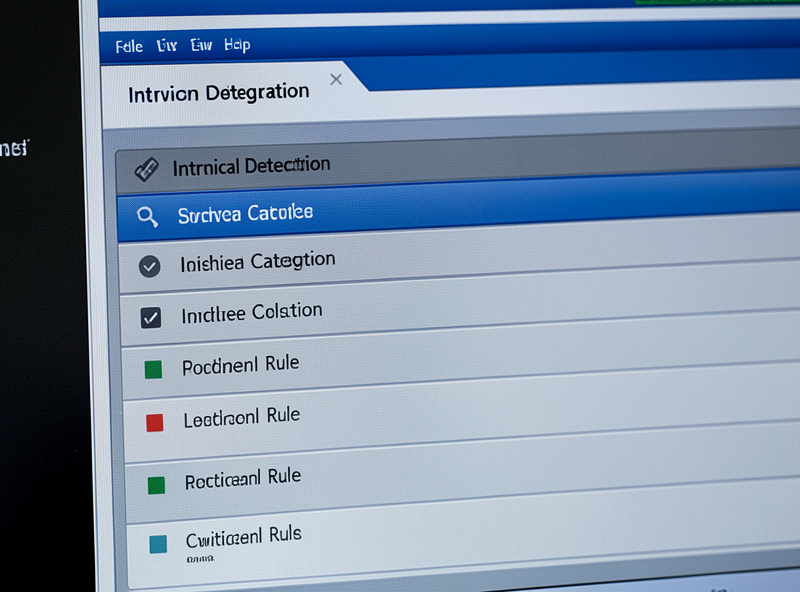
The default rule set is built to cover every environment — enterprise mail servers, industrial control systems, database clusters, VoIP PBXs. You run almost none of that at home, and every enabled-but-irrelevant category is pure noise potential. The biggest single tuning win is turning off whole categories that describe infrastructure you don’t own.
| Rule category type | Home relevance | Action |
|---|---|---|
| Malware / trojan / C2 | High | Keep enabled |
| Scan / exploit / attack-response | High | Keep enabled |
| SCADA / ICS industrial protocols | None | Disable |
| Enterprise mail / Exchange server | None (typically) | Disable |
| Database server (SQL, Oracle) | Low | Disable unless self-hosted |
| VoIP / SIP | Low | Disable unless you run a PBX |
| Policy / chat / games | Noisy | Disable; these flag normal use |
The “policy” categories deserve special mention — they flag things like gaming traffic, chat protocols, and BitTorrent as policy violations. On a corporate network that’s the point; on your home network it just means the engine screams every time your kid’s console phones home. Turn them off unless you specifically want that visibility. If you self-host services, keep the categories that match what you actually run — a self-hosted web app means web-attack rules earn their place.
Suppression lists: silence the signatures your devices trip
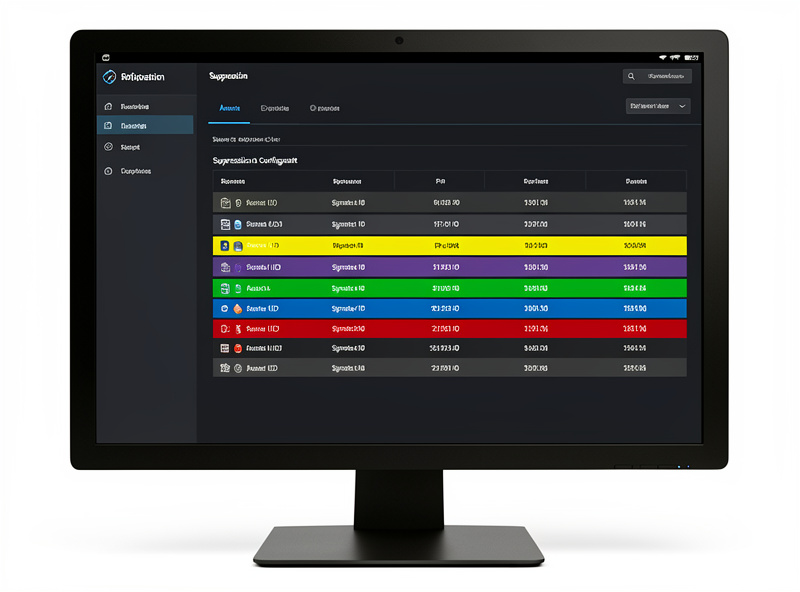
After category pruning, you’ll still have a handful of specific signatures that fire repeatedly on known-good behavior. A smart bulb’s cloud check-in, a printer’s mDNS chatter, a game console’s aggressive NAT traversal — generic rules sometimes read these as suspicious. The fix is a suppression list: you tell the engine to stop alerting on a specific signature ID (SID), optionally only for a specific source or destination IP, following the engine’s rule syntax.
The discipline that matters here is to suppress narrowly. Suppressing a SID entirely everywhere is a blunt instrument — if that signature would also catch a genuine threat from a different device, you’ve blinded yourself. Where the engine lets you, suppress the SID by IP: silence the alert for the specific smart plug that trips it, while leaving the rule armed for every other host. This is the difference between tuning and just turning things off. Every suppression should be a deliberate “I know what this device is and why it does this,” which means you need to be able to read the alert first — a skill in reading IDS logs for beginners.
Thresholding: tame the noisy-but-real alerts
Some alerts are legitimate but high-volume — a port-scan signature might fire hundreds of times during a single scan. Thresholding lets you rate-limit these so you get one alert per event window instead of a flood, using limit, threshold, or both modes keyed on a count and time period. It’s the tool for alerts you want to keep but don’t want repeated five hundred times. Used well, it keeps a real signal from becoming its own kind of noise. Used carelessly, it can hide the difference between one probe and a sustained attack, so reserve heavy thresholds for signatures you understand.
The two-week loop that gets you to quiet
Tuning isn’t a one-time config; it’s a short, intense feedback loop. Run the IDS in detection mode, and every day or two open the alerts, sort by what’s firing most, and ask of each top offender: is this a real concern, or is this a known device doing a known thing? Real concern, investigate. Known device, suppress it — narrowly. Repeat. Within about two weeks the volume collapses, because home network traffic is far more repetitive than it first looks; the same two dozen devices do the same handful of things, and once you’ve accounted for each, the console goes quiet.
The IOT segment is usually the loudest and the most rewarding to tune, because cheap smart devices do genuinely weird things on the network — which is exactly why you cage them on their own VLAN in the first place. Tuning that segment teaches you what “normal weird” looks like for your gear, so the day something does abnormal weird, it stands out. Wire the whole thing into a monitoring dashboard so the daily glance is a habit, not a chore.
When a tuned rule is ready to block
Tuning and IPS mode are linked: you only promote a rule category to blocking once tuning has proven it doesn’t flag your legitimate traffic. The sequence is detection, tune until quiet, watch the now-quiet category for a while longer, then — and only then — let it block. A category that has gone two weeks firing only on things you investigated and confirmed as hostile is a category you can trust to drop packets. One that still occasionally flags your smart TV is not. Promote selectively, never wholesale, and you get the protection of an IPS without the household-breaking false positives. The install steps that get you to this starting point are in installing Suricata on pfSense, and the full layered strategy is in the home network intrusion detection guide.
Frequently Asked Questions
Why does my home IDS generate so many alerts?
Because the default rule set is built for every environment and runs against all your traffic, including normal home device chatter. Untuned, it can fire a thousand times a day. Tuning fixes it: set HOME_NET correctly, disable categories that do not apply to a home, and suppress the specific signatures your known-good devices trip.
What is the most important IDS tuning step?
Setting HOME_NET correctly. This variable defines which addresses the engine treats as internal, and a large share of rules are direction-based. If HOME_NET does not list all your internal VLAN subnets, those rules misfire or miss real activity, and no later tuning fixes it. Get this right before touching individual rules.
Should I suppress an alert entirely or by IP?
By IP whenever possible. Suppressing a signature everywhere blinds you to that threat from every device. Suppressing it only for the specific known-good host that trips it silences the false positive while leaving the rule armed for every other device. Narrow suppression is the difference between tuning and just switching detection off.
How long does it take to tune a home IDS?
About two weeks of light daily attention. Run in detection mode, review the top-firing alerts each day, and suppress or investigate each one. Home traffic is repetitive, so once you have accounted for the same two dozen devices doing the same things, alert volume collapses to a manageable handful.
Which rule categories should I disable for home use?
Disable categories describing infrastructure you do not run: industrial SCADA and ICS protocols, enterprise mail servers, database servers, and VoIP unless you host a PBX. Also disable noisy policy categories that flag gaming, chat, and torrent traffic as violations. Keep malware, exploit, scan, and command-and-control categories enabled.
When is a rule safe to switch from alert to block?
Once it has spent at least two weeks in detection mode firing only on traffic you investigated and confirmed as hostile. A category that no longer flags any of your legitimate devices is safe to promote to blocking. One that still occasionally trips on normal devices is not. Promote categories selectively, never the whole rule set at once.
Related Guides
- Home Network Intrusion Detection: The Complete Guide
- Installing Suricata on pfSense
- Reading IDS Logs for Beginners
- Suricata vs Snort for a Home Network
- VLAN for IoT: Caging Smart-Home Devices