
The fastest way to tell if you’re behind CGNAT takes about thirty seconds: find the IP address on your router’s WAN interface and compare it to the public IP an external lookup reports. If the WAN address falls in the range 100.64.0.0 to 100.127.255.255, you are behind carrier-grade NAT — and that is exactly why a port forward you configured perfectly still refuses to open.
I have chased this on my own connection and on plenty of others, and the confusion is always the same: the firewall rule looks right, the NAT entry is there, the service is listening, and nothing inbound arrives. The reason is that the obstacle is not on any box you can log into. This guide walks the three reliable tests, explains the 100.64 range, and shows precisely why CGNAT makes inbound connections vanish without a single error message. It is the diagnostic half of the broader CGNAT and double NAT guide.
The One Test That Settles It: WAN IP vs Public IP
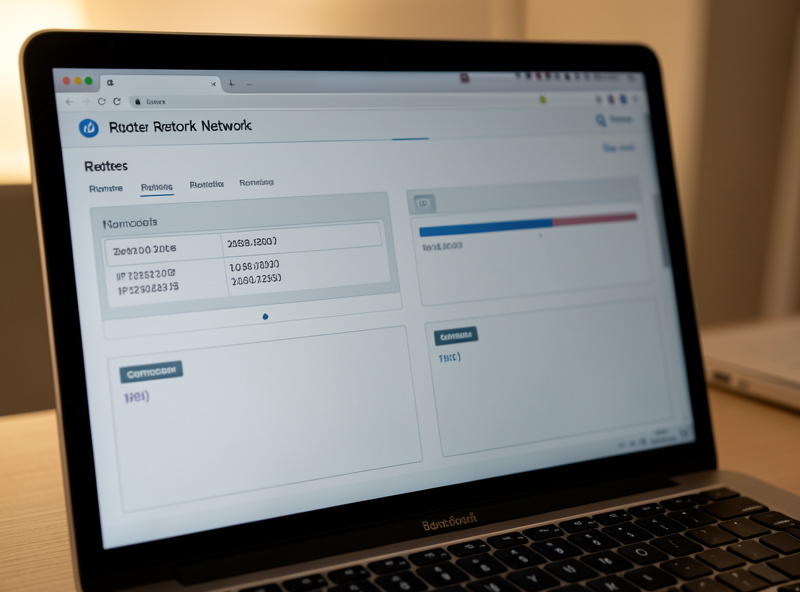
Open your router’s status page and read the IPv4 address on the WAN interface. Then, from any device on the network, look up your public IP with an external “what is my IP” service. If the two addresses are identical, you have a public IP. If your WAN address is in 100.64.0.0/10, you are behind CGNAT. If it is a private 192.168, 10, or 172.16–31 address, you have double NAT instead.
That single comparison is the whole diagnosis, and everything else in this article just confirms it or explains the edge cases. The WAN interface is the one facing your ISP — on OPNsense or pfSense it is plainly labeled WAN; on a consumer router it is usually called “Internet” or “WAN” on a status or overview page. The number you want is the IPv4 address that interface obtained from upstream, not the LAN address your router hands to your own devices. Write it down, then get your public IP from an external source. The mismatch is the tell: when the address the world sees is different from the address on your WAN, something between you and the internet is doing NAT, and the contents of your WAN address tell you which kind.
What the 100.64.0.0/10 Range Actually Means
The 100.64.0.0/10 block is reserved by RFC 6598 specifically for carrier-grade NAT — it is “shared address space” that ISPs use between their own NAT equipment and your home, never on the public internet. Seeing an address from 100.64.x.x through 100.127.x.x on your WAN is close to definitive proof of CGNAT.
It is worth understanding why this range exists, because it removes all ambiguity. The private RFC 1918 ranges (10/8, 172.16/12, 192.168/16) were already in heavy use inside home and office networks, so carriers needed a different private-but-not-1918 block to put between their CGNAT boxes and millions of customer routers without colliding with the customers’ own LANs. RFC 6598 carved out 100.64.0.0/10 for exactly that. So if your LAN is 192.168.1.0/24 and your WAN is, say, 100.96.40.13, the picture is unambiguous: your traffic leaves your router, hits the carrier’s NAT, and only there gets translated to a real public address shared with other subscribers. No device you own sits between your WAN and the public internet — which is exactly why there is nowhere for you to add a port forward.
Memorize the three buckets and you can diagnose any connection at a glance:
- 100.64.0.0/10 (100.64.x – 100.127.x) on the WAN → CGNAT. Carrier-side, not fixable by you.
- 10.0.0.0/8, 172.16.0.0/12, 192.168.0.0/16 on the WAN → double NAT. Another router in your home is doing NAT; fix it with bridge mode.
- Anything else that matches your public IP → direct public address. Port forwarding will work.
Confirming With a Traceroute
A traceroute to any public host adds a second data point. On a direct connection the first hop is your own router and the second is the ISP’s gateway with a public address. Behind CGNAT you typically see an extra private or 100.64 hop inside the ISP’s network before any public address appears — a visible sign your traffic is being translated a second time upstream.
Run tracert 8.8.8.8 on Windows or traceroute 8.8.8.8 on Linux or macOS and read the first few hops. Hop one is your LAN gateway (your router). On a clean public connection, hop two is already a routable ISP address. When you are behind CGNAT, hop two — and sometimes three — show addresses in 100.64.0.0/10 or an RFC 1918 range before the path finally reaches a public IP. That extra layer of private hops is the carrier NAT infrastructure made visible. It is not as instantly conclusive as reading your WAN address, but when the WAN page is hard to reach or ambiguous, the traceroute usually settles it. Combine it with the WAN-vs-public test and you will almost never be wrong about your state.
Why Your Port Forwards Fail Silently — No Error, Just Nothing
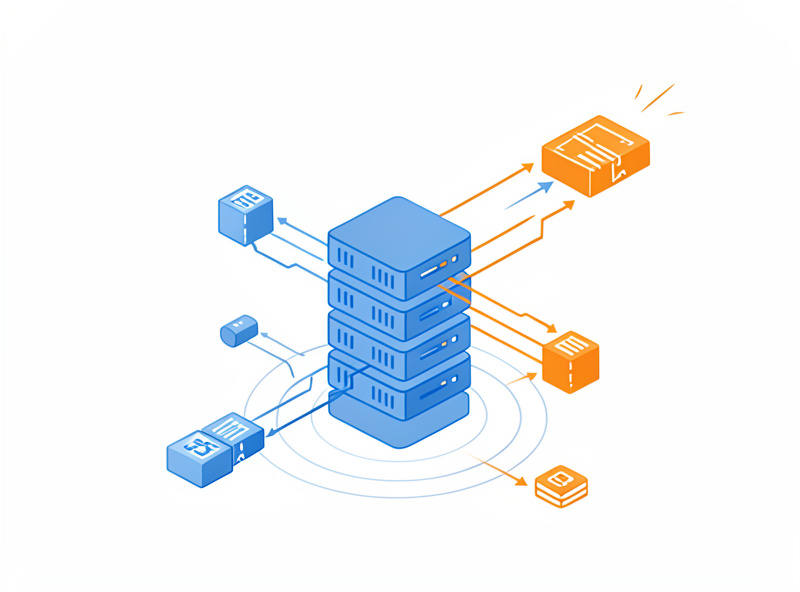
A port forward fails silently behind CGNAT because the inbound packet never reaches your router at all. When an outside client tries to connect to the shared public IP on your port, the carrier’s NAT has no mapping that points that port back to your specific connection, so it drops the packet. Your router never sees the request, logs nothing, and the connection simply times out.
This is the part that drives people to rebuild perfectly good firewall rules over and over. With a normal public IP, an inbound SYN to your port hits your router’s WAN, your NAT rule rewrites the destination to the internal server, and the firewall pass rule lets it through. Behind CGNAT, that chain breaks at step zero: the carrier’s translation table only contains mappings it created for outbound flows your network initiated. An unsolicited inbound packet to a random high port on the shared address has no matching state, so the carrier device discards it. There is no rejection sent back, no log on your side, nothing to troubleshoot — which is exactly why it feels like a configuration problem when it is really a topology problem. Once you have confirmed CGNAT, stop editing rules; the fix is to get a public IP or route around the carrier, as the main reachability guide and CGNAT bypass walkthrough lay out.
Ruling Out the Look-Alikes
Two situations mimic CGNAT and need ruling out. Double NAT produces the same silent-failure symptom but shows a private WAN address you can fix yourself with bridge mode. A simple wrong firewall rule or a service bound to localhost also looks identical from outside. Confirm your WAN address first, then verify the service before blaming the carrier.
The most common mix-up is double NAT, where your router sits behind an ISP gateway that is still doing NAT. The symptom is identical — inbound dies — but the WAN address is private, not 100.64, and you own the upstream box, so you can fix it. That is a genuinely different problem with a free local fix; I cover it in what double NAT breaks. The other look-alike is a purely local misconfiguration: the right approach is to confirm the connection state with the WAN test, and only once you know you have a real public IP should you start checking the rule order, the internal target IP, and whether the service is actually listening on the LAN interface. Testing that properly, from outside your own network, is its own skill — see testing inbound reachability.
When You Are Sure: What to Do Next
Once your WAN address confirms CGNAT, you have two paths. Ask the ISP for a public IP — many will provide one, sometimes free, sometimes for a small static-IP fee. Or route around the carrier entirely with an outbound tunnel or overlay that needs no inbound port. Both restore reachability; the ISP route restores normal port forwarding specifically.
I keep both in play. Asking the ISP first is worth it because a real public address makes every standard guide and app work normally again — the steps and the exact phrasing that gets a yes are in how to get a static or public IP from your ISP. When the answer is no, the tunnel approach takes over: a Cloudflare Tunnel for web apps, WireGuard to a cheap VPS for any protocol, or an overlay like Tailscale for private device-to-device access. Those live in the CGNAT bypass guide and the home VPN and remote access guide, with the firewall side covered in OPNsense firewall rules.
Frequently Asked Questions
What IP range indicates CGNAT?
A WAN IP in 100.64.0.0/10, meaning any address from 100.64.0.0 through 100.127.255.255. This is the shared address space defined in RFC 6598 that carriers use between their NAT equipment and your home router. Seeing it on your WAN interface is near-definitive proof of CGNAT.
How is CGNAT different from double NAT?
Both cause inbound connections to fail, but double NAT shows a private WAN address (192.168, 10, or 172.16 to 31) from a router you own and can fix with bridge mode. CGNAT shows a 100.64 address on carrier equipment you cannot control, so the fix must come from the ISP or an outbound tunnel.
Can I check for CGNAT without logging into my router?
Partly. A traceroute to a public host such as 8.8.8.8 often reveals extra private or 100.64 hops inside the ISP network before any public address, which suggests CGNAT. But reading your router’s WAN IP directly is the only fully conclusive test, so log in if you can.
Why do my port forwards fail with no error message?
Behind CGNAT the inbound packet is dropped at the carrier’s NAT before it ever reaches your router, because that device has no mapping pointing your port back to your connection. Your router never sees the request, so it logs nothing and the connection simply times out with no rejection.
Does a VPN on my PC tell me if I’m behind CGNAT?
No. A consumer VPN changes the public IP your devices appear to use but tells you nothing about the address on your router’s WAN. To diagnose CGNAT you must read the actual WAN interface address and compare it to your real public IP with the VPN disconnected.
Is being behind CGNAT permanent?
Not necessarily. It is your ISP’s current configuration for your line, and many carriers will move you to a public IP on request, sometimes free and sometimes for a small static-IP fee. If they will not, you can route around CGNAT with a tunnel or overlay that needs no public IP at all.
Related Guides
- CGNAT & Double NAT: How to Get Your Home Network Reachable
- Double NAT: What It Breaks, What It Doesn’t, and When to Care
- Beating CGNAT Without a Public IP: WireGuard, Tunnels, and Reverse Proxies
- How to Get a Static or Public IP From Your ISP and the Alternatives
- Testing Inbound Reachability: Port Checks, Hairpin NAT, and What ‘Open’ Really Means