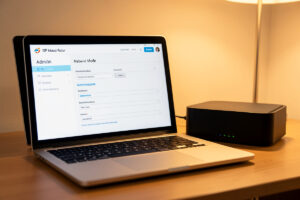
Bridge mode turns your ISP’s combined modem-router into a dumb modem, disabling its NAT, routing, and DHCP so your own router receives the public IP directly. That single change collapses double NAT and restores normal port forwarding. The catch is that “bridge mode” and “IP passthrough” are not the same thing, and picking the wrong one leaves a NAT layer in place.
I have put a few different ISP gateways into the right mode over the years, and the process is always 80% the same and 20% vendor-specific weirdness. This guide explains the three modes you will actually encounter — true bridge mode, IP passthrough, and DMZ — how to enable the right one, and the gotchas that bite people afterward. It is the hands-on fix referenced throughout the main reachability guide, and it only helps if your problem is double NAT rather than CGNAT.
What Bridge Mode Actually Does
True bridge mode disables every router function on the ISP box — NAT, the firewall, DHCP, and usually Wi-Fi — so it acts purely as a modem passing the raw connection through. Your own router then handles the connection (often via PPPoE or DHCP) and obtains the real public IP on its WAN interface. After bridging, only one device does NAT: yours.
This matters because the ISP combo unit is the outer NAT layer in a double-NAT setup. Strip its routing away and there is nothing left between your router and the internet but a transparent modem. The immediate, verifiable result is that your router’s WAN address changes from a private 192.168-style address to your actual public IP, and port forwards you configure on your router finally face the open internet. As a bonus, you also shed the ISP box’s typically weak firewall and small NAT state table, so a busy connection behaves better. The trade is that your router now owns everything the ISP box used to do — DHCP, firewall, and Wi-Fi — which on a real router like OPNsense or a UniFi gateway is exactly what you want anyway.
Bridge Mode vs IP Passthrough vs DMZ
The three modes differ in how much routing the ISP box keeps. True bridge mode disables all of it and gives your router the public IP. IP passthrough keeps the modem terminating the line but hands the public IP to one downstream device by MAC address. DMZ keeps the ISP box’s NAT but forwards all inbound traffic to one internal IP — the weakest option, since double NAT technically remains.
Knowing which one your gateway offers — and which one it is actually doing — saves a lot of confusion:
- True bridge mode is the cleanest. The ISP box becomes a modem, your router authenticates and pulls the public IP. Use this whenever it is available.
- IP passthrough is common on gateways that cannot fully bridge (several fiber and DSL units work this way). The modem still terminates the connection internally but presents the public IP to the single device whose MAC you nominate. For reachability purposes it behaves like bridge mode — your router gets a public WAN IP and forwards work.
- DMZ / “exposed host” keeps the ISP box doing NAT and simply sends all unsolicited inbound to one inner address. Double NAT still exists, hairpin and some protocols stay flaky, and you are relying on the ISP box’s firewall. Treat it as a last-resort fallback when neither bridge nor passthrough is available.
Comparing the Three Modes
| Mode | ISP box NAT | Your router’s WAN IP | Removes double NAT? | When to use |
|---|---|---|---|---|
| True bridge mode | Disabled | Public IP | Yes — fully | First choice when offered |
| IP passthrough | Bypassed for one MAC | Public IP | Yes — in effect | When the gateway can’t fully bridge |
| DMZ / exposed host | Still active | Private IP | No — NAT remains | Last resort fallback |
How to Enable It
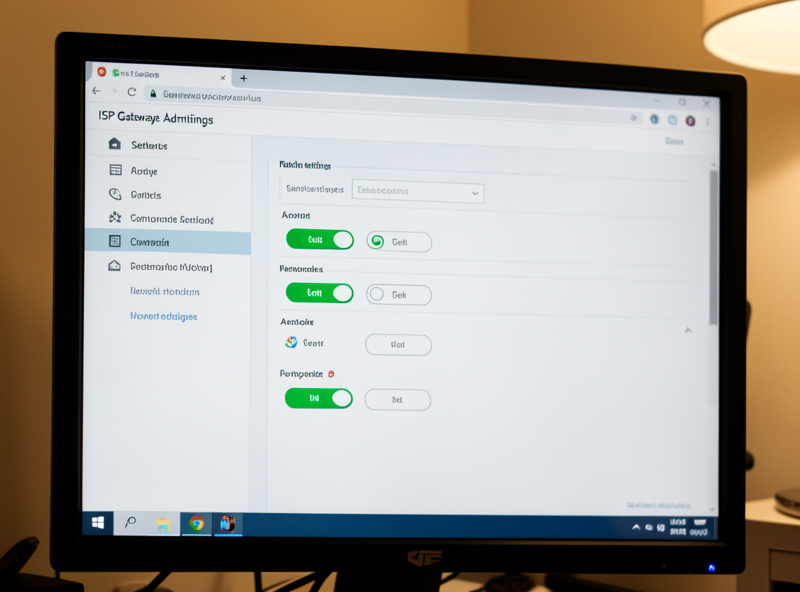
The general process is consistent across vendors: log into the ISP gateway’s admin page, find the bridge mode or IP passthrough setting (often under WAN, Internet, Gateway, or Advanced), enable it, supply PPPoE credentials on your own router if the connection needs them, and reboot both devices. Your router’s WAN should then show the public IP.
Step by step, the way I approach an unfamiliar gateway: first, log into the ISP box at its LAN address and locate the mode setting — it hides under different menus per vendor, so search the admin UI for “bridge,” “passthrough,” “modem mode,” or “exposed host.” Second, note whether your connection uses PPPoE (common on DSL and some fiber) — if so, you will need the username and password from the ISP, because once the box is bridged your router has to authenticate. Third, enable the mode and reboot the gateway, then reboot or renew the WAN on your own router. Fourth, verify: your router’s WAN interface should now display your public IP instead of a private one. Configure your firewall and DHCP on your router before you bridge, since the ISP box will stop handing out addresses. If you run OPNsense, the WAN setup and rule basics are in OPNsense firewall rules and the reachability guide.
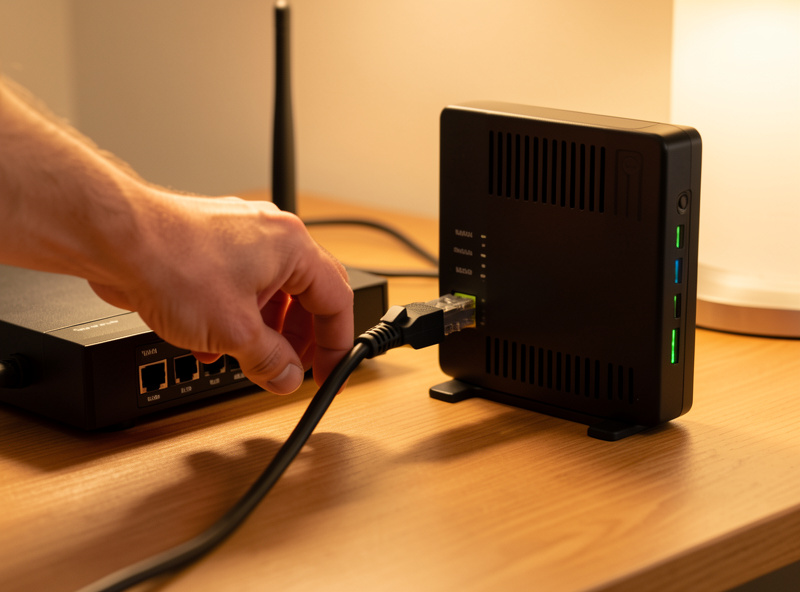
One distinction that trips people up: fiber connections often separate the optical network terminal (ONT) from the router. If your ISP gave you a standalone ONT plus a separate router, you may not need bridge mode at all — just connect your own router to the ONT directly and it pulls the public IP, since the ONT is already a media converter rather than a NAT router. It is only the all-in-one gateways (ONT, router, Wi-Fi in one box, common on cable and some fiber) that need bridging. Identify which you have before you start: a small box with a single LAN port feeding your router is usually an ONT; a multi-port unit doing Wi-Fi and DHCP is a gateway that needs bridge mode.
The Gotchas That Bite People
Bridging an ISP box has predictable side effects. It usually disables the gateway’s Wi-Fi, so you need your own access points. It can break ISP-provided VoIP or IPTV that depend on the gateway’s routing. Passthrough often locks to a single MAC address. And some gateways hide or omit the setting entirely, forcing a call to the ISP or a DMZ workaround.
The most common surprises, so none of them catch you out:
- Wi-Fi goes away. Bridge mode typically turns off the gateway’s wireless. Have your own access points ready — my home Wi-Fi setup guide covers a wired-back AP layout.
- VoIP and IPTV may break. If your phone or TV service is tied to the ISP gateway’s routing, bridging can kill it. Some units offer a partial mode that keeps those services while passing data through; check before you commit.
- Single-MAC lock. IP passthrough usually binds the public IP to one device’s MAC address — point it at your router’s WAN MAC, and remember to update it if you swap routers.
- Losing admin access. A fully bridged box may become hard to reach for management. Note its fallback admin address before bridging; many keep a private management IP like 192.168.100.1.
- The setting is hidden or absent. Some carrier firmware removes bridge mode entirely. Then your options are asking the ISP to enable it remotely, requesting a public IP outright, or falling back to DMZ — see how to get a static or public IP from your ISP.
If Bridging Doesn’t Give You a Public IP
If you enable bridge mode and your router’s WAN still shows a 100.64 address, the problem was never double NAT — it is CGNAT on the carrier side, and bridging cannot fix that. At that point you either get a public IP from the ISP or route around the carrier with an outbound tunnel that needs no inbound port at all.
This is the single most important sanity check after bridging: look at the WAN address. A real public IP means success — go test your forwards. A private 192.168/10 address means the box did not actually bridge, so revisit the mode setting. A 100.64.0.0/10 address means you have proven CGNAT, and the fix moves to beating CGNAT without a public IP with options like a Cloudflare Tunnel or WireGuard to a VPS. Either way, confirm the final result from outside your network using testing inbound reachability rather than trusting an in-LAN check.
Frequently Asked Questions
What is the difference between bridge mode and IP passthrough?
True bridge mode disables all routing on the ISP box so it becomes a plain modem and your router authenticates and pulls the public IP. IP passthrough keeps the modem terminating the line internally but hands the public IP to one device by MAC address. For reachability both give your router a public WAN IP and let port forwarding work.
Does bridge mode disable my ISP router’s Wi-Fi?
Usually yes. Putting the gateway into true bridge mode typically turns off its Wi-Fi along with its routing and DHCP, so you will need your own access points or router to provide wireless. Some units keep Wi-Fi in a partial mode, but you should plan for it to go away.
Will bridge mode fix CGNAT?
No. Bridge mode only removes the ISP box’s own NAT layer. If the connection itself is behind carrier-grade NAT, bridging simply passes the shared 100.64 address through to your router, which still cannot be port forwarded. Check your WAN IP after bridging to tell the difference.
Is DMZ the same as bridge mode?
No. DMZ keeps the ISP box doing NAT and just forwards all unsolicited inbound traffic to one internal IP, so double NAT technically remains and hairpin and some protocols stay unreliable. Bridge mode removes the NAT layer entirely and is the better choice whenever it is available.
Do I need PPPoE credentials for bridge mode?
Sometimes. If your connection uses PPPoE, common on DSL and some fiber, your router must authenticate after the gateway is bridged, so you need the username and password from your ISP. Connections that use plain DHCP on the WAN usually need no credentials.
What if my ISP gateway has no bridge mode option?
Some carrier firmware hides or omits it. Your options are to ask the ISP to enable bridge mode or a public IP remotely, request a static IP, or fall back to the gateway’s DMZ feature as a last resort. A DMZ leaves double NAT in place but at least directs inbound traffic to your router.
Related Guides
- CGNAT & Double NAT: How to Get Your Home Network Reachable
- Double NAT: What It Breaks, What It Doesn’t, and When to Care
- How to Tell If You’re Behind CGNAT and Why Your Port Forwards Silently Fail
- How to Get a Static or Public IP From Your ISP and the Alternatives
- Testing Inbound Reachability: Port Checks, Hairpin NAT, and What ‘Open’ Really Means