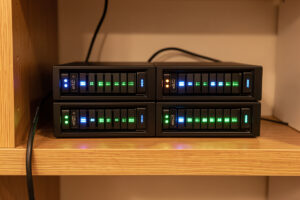
A modern NAS is not just network storage — it is a capable home server that runs apps, containers, and virtual machines, so the same box that holds your backups and media can also host Jellyfin, a photo library, and a dozen other services. On my network the NAS lives on its own segment and quietly does double duty: it is the storage every other machine depends on, and a service host in its own right.
If you already own or are planning a NAS, understanding it as a server — not just a hard-drive box — changes what you build. This guide covers when to run services on the NAS itself versus a separate machine, which apps belong there, and how to put it on the network safely. It builds on the storage fundamentals in the existing home NAS setup guide and fits into the broader self-hosting picture.
When the NAS Should Be Your Server
The appeal is obvious: one box, one power draw, storage and services together. For a lot of homes that is exactly right — a two- or four-bay NAS with a decent CPU and 8–16GB of RAM runs a media server, photo backup, and a handful of containers comfortably while still doing its storage job. If your goal is simplicity and your service needs are modest, the NAS as server is the cleanest possible setup.
Where it stops being ideal is heavy compute. A NAS CPU is tuned for storage efficiency, not for transcoding four 4K streams at once or running RAM-hungry machine learning. The honest dividing line: light, storage-adjacent services belong on the NAS; heavy compute belongs on a separate Proxmox box that mounts the NAS over the network for its data. Many homelabs, mine included, end up running both — the NAS as the storage and light-services layer, a separate host for the heavy lifting — because the two jobs genuinely want different hardware.
Which NAS Platform Runs Services Best
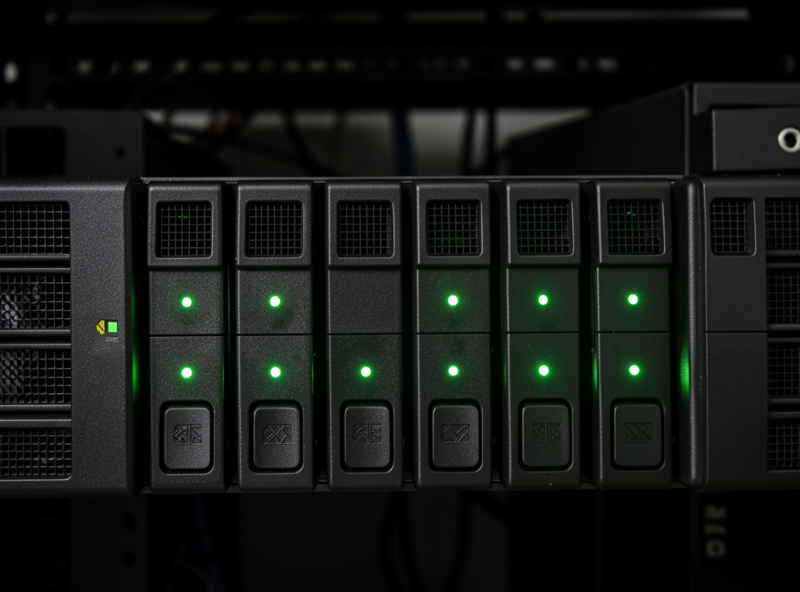
Not all NAS systems are equal as app hosts. Synology’s DSM has a polished app store and runs Docker on higher models, but its hardware is modest and locks you into its ecosystem. TrueNAS SCALE is built on Linux with first-class Docker and VM support, ideal for a DIY box. Unraid is the homelab favourite for mixing storage flexibility with easy container and VM hosting.
The choice depends on how much you want to tinker. Synology is the appliance — buy it, plug it in, use the app store, accept the limits. TrueNAS SCALE and Unraid turn a self-built box into a genuine server that happens to also do storage, with full Docker and virtualization. I cover the storage side of this decision in depth in TrueNAS vs Unraid vs Synology; for using the NAS as a server, the short version is below.
| Platform | App hosting | Hardware | Best for |
|---|---|---|---|
| Synology DSM | App store + Docker (higher models) | Prebuilt, modest CPU | Appliance simplicity |
| TrueNAS SCALE | Full Docker + VMs | DIY, your choice | Powerful self-built server |
| Unraid | Easy Docker + VMs | DIY, flexible drives | Mixed storage + services |
What to Run on the NAS
The services that belong on the NAS are the ones that live close to your data. A media server is the classic example — Jellyfin or Plex reading directly from the drives it streams, with no network hop for the files. Photo backup, file sync, and scheduled backup jobs all make sense here too, because the data they manage is already on the box.
A Jellyfin or Plex media server is the single best argument for running services on a NAS: the library and the server are the same machine, so there is no copying files around. Beyond media, a photo app like Immich, a sync tool, and the backup jobs that protect everything else are natural fits. What I keep off the NAS are the compute-heavy and the security-sensitive services — those go on the separate host. The principle is to let the NAS do storage-adjacent work and not turn your one irreplaceable data box into the thing most exposed to risk.
Putting the NAS on the Network Safely
The NAS holds the data you least want to lose, which makes how you place it on the network a security decision, not just a convenience one. In my setup the NAS sits on its own VLAN, reachable by the machines and services that genuinely need it through explicit firewall rules, and not casually exposed to the whole flat network — and never, ever, to the internet directly.
The reasoning runs through everything on this site: the NAS is the crown jewels, so it gets the tightest access control. Anything that needs its shares — a media client, a backup job, the Proxmox host using it for VM storage — is allowed through deliberately; everything else is denied by default. The IoT devices and the guest network have no path to it at all. The full pattern is in NAS network setup and the network segmentation guide. If you take one thing from this section: a NAS on a flat network shared with smart bulbs and guests is one compromised device away from a very bad day.
Storage Layout for a Server NAS
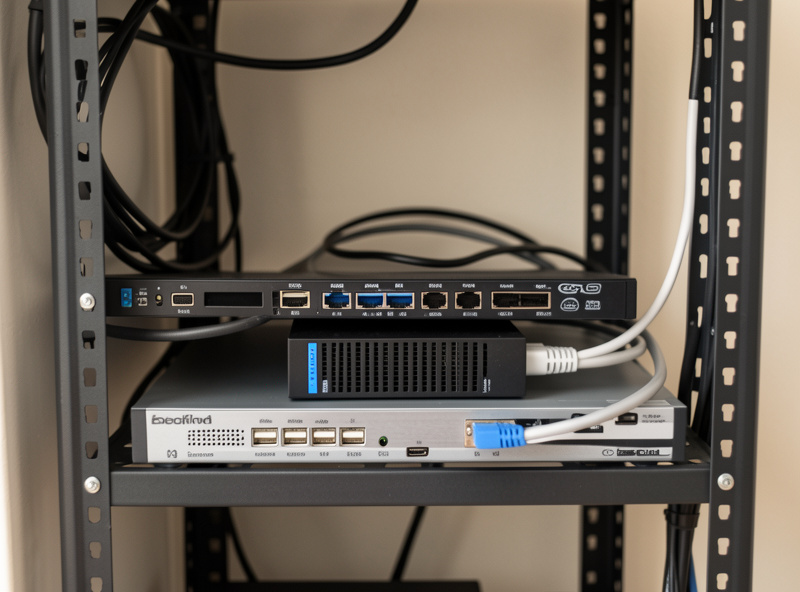
When the NAS is also a server, the storage layout has to serve two masters: bulk data that wants capacity, and app data that wants speed and resilience. The clean approach is a redundant pool for everything — at minimum a mirror so a single dead disk is a non-event — with app and container data on the fastest tier you can manage, ideally an SSD.
Spinning disks are fine for media and backups; databases and busy app data are happier on flash. Many server NAS builds add an SSD or NVMe for the apps and containers while the bulk media sits on a mirrored or parity array of larger drives. Whatever the layout, the rule that governs all of it does not bend: RAID survives a dead disk, it does not survive a deleted folder or a fire. The server NAS still needs its irreplaceable data backed up off the box and off-site. A NAS that hosts your services and your backups on the same unredundant disk is not a server, it is a single point of failure with extra features.
Power, Noise, and the Always-On Reality
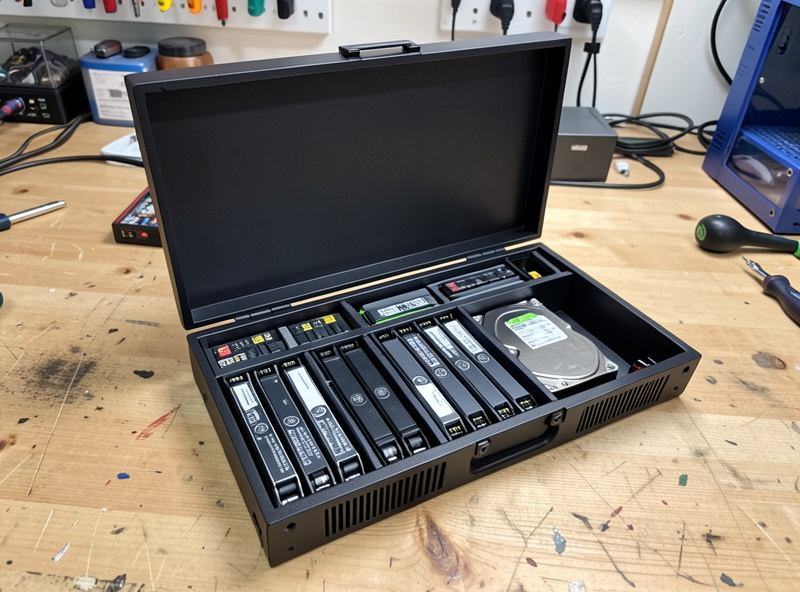
A NAS that is also a server runs around the clock, which makes power draw and noise real considerations rather than afterthoughts. A small two- or four-bay NAS typically draws somewhere in the range of 15–40 watts depending on the drives and the workload — a few dollars a month, and the price of having your data and services always available.
The two practical knobs are drives and CPU. Spinning disks add watts and heat versus SSDs; a power-hungry CPU you picked for transcoding will idle higher than a frugal one. I keep the always-on NAS deliberately modest and push the bursty heavy work to a host I can let sleep, because the NAS is the thing that genuinely cannot go down — backups, media, and shared storage all depend on it. Put it on a UPS so a brief power blip does not become a hard shutdown mid-write, give it airflow so the drives stay cool, and accept a little fan noise as the cost of a box that is always there. Treated that way, a server NAS is the quiet, dependable foundation the rest of the stack leans on.
Frequently Asked Questions
Can a NAS really run apps and not just store files?
Yes. Modern NAS systems like TrueNAS SCALE, Unraid, and higher-end Synology models run Docker containers and even virtual machines. The same box can host a media server, photo backup, and a dozen containers while doing its storage job, as long as the CPU and RAM are adequate.
Should I run services on my NAS or a separate server?
Run light, storage-adjacent services like media and backups on the NAS. Move heavy compute such as 4K transcoding or machine learning to a separate Proxmox host that mounts the NAS for data. Many homelabs run both, since storage and compute want different hardware.
Which NAS platform is best for hosting Docker apps?
TrueNAS SCALE and Unraid are the strongest for app hosting, with full Docker and VM support on DIY hardware. Synology DSM runs Docker on its higher models but with more modest CPUs. Choose based on how much you want to build versus buy an appliance.
Is it safe to put a NAS on my main network?
Put it on its own VLAN with explicit firewall rules instead of a flat network. The NAS holds your most irreplaceable data, so only the devices and services that genuinely need its shares should reach it. IoT and guest devices should have no path to it, and never expose it to the internet.
Does a NAS replace the need for backups?
No. A NAS with RAID survives a single dead disk, but RAID is not backup. It does not protect against deleted files, ransomware, or fire. Keep at least one copy of irreplaceable data on a different machine and ideally off-site, even with a redundant NAS.
How much RAM does a NAS need to run services?
For a media server and a few containers, 8 to 16GB is comfortable. ZFS-based systems like TrueNAS love RAM, and adding photo machine learning or several VMs pushes you toward 32GB. Light service NAS builds run fine on less; heavier ones reward more memory.
Related Guides
- Self-Hosting Guide: Run Your Own Homelab Services
- Jellyfin vs Plex: Which Home Media Server to Run
- TrueNAS vs Unraid vs Synology
- Proxmox Homelab Setup Guide
- NAS Network Setup: Static IP, Shares, and VLAN Placement
- RAID Levels Explained