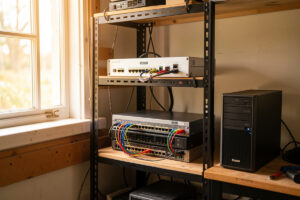
A self-hosted personal cloud is the set of apps — files, photos, passwords, documents, notes, calendar — you run on your own hardware instead of renting from Google or Apple. My stack runs across LXC containers on one Proxmox host in well under 16 GB of RAM, and the only monthly bill is the electricity.
The reason most people never do this is that “the cloud” got sold as a place rather than a category. It is just someone else’s computer running the same software you could run yourself, plus a terms-of-service document you did not read. Once you accept that Google Photos, Google Drive, Bitwarden’s paid tier, and Google Calendar are four separate problems with four separate open-source replacements, the whole thing stops being intimidating and starts being a weekend project that compounds for years.
The stake is real, and it is not abstract privacy philosophy. I have watched a cloud photo service change its pricing tier mid-contract and a note-taking app get acquired and gutted. When the app lives on a box in my rack, no acquisition, no quota, and no deprecation notice takes my data with it. This guide is the map I wish I had when I started migrating off hosted services — what each app does, how heavy it is, where it sits on the network, and the order I would build it in today.
What Does a Self-Hosted Personal Cloud Actually Replace?
It replaces the siloed consumer services you pay for or trade data for, one app at a time. The honest count for a typical household is six to eight services: file sync, photo backup, a password vault, a document archive, a notes app, calendar and contacts, read-it-later bookmarks, and maybe media. Each has at least one mature open-source equivalent that speaks a standard protocol, so you are not locked into a hobby fork that dies in a year.
The mental shift is that you stop shopping for “one cloud” and start picking best-of-breed per category. Nextcloud is not the same kind of thing as Immich; one is a file-and-everything platform, the other is a dedicated photo library with machine-learning search. Treating them as competitors is how people end up with a bloated Nextcloud install they hate, when what they wanted was a fast photo library and a separate, lighter file sync. I run both, on purpose, because they solve different problems.
What ties them together is not a single product — it is the platform underneath. Every one of these apps is just a container or a VM on the Proxmox host, sitting behind the same reverse proxy, using the same TLS certificates, reachable through the same WireGuard tunnel, backed up to the same NAS. Build that substrate once and each new app is a fifteen-minute addition, not a fresh infrastructure project.
Why Host Your Own Cloud Instead of Paying Google or Apple?
Because the math flips at the point where you already own a always-on box. A basic cloud storage subscription runs roughly $20 to $30 per year for a few hundred gigabytes; a photo service with real capacity runs more; a family password manager is another $40. Add the note app, the document archive, and calendar, and a household is easily past $150 a year for things that a $200 mini PC will run indefinitely.
The break-even is fast, but the real reasons I self-host are not the money. The first is data continuity. A self-hosted Immich library does not get re-tiered when a bean-counter decides photos should subsidize another product. The second is control over metadata: my photo library does not phone home with location clusters, and my search history for documents stays on my LAN. The third is integration — when my document archive, my notes, and my file sync all live on the same host, I can back them up with one script and restore them with one command.
The honest counter-argument is maintenance. You are now the on-call engineer for your own data, and a broken update at the wrong time can mean a morning of recovery. I accept that trade because I enjoy it and because the Proxmox host I build on makes snapshots cheap — a bad container update is a thirty-second rollback, not a disaster. If you would rather never think about infrastructure, the hosted services are a fine deal. This guide is for people who would rather think about it once and then own the result.
The Stack You Need Before the First App
Before any personal-cloud app is useful, four things have to exist: a host to run containers, a reverse proxy with real TLS, a way in from outside that is not a port forward, and a backup target. Skip any of these and the first app you install will be the one that teaches you why it mattered. I built them in this order and I would build them in this order again.
The host is a Proxmox VE box — a Debian-based hypervisor that runs both full VMs and lightweight LXC containers. LXC is the secret weapon here: a Nextcloud or Vaultwarden in an LXC container uses effectively the host kernel with almost none of the overhead of a full VM, so a modest machine carries a surprising number of services. The Proxmox homelab setup guide walks through the base install; once it is up, each personal-cloud app is a container and a few config files.
The reverse proxy is what gives every app a clean HTTPS hostname instead of an ugly port number. I run Caddy in front of the stack because its automatic Let’s Encrypt provisioning is genuinely zero-config for a public domain, but Traefik and Nginx Proxy Manager are both fine choices — the Caddy vs Traefik vs Nginx Proxy Manager comparison lays out the tradeoffs. For services that stay internal, a wildcard cert via DNS-01 is the clean path; the Let’s Encrypt wildcard with DNS-01 guide covers it, and the internal HTTPS certificates guide covers the fully-internal CA route for apps you never intend to expose.
The way in is WireGuard, not a port forward. Punching 443 through to your home IP advertises a service to the entire internet and, behind most ISPs now, is not even possible because of carrier-grade NAT. WireGuard gives every device a private IP on your network and routes traffic through an encrypted tunnel; the home VPN and remote access guide and the WireGuard vs OpenVPN comparison cover the why. Tailscale is the easier overlay if you do not want to run your own endpoint, and the Tailscale and Headscale setup guide explains when I reach for it.
The backup target is a NAS on its own segment. Every personal-cloud app’s data directory gets snapshotted and pushed to the NAS on a schedule, and the NAS itself replicates offsite. The NAS as a home server guide covers turning storage into a service host. A self-hosted cloud without backups is just a more fragile version of the hosted one — the difference is that with hosted, someone else might lose your data, and self-hosted without backups, you definitely will.
How Much Hardware Does a Personal Cloud Actually Need?
Less than the influencer builds suggest. A four-core Intel N100-class mini PC with 16 GB of RAM and a couple of SSDs runs the entire personal cloud stack I describe here, with headroom. The mistake is sizing the box for the apps’ idle draw instead of for the one app that spikes — and that app is almost always the photo library doing face recognition on a bulk upload.
Here is the rough footprint I measure on my host. Vaultwarden idles under 50 MB of RAM — it is a single Rust binary. Radicale, the calendar server, is similar. Linkding is a small Django app, well under 200 MB. Nextcloud is the hog of the file-sync world: with PHP-FPM, MariaDB, and Redis for caching, a quiet instance still sits around 1.5 to 2 GB. Paperless-ngx with Tesseract OCR active will grab a gigabyte and a half and pin a core while it reads a stack of scanned PDFs. Immich is the one that scales with use: the machine-learning container for face and object detection wants 2 to 4 GB on its own and benefits from a GPU, though it runs on CPU if you are patient.
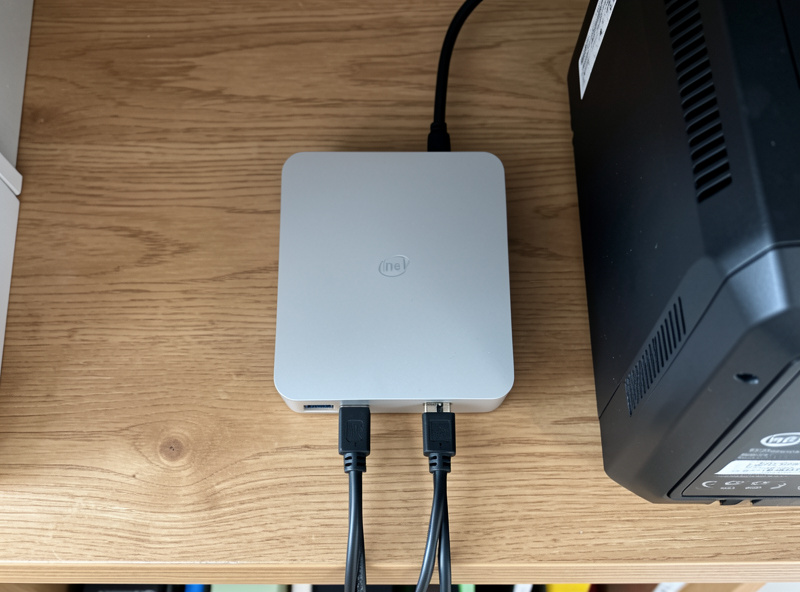
Storage is the dimension people underbuy. Photos and documents are small individually and enormous in aggregate; a family photo library passes a terabyte faster than you expect, and once Immich is generating thumbnails and encoded video previews, you want that on SSD or at least on fast spinning disk. My rule is to put the app containers and databases on SSD and put the bulky media libraries on the NAS over a wired link. An Intel N100 mini PC with 16 GB of RAM is the sweet-spot host I keep recommending to people starting out — fanless and silent on the shelf save for the green blink of the NIC link light when a sync kicks off, idle draw under 15 watts, and it carries the whole stack without complaining.
As an Amazon Associate I earn from qualifying purchases.
File Sync: Nextcloud vs Seafile vs OwnCloud
Nextcloud is the do-everything PHP platform, Seafile is the fast, purpose-built sync engine, and OwnCloud Infinite Scale is the lighter Go rewrite of the original OwnCloud. For pure file sync speed on large files, Seafile wins because it chunks files into blocks and syncs only what changed; for an all-in-one hub with calendars and tasks baked in, Nextcloud wins on breadth; oCIS wins on footprint if you want the OwnCloud lineage without the PHP weight.
In my stack I run Nextcloud because the breadth matters to me — it doubles as a share target and a lightweight collaboration surface — but I am honest about its sync performance. Nextcloud syncs whole files, so a 2 GB database dump re-uploads in full every time it changes, where Seafile would push a few megabytes of diffed blocks. If your use is “I want Dropbox-style sync and nothing else,” Seafile is the better engineering choice and runs lighter. OwnCloud’s oCIS is the one to watch if you found old OwnCloud slow; the Go rewrite boots in seconds and uses a fraction of the RAM. The full head-to-head, including the database choices that actually determine speed, is in my Nextcloud vs Seafile vs OwnCloud comparison.
Photos: Immich as a Google Photos Replacement
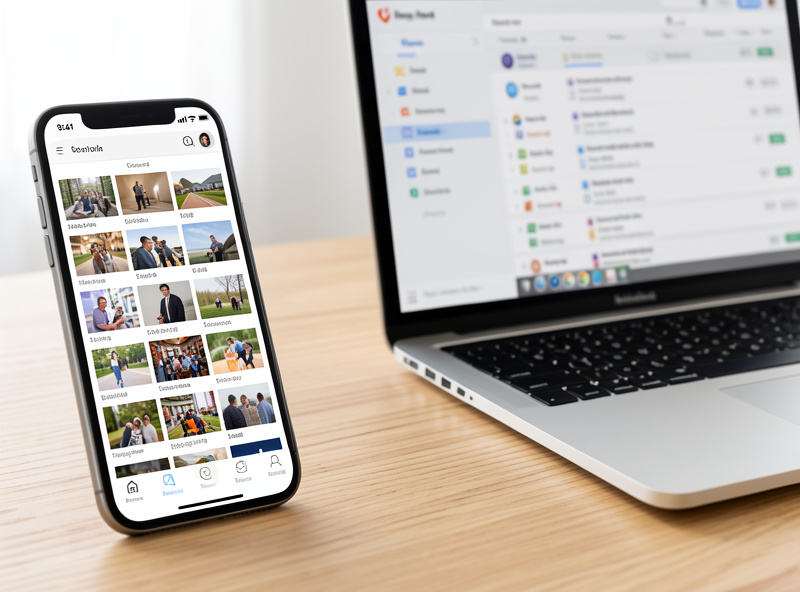
Immich is the self-hosted photo library that finally matches Google Photos on the features people actually miss — timeline, face grouping, map view, and smart search — and it is the single app most worth sizing your hardware for. It is a portfolio of containers: a web server, a mobile app that does background upload, and a machine-learning container that does the face and object detection that makes search feel magical.
The thing I learned migrating a decade of photos into it is that the ML container is the bottleneck, not storage. A first-time ingest of 60,000 photos will pin the CPU for hours while it extracts faces and CLIP embeddings for search; once the backlog is clear, day-to-day is instant. I run the stack with the library on the NAS and the database and thumbnails on SSD, and the mobile app uploads photos the moment I take them, exactly like the service it replaces. There is real honesty required here: Immich moves fast and breaks things, and I pin to a specific version and read release notes before updating. The full setup, including the storage split that keeps it fast, is in my Immich self-hosted photos guide.
Passwords: A Self-Hosted Vault With Vaultwarden
Vaultwarden is an unofficial, Rust-based server that speaks the Bitwarden API, which means the official Bitwarden apps on every platform connect to it unmodified and you get a self-hosted password vault that costs nothing and idles at trivial memory. It is the single highest-value app in the personal cloud stack, and also the one that demands the most discipline about exposure.
The official Bitwarden server is a Docker Compose stack of half a dozen containers including Microsoft SQL Server — fine for an enterprise, absurd for a household. Vaultwarden collapses all of that into one binary that runs happily in a 512 MB LXC container with a SQLite database, or PostgreSQL if you want it. The trade-off is the security model: this box holds the encrypted blobs that protect every account you own, so it does not get exposed to the open internet on a hostname a crawler can find. Mine lives on the management segment, reachable through WireGuard, with a real Let’s Encrypt cert so the mobile clients do not complain. The setup, including the deploy script and the firewall rules I put in front of it, is in the Vaultwarden self-hosted password manager guide.
Documents: Paperless-ngx for the Paper You Actually Keep
Paperless-ngx is a document archive that watches a folder, OCRs everything that lands in it with Tesseract, tags and indexes it, and gives you a search box over years of receipts, manuals, and tax documents. It is the app that turns a shoebox of paper into a queryable library, and it is the one my non-technical household members actually use unprompted.
The workflow that made it stick here is a consume folder on the NAS. The scanner drops PDFs into it; Paperless-ngx picks them up, runs OCR across a dozen languages, applies machine-learning document type classification, and files them. The mistake I made early was letting the default retention eat documents I wanted to keep in their original folder structure — Paperless wants to ingest and move, not mirror, so I learned to keep a parallel archive on the NAS for anything I want verbatim. Storage stays modest because documents are small; the real cost is the OCR pass on a bulk import, which is CPU-bound and transient. The full setup, including the classification rules and the backup pattern, is in my Paperless-ngx document management guide.
Notes: Joplin Server vs Obsidian Sync vs Trilium
Joplin Server is the self-hostable sync backend for the open-source Joplin note client, Obsidian Sync is the official paid sync service for Obsidian (with self-hosted workarounds via Git or Syncthing rather than a real server), and Trilium is a self-hosted hierarchical notes platform with its own editor. They answer slightly different questions, and which one wins depends on whether you care about the client, the sync model, or the knowledge-graph features.
I land on Joplin Server for most people because it is the cleanest self-hosted story: you run the server, the Joplin clients on desktop and mobile sync to it end-to-end encrypted, and there is no vendor in the middle. Obsidian is the better editor if you live in Markdown and plugins, but its first-party sync is a paid hosted product, and the self-hosted path is really “sync the vault as files” rather than a real server — which works but is rougher. Trilium is the odd one: it is a server-first app with a tree structure and scriptable notes that some people swear by for building a personal wiki, but the editor is more idiosyncratic. The tradeoffs, including the encryption story for each, are in the self-hosted notes app comparison.
Calendar and Contacts on Your Own Server
Radicale and Baïkal are both CalDAV/CardDAV servers, which means they speak the standard protocols (RFC 4791 for calendars, RFC 6352 for contacts) that every phone and desktop calendar already understands — so you point your phone at your server and your existing calendar app just works, no Google account required. Radicale is the lighter of the two; Baïkal has a friendlier web UI.
This is the most boring app in the stack and the one that delivers the most daily value, because calendar and contact sync is the thing that quietly chains you to a big-vendor account. Radicale is a Python server with almost no moving parts — it stores calendars and address books as plain files on disk, which makes backup trivial and recovery a file copy. Baïkal is PHP-based with a proper admin interface and a database backend, which is nicer to manage if you want a GUI but heavier for the same job. I run Radicale because a calendar server that is just files on disk is exactly the kind of thing I want to be able to restore in five minutes. The setup, including the native iOS and Android client configuration, is in the self-hosted calendar and contacts CalDAV guide.
Bookmarks and Read-It-Later: Linkding and Wallabag
Linkding is a lightweight, self-hosted bookmark manager and Wallabag is a self-hosted read-it-later service that fetches and stores article text for offline reading — the open-source equivalents of Pinboard and Pocket. They are the smallest apps in the stack and the easiest to run, and together they retire two more third-party accounts.
The distinction matters: Linkding is about keeping a URL with tags and a search box, full stop, and it does that in a tiny Django footprint. Wallabag is about the article body — it fetches the page, extracts the readable text, and saves it so you can read it later without the paywall dance or the tracking. I run both because they are different jobs; a bookmark is a pointer and a read-it-later entry is the content itself. Wallabag is the heavier of the two because it runs a PHP Symfony stack and a fetcher that pulls down web pages, but it is still modest by Nextcloud standards. The setup for both, including the browser extensions that make them usable, is in the self-hosted read-it-later bookmarks guide.
How the Apps Compare at a Glance
The table below is the sizing cheat-sheet I wish I had when I was picking containers. Footprint is idle RAM including the database; the storage model column is what actually determines your backup strategy, because an app that stores plain files is trivially backed up and an app that stores blocks or blobs needs its database treated as part of the backup.
| App | Replaces | Footprint (idle) | Storage model | Worth knowing |
|---|---|---|---|---|
| Nextcloud | Google Drive / iCloud Drive | Heavy — 1.5 to 2 GB | Files on filesystem, metadata in DB | Do-everything hub; whole-file sync is slower than Seafile |
| Seafile | Dropbox / Drive sync | Medium — under 1 GB | Block-level chunks in its own format | Fastest sync of the three; no app ecosystem |
| Immich | Google Photos | Heavy — 3 to 6 GB with ML | Asset library, thumbnails, DB | Face search and maps; wants RAM, ideally a GPU |
| Vaultwarden | 1Password / Bitwarden paid | Tiny — under 100 MB | SQLite by default | Bitwarden clients work unmodified; keep it private |
| Paperless-ngx | Evernote / paper shoebox | Medium — around 1.5 GB | Document store, index in DB | Tesseract OCR; watches a consume folder |
| Radicale / Baïkal | Google Calendar / Contacts | Tiny — under 200 MB | Calendar and contact files | CalDAV/CardDAV; works with native phone apps |
| Linkding / Wallabag | Pocket / Pinboard | Tiny to medium | Bookmark and article store | Linkding is bare bookmarks; Wallabag fetches article text |
Where These Apps Live on My Network
Every one of these apps sits on the LAB segment of my network, behind the OPNsense firewall, with inter-VLAN traffic default-deny and an explicit allow-list. The personal cloud is a services tier, not a thing I scatter across whatever subnet is handy, because the backup, DNS, and exposure rules are all the same for each app and I want them governed in one place.
The topology I run is deliberately boring. The Proxmox host is on the management segment. The app containers pull addresses from a dedicated DHCP scope on the LAB VLAN, and the reverse proxy on the same segment terminates TLS for all of them. The NAS is on its own storage segment, and the app containers mount their data directories over NFS or SMB through a firewall rule that permits only the LAB-to-storage path. The IoT VLAN, the kids’ gaming segment, and the workshop sensor network are all separate trust zones that have no route to the personal cloud at all unless I have allowed it — the hydro lab, the welder-bench sensors, and the kids’ consoles are three different problems on the same router, and none of them need to reach my password vault.
DNS is the glue that makes this usable. I run Pi-hole and AdGuard Home redundantly so the network does not fall over when one updates, with local DNS records that map friendly hostnames to the reverse proxy. The Pi-hole setup guide and the AdGuard Home vs Pi-hole comparison cover that layer. Inside the network, the apps resolve by name; outside, WireGuard gives a device the same DNS view so the same hostnames work from a phone on cellular — which is the whole point of doing this yourself.
Reaching Your Cloud From Outside: WireGuard Over Exposed Ports
The rule I run on OPNsense is that no personal-cloud port is forwarded to the internet, period. Every app is reachable from outside over WireGuard, which means a phone on cellular gets a private address on my LAN and talks to the reverse proxy as if it were sitting in the house. This is safer than port-forwarding 443 and, behind most ISPs, it is the only thing that works anyway because of carrier-grade NAT.
The mistake I made once — and will not repeat — was exposing Vaultwarden directly on 443 with a self-signed certificate to get around a client warning. Within a week the mobile app was logging me out intermittently because the cert chain was wrong, and I was advertising a login surface to every scanner on the internet for no benefit. Behind WireGuard, with a real Let’s Encrypt cert, it just works and the attack surface is zero. If you are behind CGNAT and cannot even run a WireGuard endpoint, a tunnel overlay like Tailscale is the answer; the beating CGNAT without a public IP guide walks through the options. The principle is the same either way: the apps are private, and the only door in is a key only your devices hold.

Keeping It Running: Monitoring and Backups
A self-hosted cloud you cannot see is a self-hosted cloud you will find broken at the wrong moment. I run a lightweight monitoring stack — Grafana with InfluxDB and Telegraf — that watches container CPU, memory, and disk, and the OPNsense dashboards cover the network side. The Grafana, InfluxDB and Telegraf homelab guide covers the setup. The goal is not enterprise observability; it is a single dashboard that tells me, at a glance, whether Immich finished its overnight ML pass and whether the NAS still has headroom.
Backups are the non-negotiable. Every container’s data directory is on a ZFS dataset that snapshots on a schedule, and the snapshots replicate to the NAS, and the NAS replicates offsite. A bad update to any app is a rollback to the previous snapshot; a dead host is a restore from the NAS. The UPS that rides under all of this matters more than people expect — a clean shutdown during a power cut is the difference between a clean restart and a corrupted database, and the integration is covered in the Proxmox UPS guide. The only feeling worse than a service going down is a service going down hard with unsynced data, and that feeling is entirely optional.
What I’d Do Starting Today
If I were starting from a blank Proxmox host this afternoon, I would build the substrate first — reverse proxy with automatic TLS, WireGuard for access, a NAS backup target — and then I would install apps in this order: Vaultwarden first, because it is tiny and immediately useful and it secures every other account I am about to create; then Radicale for calendar and contacts, because it is two files and retires a big-vendor account in an hour; then Immich, because the first bulk photo ingest is the long pole and I want it running overnight while I set up the rest; then Nextcloud or Seafile for files; then Paperless-ngx, Linkding, Wallabag, and the notes app as the backlog clears.
The order is not arbitrary. The tiny, high-value apps build confidence and retire accounts fast; the heavy photo library goes early so its overnight ingest runs while you do other things; the document and notes apps last because their value compounds slowly and they are no fun to set up tired. Two weekends gets the whole stack running, and after that it is just maintenance — snapshots, the occasional update, and the quiet satisfaction of a photo library that no one can reprice out from under you. That is the whole point: the cloud becomes a thing you own, on a box you control, behind a firewall you wrote the rules for.
How much RAM do I need to self-host a personal cloud?
A 16 GB mini PC runs the full stack with headroom. The light apps like Vaultwarden and Radicale idle under 200 MB each, Nextcloud and Paperless-ngx sit around 1.5 to 2 GB, and Immich with its machine-learning container is the heaviest at 3 to 6 GB during face detection.
Do I need a public IP address to self-host?
No. Run WireGuard and reach every app through an encrypted tunnel from your devices. If you are behind carrier-grade NAT and cannot host a WireGuard endpoint, use an overlay like Tailscale. No personal-cloud app needs a port forwarded to the open internet.
Is Vaultwarden as secure as Bitwarden?
Vaultwarden speaks the Bitwarden API and the official Bitwarden clients connect unmodified, so the client-side encryption is identical. The difference is operational: you are responsible for keeping the server patched, backed up, and private behind WireGuard rather than exposed on a public hostname.
Can I migrate my photos out of Google Photos into Immich?
Yes. Use Google Takeout to export your library, then use Immich’s bulk upload CLI or the mobile app to ingest the archive. The first pass runs machine-learning face and object detection on every photo, which is CPU-bound and takes hours for a large library.
Will my phone calendar work with a self-hosted CalDAV server?
Yes. iOS and Android both support CalDAV and CardDAV natively. Add the server account in your phone settings and your existing calendar and contacts apps sync to your own server instead of a vendor cloud, with no new app required.
Related Articles
- Proxmox Homelab Setup Guide: Build a Self-Hosting Platform
- Reverse Proxy Setup: Nginx Proxy Manager vs Traefik
- Home VPN and Remote Access: The Complete Guide
- NAS as a Home Server: Turning Storage Into a Service Host
- Jellyfin vs Plex: Which Home Media Server to Run